



Question: Project 8-A: Working with Linux Files and Directories Topics: Ownership, Times, Access Permissions, umask, Special Permissions Setup: Access the CentOS7 Server VM with your student
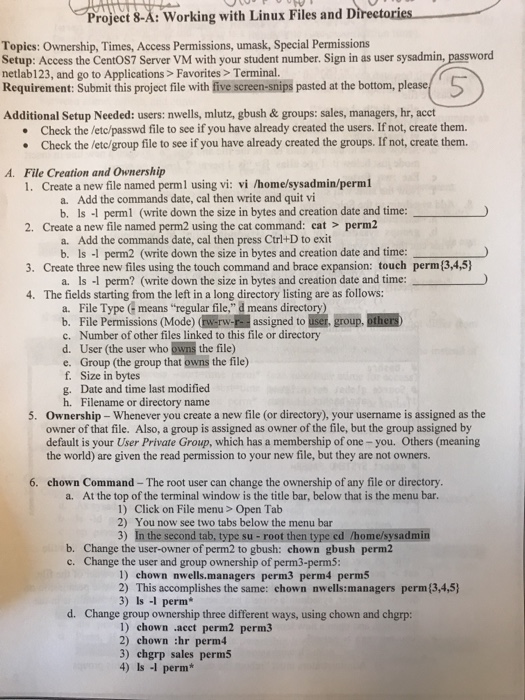
Project 8-A: Working with Linux Files and Directories Topics: Ownership, Times, Access Permissions, umask, Special Permissions Setup: Access the CentOS7 Server VM with your student number. Sign in as user sysadmin, password netlab123, and go to Applications> Favorites >Terminal Requirement: Submit this project file with five screen-snips pasted at the bottom, please Additional Setup Needed: users: nwells, mlutz, gbush & groups: sales, managers, hr, acct .Check the /etc/passwd file to see if you have already created the users. If not, create them. .Check the lete/group file to see if you have already created the groups. If not, create them. File Creation and Ownership 1. Create a new file named perml using vi: vi /home/sysadmin/perml A. a. Add the commands date, cal then write and quit vi b. Is - perml (write down the size in bytes and creation date and time: 2. Create a new file named perm2 using the cat command: cat> perm2 Add the commands date, cal then press Ctrl+D to exit a. b. Is -1 perm2 (write down the size in bytes and creation date and time: 3. Create three new files using the touch command and brace expansion: touch perm(3,4,5) a. Is -l perm? (write down the size in bytes and creation date and time: 4. The fields starting from the left in a long directory listing are as follows: a. File Type means "regular file," d means directory) b. File Permissions (Mode) assigned to user. group, others c. Number of other files linked to this file or directory d. User (the user who owns the file) e. Group (the group that owns the file) f. Size in bytes g. Date and time last modified h. Filename or directory name 5. Ownership- Whenever you create a new file (or directory), your username is assigned as the owner of that file. Also, a group is assigned as owner of the file, but the group assigned by default is your User Private Group, which has a membership of one-you. Others (meaning the world) are given the read permission to your new file, but they are not owners. 6. chown Command-The root user can change the ownership of any file or directory a. At the top of the terminal window is the title bar, below that is the menu bar. 1) Click on File menu> Open Tab You now see two tabs below the menu bar 2) 3) inthe second tab, type su-root then type cd /home/sysadmin b. Change the user-owner of perm2 to gbush: chown gbush perm2 c. Change the user and group ownership of perm3-perm? 1) chown nwells.managers perm3 perm4 perm5 2) This accomplishes the same: chown nwells:managers perm (3,4,5 3) Is -1 perm* d. Change group ownership three different ways, using chown and chgrp: 1) chown .acct perm2 perm3 2) chown thr perm4 3) chgrp sales perm5 4) Is I perm*
Step by Step Solution
There are 3 Steps involved in it

Get step-by-step solutions from verified subject matter experts