







Question: Project Schedule Instructions The Youtube tutorials below will help with the MS Project Schedule. Be sure to load the entire WBS with predecessors, resources and
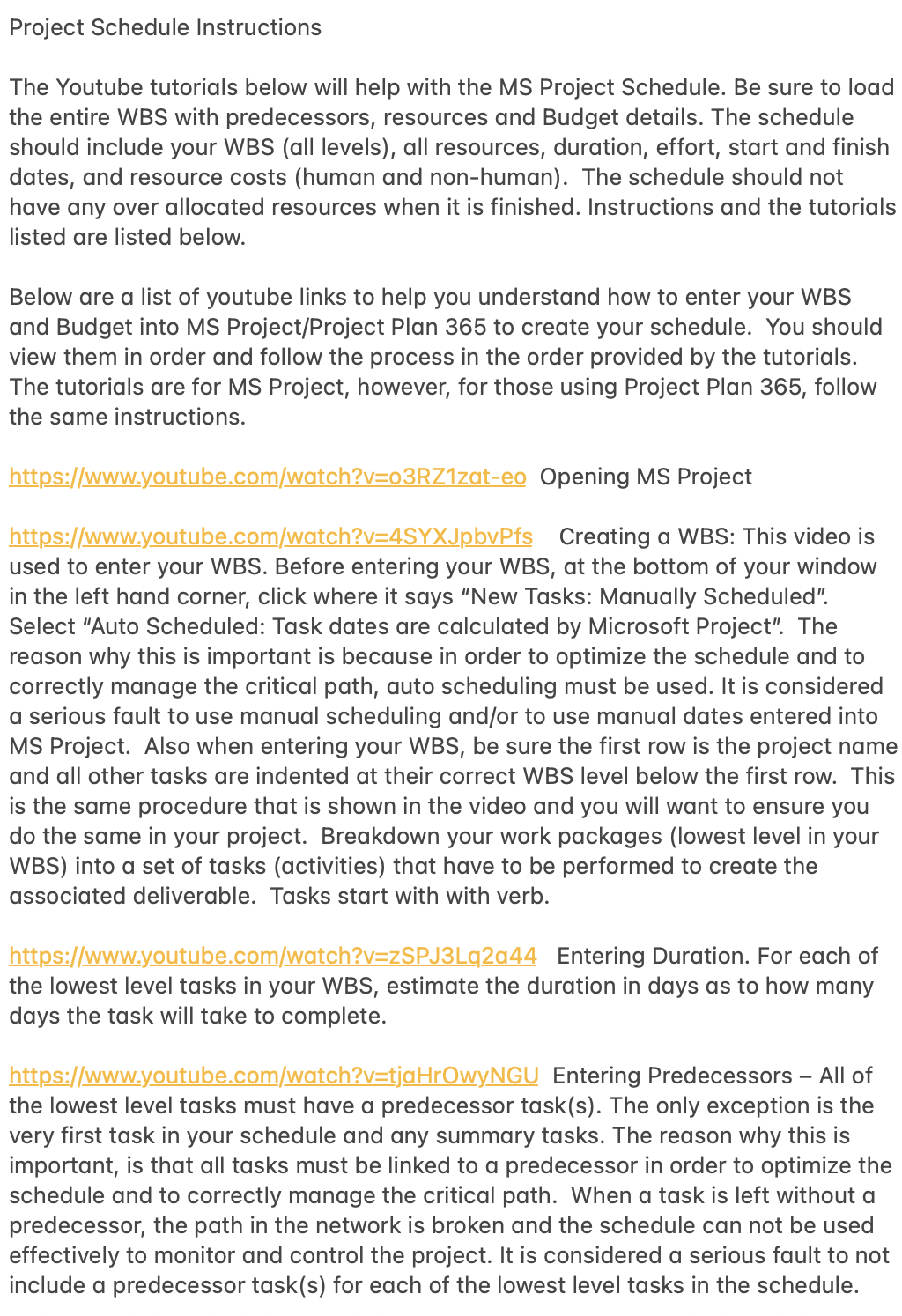
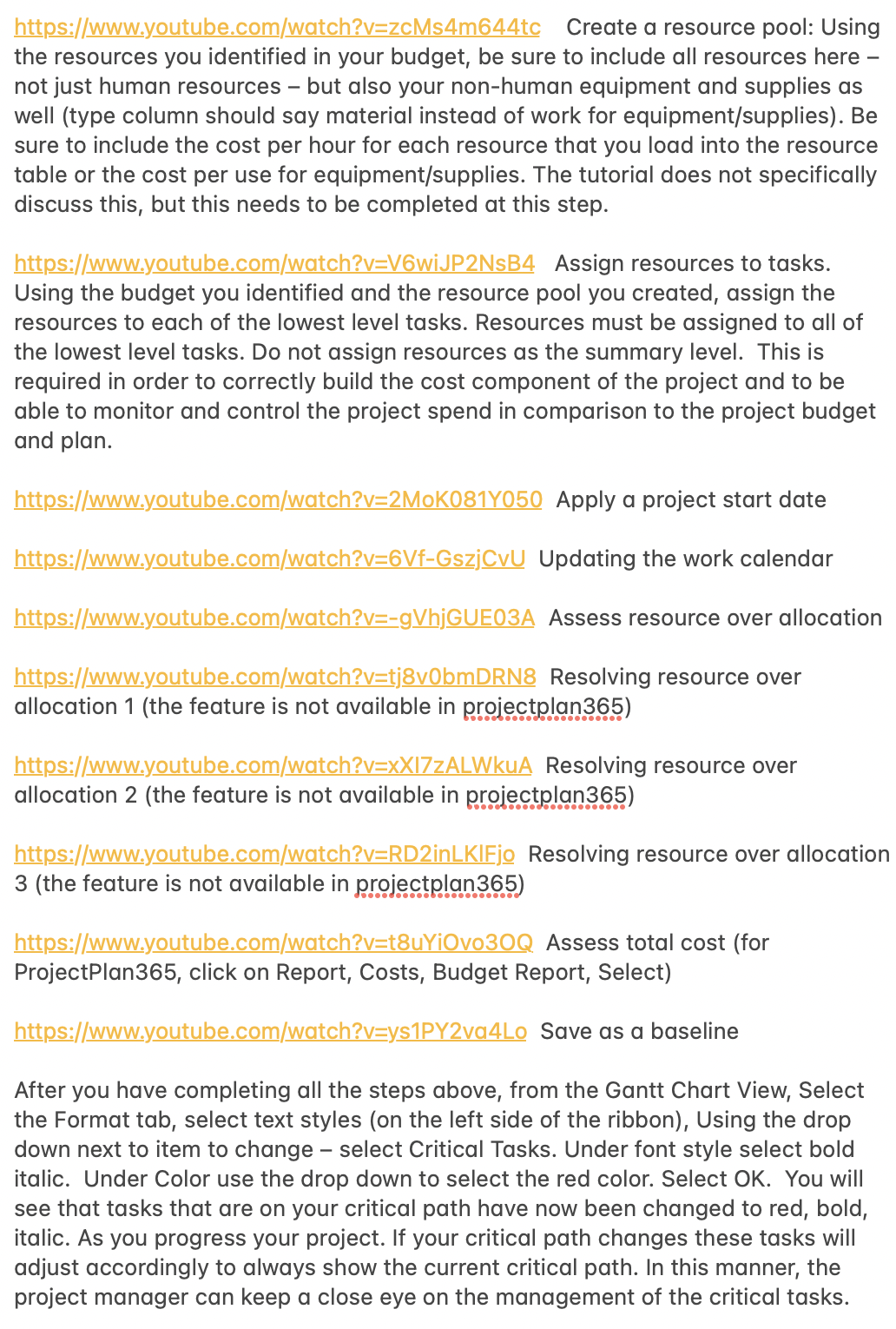
Project Schedule Instructions The Youtube tutorials below will help with the MS Project Schedule. Be sure to load the entire WBS with predecessors, resources and Budget details. The schedule should include your WBS (all levels), all resources, duration, effort, start and finish dates, and resource costs (human and non-human). The schedule should not have any over allocated resources when it is finished. Instructions and the tutorials listed are listed below. Below are a list of youtube links to help you understand how to enter your WBS and Budget into MS Project/Project Plan 365 to create your schedule. You should view them in order and follow the process in the order provided by the tutorials. The tutorials are for MS Project, however, for those using Project Plan 365, follow the same instructions. Opening MS Project Creating a WBS: This video is used to enter your WBS. Before entering your WBS, at the bottom of your window in the left hand corner, click where it says "New Tasks: Manually Scheduled". Select "Auto Scheduled: Task dates are calculated by Microsoft Project". The reason why this is important is because in order to optimize the schedule and to correctly manage the critical path, auto scheduling must be used. It is considered a serious fault to use manual scheduling and/or to use manual dates entered into MS Project. Also when entering your WBS, be sure the first row is the project name and all other tasks are indented at their correct WBS level below the first row. This is the same procedure that is shown in the video and you will want to ensure you do the same in your project. Breakdown your work packages (lowest level in your WBS) into a set of tasks (activities) that have to be performed to create the associated deliverable. Tasks start with with verb. Entering Duration. For each of the lowest level tasks in your WBS, estimate the duration in days as to how many days the task will take to complete. Entering Predecessors All of the lowest level tasks must have a predecessor task(s). The only exception is the very first task in your schedule and any summary tasks. The reason why this is important, is that all tasks must be linked to a predecessor in order to optimize the schedule and to correctly manage the critical path. When a task is left without a predecessor, the path in the network is broken and the schedule can not be used effectively to monitor and control the project. It is considered a serious fault to not include a predecessor task(s) for each of the lowest level tasks in the schedule. Create a resource pool: Using the resources you identified in your budget, be sure to include all resources here not just human resources but also your non-human equipment and supplies as well (type column should say material instead of work for equipment/supplies). Be sure to include the cost per hour for each resource that you load into the resource table or the cost per use for equipment/supplies. The tutorial does not specifically discuss this, but this needs to be completed at this step. Assign resources to tasks. Using the budget you identified and the resource pool you created, assign the resources to each of the lowest level tasks. Resources must be assigned to all of the lowest level tasks. Do not assign resources as the summary level. This is required in order to correctly build the cost component of the project and to be able to monitor and control the project spend in comparison to the project budget and plan. Apply a project start date Updating the work calendar Assess resource over allocation Resolving resource over allocation 1 (the feature is not available in pro'ectplan365) .0. 0... 0.0.0000... Resolving resource over allocation 2 (the feature is not available in prp'eoctnlgnggg) Resolving resource over allocation 3 (the feature is not available in pro'ectplg..) Assess total cost (for ProjectPlan365, click on Report, Costs, Budget Report, Select) Save as a baseline After you have completing all the steps above, from the Gantt Chart View, Select the Format tab, select text styles (on the left side of the ribbon), Using the drop down next to item to change select Critical Tasks. Under font style select bold italic. Under Color use the drop down to select the red color. Select OK. You will see that tasks that are on your critical path have now been changed to red, bold, italic. As you progress your project. If your critical path changes these tasks will adjust accordingly to always show the current critical path. In this manner, the project manager can keep a close eye on the management of the critical tasks
Step by Step Solution
There are 3 Steps involved in it

Get step-by-step solutions from verified subject matter experts
 Study Help