







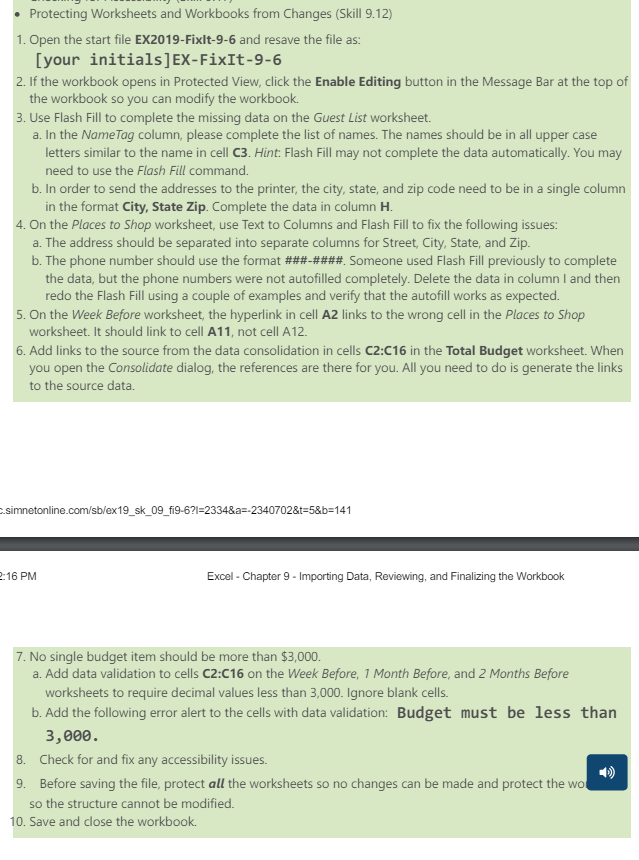
Question: Protecting Worksheets and Workbooks from Changes ( Skill 9 . 1 2 ) Open the start file EX 2 0 1 9 - Fixit -
Protecting Worksheets and Workbooks from Changes Skill
Open the start file EXFixit and resave the file as:
your initialsEXFixIt
If the workbook opens in Protected View, click the Enable Editing button in the Message Bar at the top of
the workbook so you can modify the workbook.
Use Flash Fill to complete the missing data on the Guest List worksheet.
a In the NameTag column, please complete the list of names. The names should be in all upper case
letters similar to the name in cell C Hint: Flash Fill may not complete the data automatically. You may
need to use the Flash Fill command.
b In order to send the addresses to the printer, the city, state, and zip code need to be in a single column
in the format City, State Zip. Complete the data in column
On the Places to Shop worksheet, use Text to Columns and Flash Fill to fix the following issues:
a The address should be separated into separate columns for Street, City, State, and Zip.
b The phone number should use the format ####### Someone used Flash Fill previously to complete
the data, but the phone numbers were not autofilled completely. Delete the data in column I and then
redo the Flash Fill using a couple of examples and verify that the autofill works as expected.
On the Week Before worksheet, the hyperlink in cell A links to the wrong cell in the Places to Shop
worksheet. It should link to cell A not cell A
Add links to the source from the data consolidation in cells C:C in the Total Budget worksheet. When
you open the Consolidate dialog, the references are there for you. All you need to do is generate the links
to the source data.
No single budget item should be more than $
a Add data validation to cells C:C on the Week Before, Month Before, and Months Before
worksheets to require decimal values less than Ignore blank cells.
b Add the following error alert to the cells with data validation: Budget must be less than
Check for and fix any accessibility issues.
Before saving the file, protect all the worksheets so no changes can be made and protect the wo
so the structure cannot be modified.
Save and close the workbook.
Step by Step Solution
There are 3 Steps involved in it
1 Expert Approved Answer
Step: 1 Unlock

Question Has Been Solved by an Expert!
Get step-by-step solutions from verified subject matter experts
Step: 2 Unlock
Step: 3 Unlock
 Study Help