







Question: import pygame pygame.init() SCREEN_HEIGHT = 400 SCREEN_WIDTH = 400 screen = pygame.display.set_mode(SCREEN_WIDTH, SCREEN_HEIGHT) done = False is_blue = True x = 30 y = 30
import pygame
pygame.init()
SCREEN_HEIGHT = 400
SCREEN_WIDTH = 400
screen = pygame.display.set_mode(SCREEN_WIDTH, SCREEN_HEIGHT)
done = False
is_blue = True
x = 30
y = 30
time = pygame.time
while not done:
for event in pygame.event.get():
if event.type == pygame.QUIT:
done = True
if event.type == pygame.KEYDOWN and event.key == pygame.K_SPACE:
is_blue = not is_blue
pressed = pygame.key.get_pressed()
if pressed[pygame.K_LEFT]: x -= 3
if pressed[pygame.K_RIGHT]: x += 3
print(f"x is {x} y is {y} timer is {time.get_ticks()}")
screen.fill((0, 0, 0))
if is_blue: color = (0, 128, 255)
else: color = (255, 100, 0)
rect = pygame.Rect(x, y, 60, 60)
pygame.draw.rect(screen, color, rect)
pygame.display.flip()
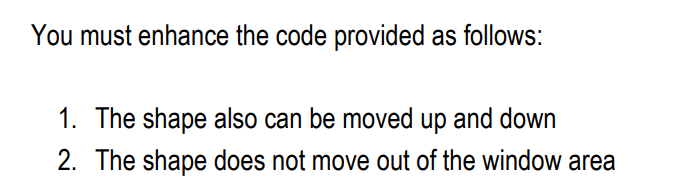
You must enhance the code provided as follows: 1. The shape also can be moved up and down 2. The shape does not move out of the window area
Step by Step Solution
3.36 Rating (152 Votes )
There are 3 Steps involved in it
To move the shape up and down you can add additional keys to check for ... View full answer

Get step-by-step solutions from verified subject matter experts
 Study Help