







Question: Que 1: Use WPF to create the GUI below.(Fig 1) Que 2: Use WPF to create a GUI similar to the image below. Include options
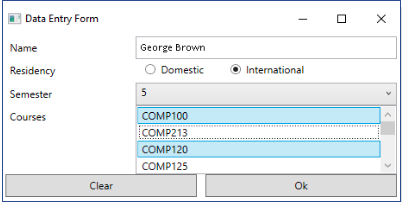
Que 1: Use WPF to create the GUI below.(Fig 1)
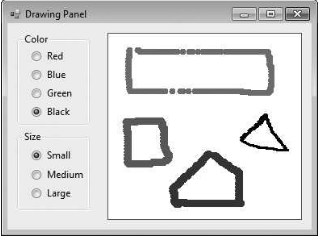
Que 2: Use WPF to create a GUI similar to the image below. Include options for changing the size and color of the lines drawn. The user should be able to draw on the apps Panel.(FIG 2)
Que 3: Write a temperature conversion program (GUI with WPF) that converts from Fahrenheit to Celsius. The Fahrenheit temperature should be entered from the keyboard (via a Textbox). A Label should be used to display the converted temperature. Use the following formula for the conversion:
Celsius = (5 / 9) x (Fahrenheit 32)
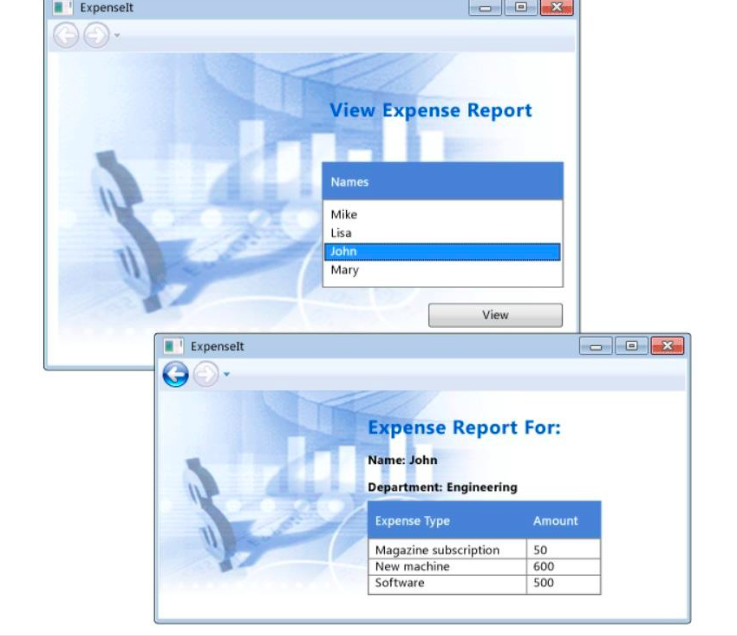
Que 4: Walkthrough the sample: (http://msdn.microsoft.com/enus/library/ms752299(VS.100).aspx) which guides you through the development of a simple WPF application using the following steps.
- Defining XAML to design the appearance of the application's user interface (UI).
- Writing code to build the application's behavior.
- Creating an application definition to manage the application.
- Adding controls and creating the layout to compose the application UI.
- Creating styles to create a consistent appearance throughout an application's UI.
- Binding the UI to data to both populate the UI from data and keep the data and UI synchronized.
- Personalize your application.(FIG 3)
Data Entry Form Name Residency Semester Courses George Brown Domestic International COMP100 COMP213 COMP120 COMP125 Clear Ok Drawing Panel Color O Red O Blue Green O Black Size Small Medium Large Expenselt View Expense Report Names Mike Lisa John Mary View Expenselt Expense Report For Name: John Department: Engineering Expense Type Amount Magazine subscription 50 New machine Software 600 500
Step by Step Solution
There are 3 Steps involved in it

Get step-by-step solutions from verified subject matter experts
 Study Help