







Question: Question 4: Resource Allocation in Microsoft Project Use the work breakdown structure provided in Question 1 to create a precedence diagram in Microsoft Project. Assign
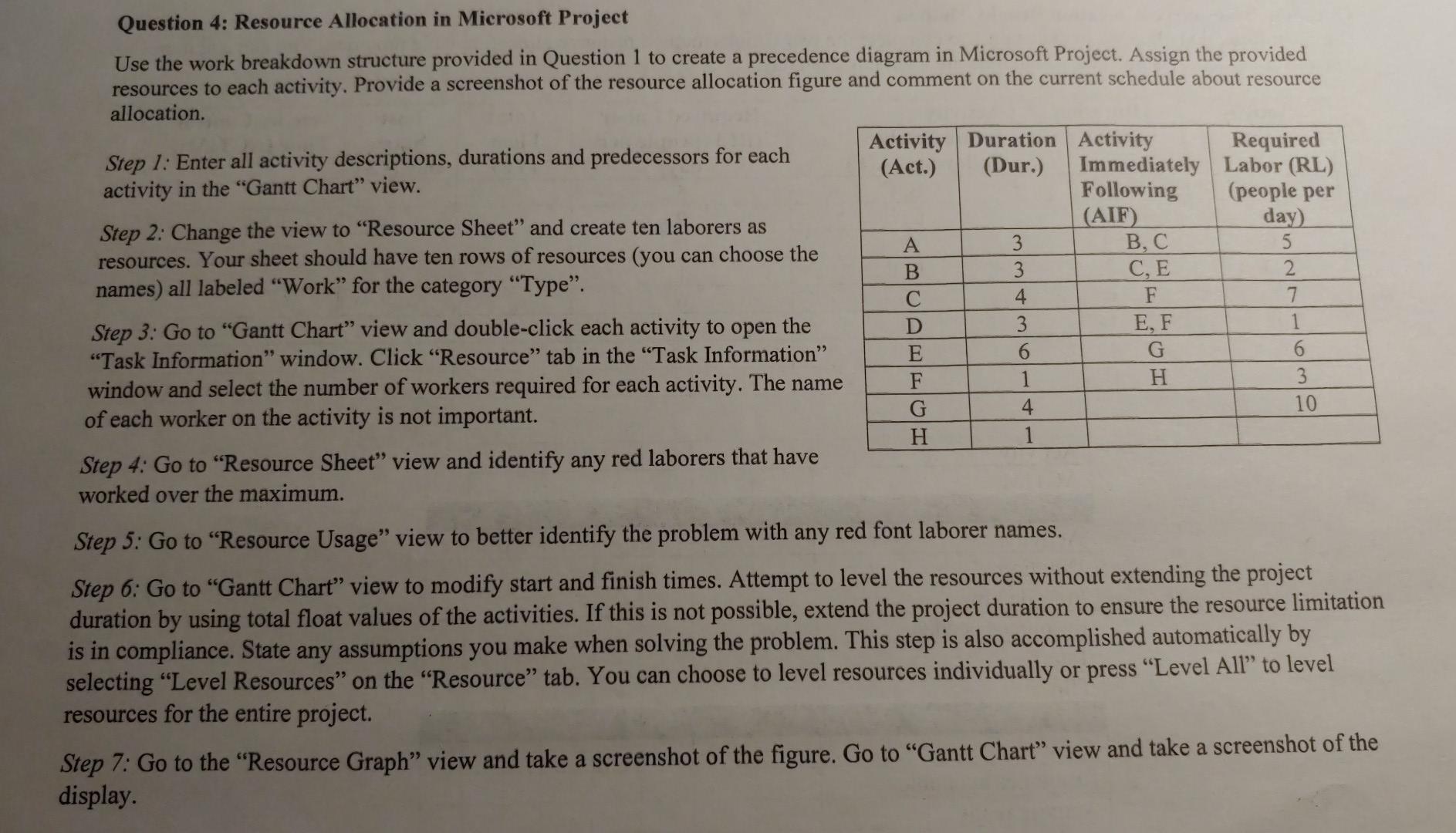
Question 4: Resource Allocation in Microsoft Project Use the work breakdown structure provided in Question 1 to create a precedence diagram in Microsoft Project. Assign the provided resources to each activity. Provide a screenshot of the resource allocation figure and comment on the current schedule about resource allocation. Step 1: Enter all activity descriptions, durations and predecessors for each activity in the "Gantt Chart" view. Step 2: Change the view to "Resource Sheet" and create ten laborers as resources. Your sheet should have ten rows of resources (you can choose the names) all labeled "Work" for the category "Type". Step 3: Go to "Gantt Chart" view and double-click each activity to open the "Task Information" window. Click "Resource" tab in the "Task Information" window and select the number of workers required for each activity. The name of each worker on the activity is not important. Step 4: Go to "Resource Sheet" view and identify any red laborers that have worked over the maximum. Activity Duration (Act.) (Dur.) A B C D E F G H 3 3 3 6 1 4 1 Activity Immediately Following (AIF) B, C C, E F E, F G H Required Labor (RL) (people per day) 5 2 7 1 6 3 10 Step 5: Go to "Resource Usage" view to better identify the problem with any red font laborer names. Step 6: Go to "Gantt Chart" view to modify start and finish times. Attempt to level the resources without extending the project duration by using total float values of the activities. If this is not possible, extend the project duration to ensure the resource limitation is in compliance. State any assumptions you make when solving the problem. This step is also accomplished automatically by selecting "Level Resources" on the "Resource" tab. You can choose to level resources individually or press "Level All" to level resources for the entire project. Step 7: Go to the "Resource Graph" view and take a screenshot of the figure. Go to "Gantt Chart" view and take a screenshot of the display
Step by Step Solution
There are 3 Steps involved in it
1 Expert Approved Answer
Step: 1 Unlock

Question Has Been Solved by an Expert!
Get step-by-step solutions from verified subject matter experts
Step: 2 Unlock
Step: 3 Unlock
 Study Help