







Question: Resources: GUI: gedit CLI: vi and nano Instructions: Create the files and tasks for each section. Text Editor vs. Word Processor: A text editor edits
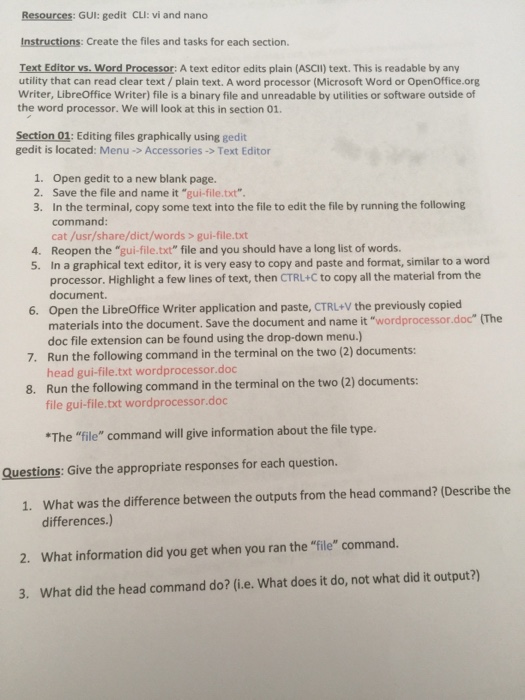
Resources: GUI: gedit CLI: vi and nano Instructions: Create the files and tasks for each section. Text Editor vs. Word Processor: A text editor edits plain (ASCII) text. This is readable by any utility that can read clear text/ plain text. A word processor (Microsoft Word or OpenOffice.org Writer, LibreOffice Writer) file is a binary file and unreadable by utilities or software outside of the word processor. We will look at this in section 01 Section 01: Editing files graphically using gedit gedit is located: Menu->Accessories >Text Editor 1. Open gedit to a new blank page. 2. Save the file and name it "gui-file.txt" 3. In the terminal, copy some text into the file to edit the file by running the following command cat /usr/share/dict/words>gui-file.txt 4. Reopen the "gui-file.txt" file and you should have a long list of words. 5. In a graphical text editor, it is very easy to copy and paste and format, similar to a word processor. Highlight a few lines of text, then CTRL+C to copy all the material from the document. Open the LibreOffice Writer application and paste, CTRL+V the previously copied materials into the document. Save the document and name it "wordprocessor.doc" (The 6. doc file extension can be found using the drop-down menu.) Run the following command in the terminal on the two (2) documents: head gui-file.txt wordprocessor.doc Run the following command in the terminal on the two (2) documents: file gui-file. txt wordprocessor.doc 7. 8. The "file" command will give information about the file type. Questions: Give the appropriate responses for each question. What was the difference between the outputs from the head command? (Describe the differences.) 1. 2. What information did you get when you ran the "file" command. 3. What did the head command do? (i.e. What does it do, not what did it output?)
Step by Step Solution
There are 3 Steps involved in it

Get step-by-step solutions from verified subject matter experts
 Study Help