


Question: Review the project 1. Start NetBeans and open the project named ch06_ex3 future Value that's in the more_ex_starts directory. 2. Open the header.jsp file and
Review the project 1. Start NetBeans and open the
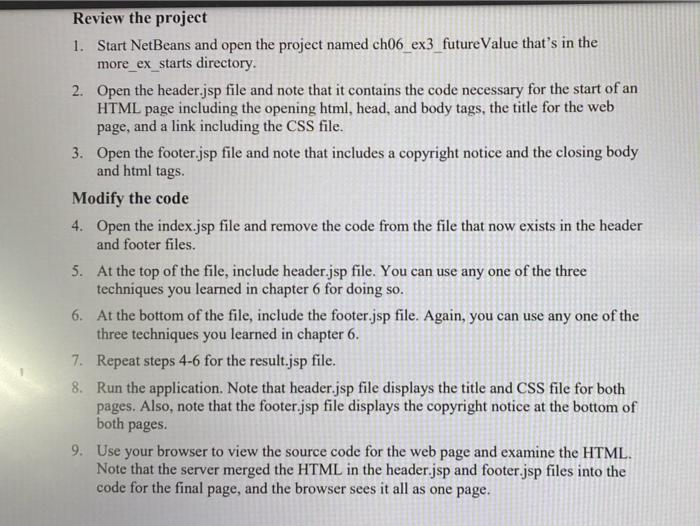
Review the project 1. Start NetBeans and open the project named ch06_ex3 future Value that's in the more_ex_starts directory. 2. Open the header.jsp file and note that it contains the code necessary for the start of an HTML page including the opening html, head, and body tags, the title for the web page, and a link including the CSS file. 3. Open the footer.jsp file and note that includes a copyright notice and the closing body and html tags. Modify the code 4. Open the index.jsp file and remove the code from the file that now exists in the header and footer files. 5. At the top of the file, include header.jsp file. You can use any one of the three techniques you learned in chapter 6 for doing so. 6. At the bottom of the file, include the footer.jsp file. Again, you can use any one of the three techniques you learned in chapter 6. 7. Repeat steps 4-6 for the result.jsp file. 8. Run the application. Note that header.jsp file displays the title and CSS file for both pages. Also, note that the footer.jsp file displays the copyright notice at the bottom of both pages. 9. Use your browser to view the source code for the web page and examine the HTML. Note that the server merged the HTML in the header.jsp and footer.jsp files into the code for the final page, and the browser sees it all as one page

Step by Step Solution

There are 3 Steps involved in it

1 Expert Approved Answer
Step: 1 Unlock blur-text-image

Question Has Been Solved by an Expert!

Get step-by-step solutions from verified subject matter experts

Step: 2 Unlock
Step: 3 Unlock

Students Have Also Explored These Related General Management Questions!