







Question: See attached assignment. The spreadsheet you submit should include a table that looks like: n 325 Mortgage amortization assignment instructions: Create a 30-year (maximum), monthly
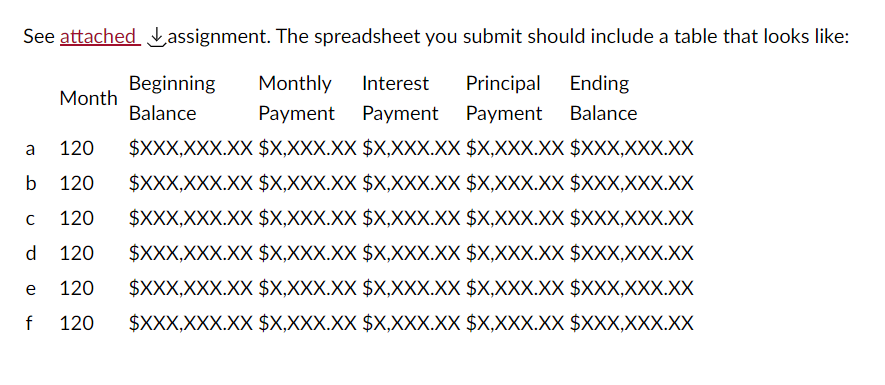
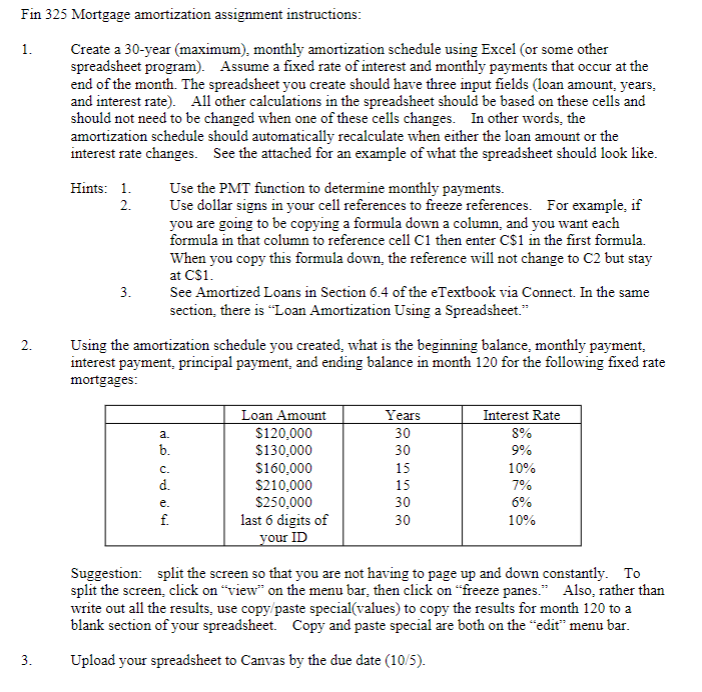
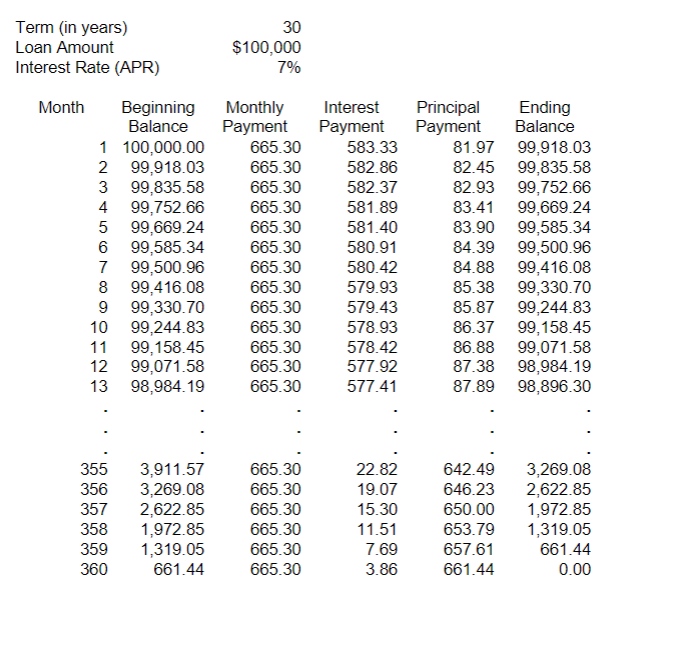
See attached assignment. The spreadsheet you submit should include a table that looks like: n 325 Mortgage amortization assignment instructions: Create a 30-year (maximum), monthly amortization schedule using Excel (or some other spreadsheet program). Assume a fixed rate of interest and monthly payments that occur at the end of the month. The spreadsheet you create should have three input fields (loan amount, years, and interest rate). All other calculations in the spreadsheet should be based on these cells and should not need to be changed when one of these cells changes. In other words, the amortization schedule should automatically recalculate when either the loan amount or the interest rate changes. See the attached for an example of what the spreadsheet should look like. Hints: 1. Use the PMT function to determine monthly payments. 2. Use dollar signs in your cell references to freeze references. For example, if you are going to be copying a formula down a column, and you want each formula in that column to reference cell C1 then enter C1 in the first formula. When you copy this formula down, the reference will not change to C2 but stay at CS1. 3. See Amortized Loans in Section 6.4 of the eTextbook via Connect. In the same section, there is "Loan Amortization Using a Spreadsheet." Using the amortization schedule you created, what is the beginning balance, monthly payment, interest payment, principal payment, and ending balance in month 120 for the following fixed rate mortgages: Suggestion: split the screen so that you are not having to page up and down constantly. To split the screen, click on "view" on the menu bar, then click on "freeze panes." Also, rather than write out all the results, use copy/paste special(values) to copy the results for month 120 to a blank section of your spreadsheet. Copy and paste special are both on the "edit" menu bar. Upload your spreadsheet to Canvas by the due date (10/5). Term(inyears)LoanAmountInterestRate(APR)30$100,0007% See attached assignment. The spreadsheet you submit should include a table that looks like: n 325 Mortgage amortization assignment instructions: Create a 30-year (maximum), monthly amortization schedule using Excel (or some other spreadsheet program). Assume a fixed rate of interest and monthly payments that occur at the end of the month. The spreadsheet you create should have three input fields (loan amount, years, and interest rate). All other calculations in the spreadsheet should be based on these cells and should not need to be changed when one of these cells changes. In other words, the amortization schedule should automatically recalculate when either the loan amount or the interest rate changes. See the attached for an example of what the spreadsheet should look like. Hints: 1. Use the PMT function to determine monthly payments. 2. Use dollar signs in your cell references to freeze references. For example, if you are going to be copying a formula down a column, and you want each formula in that column to reference cell C1 then enter C1 in the first formula. When you copy this formula down, the reference will not change to C2 but stay at CS1. 3. See Amortized Loans in Section 6.4 of the eTextbook via Connect. In the same section, there is "Loan Amortization Using a Spreadsheet." Using the amortization schedule you created, what is the beginning balance, monthly payment, interest payment, principal payment, and ending balance in month 120 for the following fixed rate mortgages: Suggestion: split the screen so that you are not having to page up and down constantly. To split the screen, click on "view" on the menu bar, then click on "freeze panes." Also, rather than write out all the results, use copy/paste special(values) to copy the results for month 120 to a blank section of your spreadsheet. Copy and paste special are both on the "edit" menu bar. Upload your spreadsheet to Canvas by the due date (10/5). Term(inyears)LoanAmountInterestRate(APR)30$100,0007%
Step by Step Solution
There are 3 Steps involved in it

Get step-by-step solutions from verified subject matter experts
 Study Help