







Question: Share solution file via google drive link or one drive link.for quick access. Exercise 2 (10pt). In this exercise you will import more stock data
Share solution file via google drive link or one drive link.for quick access.
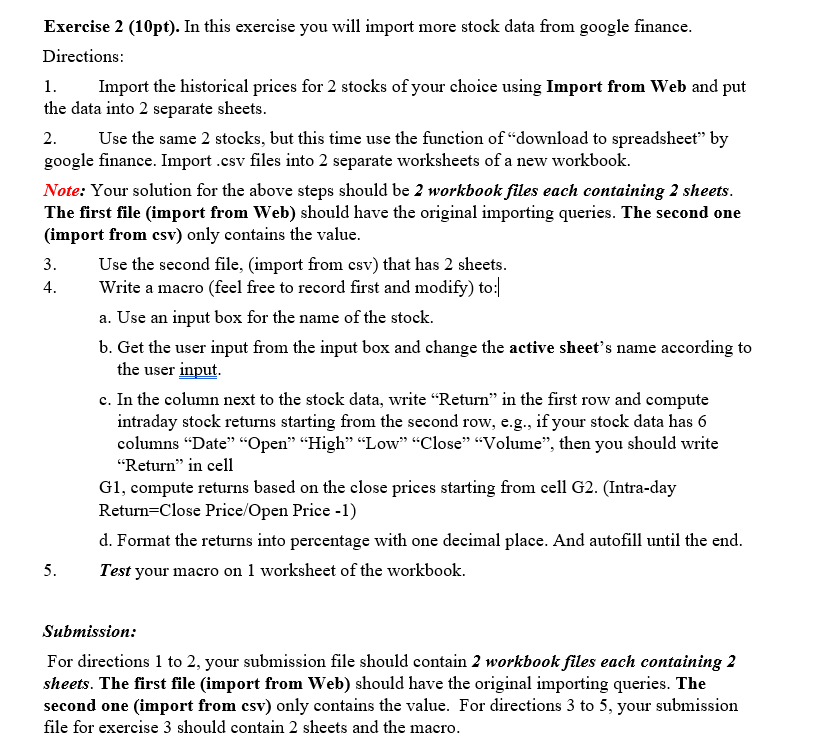
Exercise 2 (10pt). In this exercise you will import more stock data from google finance Directions: Import the historical prices for 2 stocks of your choice using Import from Web and put the data into 2 separate sheets Use the same 2 stocks, but this time use the function of "download to spreadsheet" by google finance. Import .csv files into 2 separate worksheets of a new workbook. Note: Your solution for the above steps should be 2 workbook files each containing 2 sheets The first file (import from Web) should have the original importing queries. The second one (import from csv) only contains the value 3. Use the second file, (import from csv) that has 2 sheets 4 Write a macro (feel free to record first and modify) to a. Use an input box for the name of the stock. b. Get the user input from the input box and change the active sheet's name according to the user input c. In the column next to the stock data, write "Return" in the first row and compute intraday stock returns starting from the second row, e.g., if your stock data has 6 columns "Date" "Open" "High" "Low" "Close" "Volume", then you should write "Return" in cell G1, compute returns based on the close prices starting from cell G2. (Intra-day Return-Close Price/Open Price 1) d. Format the returns into percentage with one decimal place. And autofill until the end Test your macro on 1 worksheet of the workbook 5. Submission: For directions 1 to 2, your submission file should contain 2 workbook files each containing 2 sheets. The first file (import from Web) should have the original importing queries. The second one (import from csv) only contains the value. For directions 3 to 5, your submission file for exercise 3 should contain 2 sheets and the macro Exercise 2 (10pt). In this exercise you will import more stock data from google finance Directions: Import the historical prices for 2 stocks of your choice using Import from Web and put the data into 2 separate sheets Use the same 2 stocks, but this time use the function of "download to spreadsheet" by google finance. Import .csv files into 2 separate worksheets of a new workbook. Note: Your solution for the above steps should be 2 workbook files each containing 2 sheets The first file (import from Web) should have the original importing queries. The second one (import from csv) only contains the value 3. Use the second file, (import from csv) that has 2 sheets 4 Write a macro (feel free to record first and modify) to a. Use an input box for the name of the stock. b. Get the user input from the input box and change the active sheet's name according to the user input c. In the column next to the stock data, write "Return" in the first row and compute intraday stock returns starting from the second row, e.g., if your stock data has 6 columns "Date" "Open" "High" "Low" "Close" "Volume", then you should write "Return" in cell G1, compute returns based on the close prices starting from cell G2. (Intra-day Return-Close Price/Open Price 1) d. Format the returns into percentage with one decimal place. And autofill until the end Test your macro on 1 worksheet of the workbook 5. Submission: For directions 1 to 2, your submission file should contain 2 workbook files each containing 2 sheets. The first file (import from Web) should have the original importing queries. The second one (import from csv) only contains the value. For directions 3 to 5, your submission file for exercise 3 should contain 2 sheets and the macro
Step by Step Solution
There are 3 Steps involved in it

Get step-by-step solutions from verified subject matter experts
 Study Help