







Question: Spawn Points Look inside the attributes window for the types of information you will need to store in a Spawn node. These correspond with the
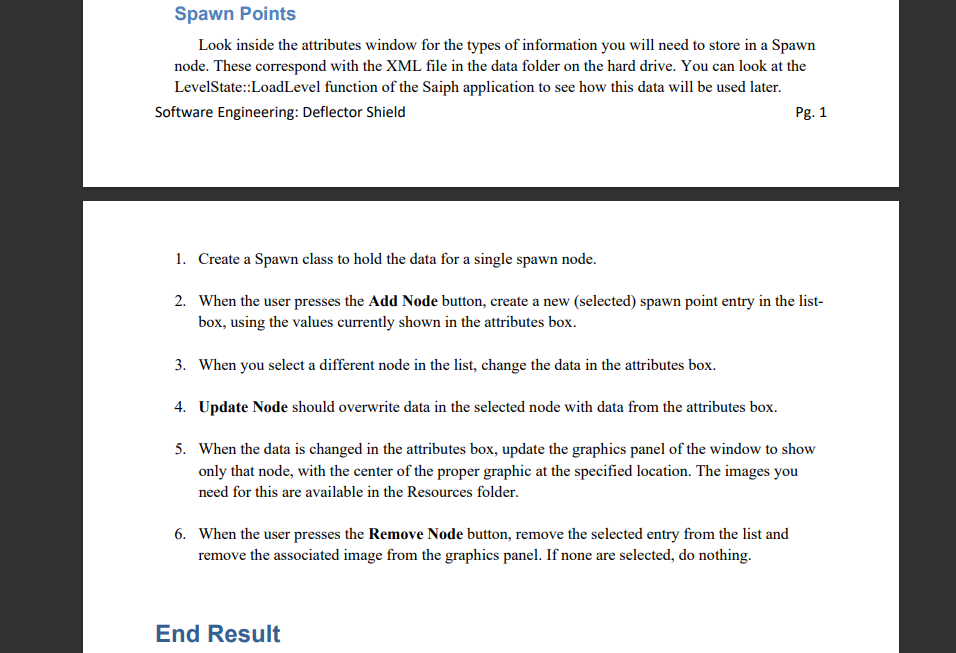
Spawn Points Look inside the attributes window for the types of information you will need to store in a Spawn node. These correspond with the XML file in the data folder on the hard drive. You can look at the LevelState::LoadLevel function of the Saiph application to see how this data will be used later. Software Engineering: Deflector Shield Pg. 1 1. Create a Spawn class to hold the data for a single spawn node. 2. When the user presses the Add Node button, create a new (selected) spawn point entry in the list- box, using the values currently shown in the attributes box. 3. When you select a different node in the list, change the data in the attributes box. 4. Update Node should overwrite data in the selected node with data from the attributes box. 5. When the data is changed in the attributes box, update the graphics panel of the window to show only that node, with the center of the proper graphic at the specified location. The images you need for this are available in the Resources folder. 6. When the user presses the Remove Node button, remove the selected entry from the list and remove the associated image from the graphics panel. If none are selected, do nothing. End Result Spawn Points Look inside the attributes window for the types of information you will need to store in a Spawn node. These correspond with the XML file in the data folder on the hard drive. You can look at the LevelState::LoadLevel function of the Saiph application to see how this data will be used later. Software Engineering: Deflector Shield Pg. 1 1. Create a Spawn class to hold the data for a single spawn node. 2. When the user presses the Add Node button, create a new (selected) spawn point entry in the list- box, using the values currently shown in the attributes box. 3. When you select a different node in the list, change the data in the attributes box. 4. Update Node should overwrite data in the selected node with data from the attributes box. 5. When the data is changed in the attributes box, update the graphics panel of the window to show only that node, with the center of the proper graphic at the specified location. The images you need for this are available in the Resources folder. 6. When the user presses the Remove Node button, remove the selected entry from the list and remove the associated image from the graphics panel. If none are selected, do nothing. End Result
Step by Step Solution
There are 3 Steps involved in it

Get step-by-step solutions from verified subject matter experts
 Study Help