Question: Specifically need help with number 2 . PRACTICE a. Review Assignments Data File needed for the Review Assignments: Product.accdb (cont. from Module 9) Mista wants
Specifically need help with number 2 .
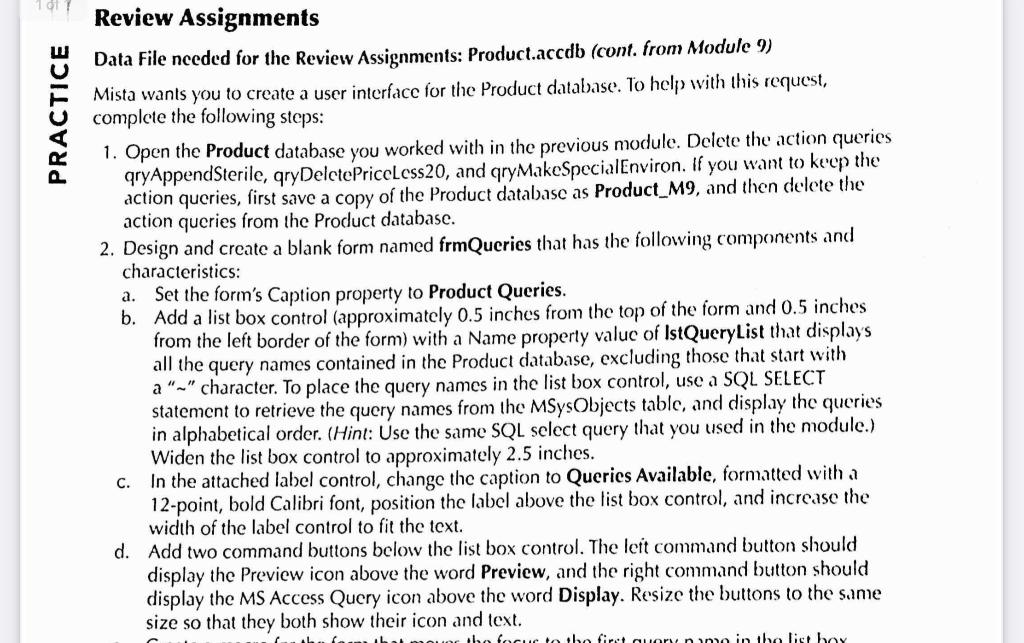
PRACTICE a. Review Assignments Data File needed for the Review Assignments: Product.accdb (cont. from Module 9) Mista wants you to create a user interface for the Product database. To help with this request, complete the following steps: 1. Open the Product database you worked with in the previous module. Delete the action queries gryAppendSterile, gryDeletePriceless20, and qryMake Special Environ. If you want to keep the action queries, first save a copy of the Product database as Product_M9, and then delete the action queries from the Product database. 2. Design and create a blank form named frmQucries that has the following components and characteristics: Set the form's Caption property to Product Queries. b. Add a list box control (approximately 0.5 inches from the top of the form and 0.5 inches from the left border of the form) with a Name property value of IstQueryList that displays all the query names contained in the Product database, excluding those that start with a "_" character. To place the query names in the list box control, use a SQL SELECT statement to retrieve the query names from the MSysObjects table, and display the queries in alphabetical order. (Hint: Use the same SQL select query that you used in the module.) Widen the list box control to approximately 2.5 inches. In the attached label control, change the caption to Queries Available, formatted with a 12-point, bold Calibri font, position the label above the list box control, and increase the width of the label control to fit the text. d. Add two command button below the list box control. The leit command button should display the Preview icon above the word Preview, and the right command button should display the MS Access Query icon above the word Display. Resize the buttons to the same size so that they both show their icon and text. nuor the focus to the first un nome in the list boy C. PRACTICE a. Review Assignments Data File needed for the Review Assignments: Product.accdb (cont. from Module 9) Mista wants you to create a user interface for the Product database. To help with this request, complete the following steps: 1. Open the Product database you worked with in the previous module. Delete the action queries gryAppendSterile, gryDeletePriceless20, and qryMake Special Environ. If you want to keep the action queries, first save a copy of the Product database as Product_M9, and then delete the action queries from the Product database. 2. Design and create a blank form named frmQucries that has the following components and characteristics: Set the form's Caption property to Product Queries. b. Add a list box control (approximately 0.5 inches from the top of the form and 0.5 inches from the left border of the form) with a Name property value of IstQueryList that displays all the query names contained in the Product database, excluding those that start with a "_" character. To place the query names in the list box control, use a SQL SELECT statement to retrieve the query names from the MSysObjects table, and display the queries in alphabetical order. (Hint: Use the same SQL select query that you used in the module.) Widen the list box control to approximately 2.5 inches. In the attached label control, change the caption to Queries Available, formatted with a 12-point, bold Calibri font, position the label above the list box control, and increase the width of the label control to fit the text. d. Add two command button below the list box control. The leit command button should display the Preview icon above the word Preview, and the right command button should display the MS Access Query icon above the word Display. Resize the buttons to the same size so that they both show their icon and text. nuor the focus to the first un nome in the list boy C









 Study Help