







Question: Starting Out with Programming Logic and Design Starting Out with Programming Logic and Design often requires a lot of erasing. Therefore, a flowcharting application such
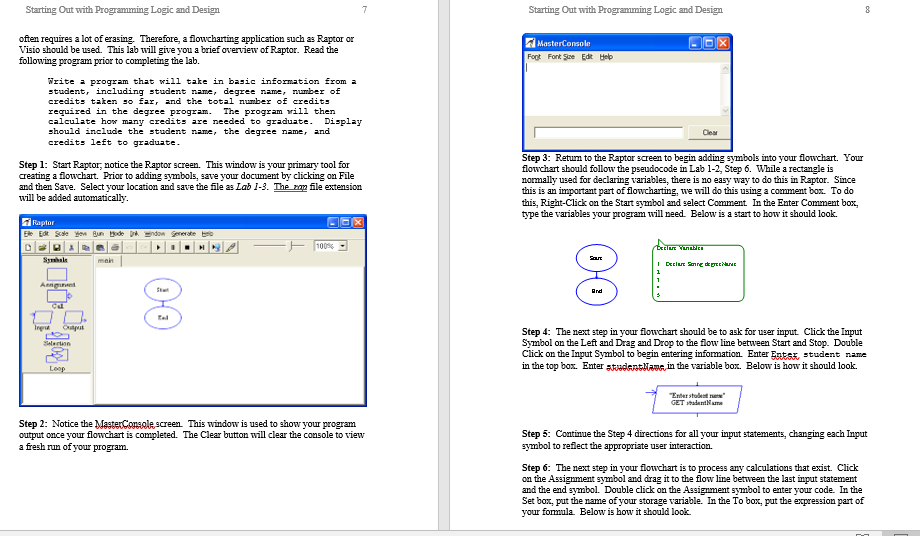
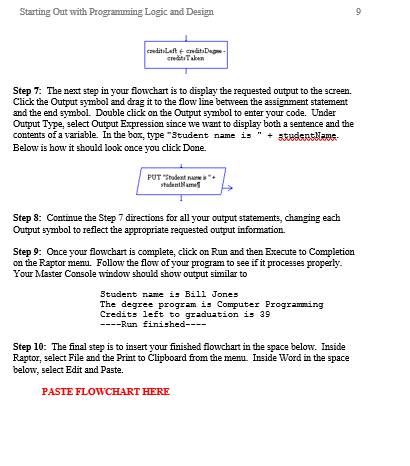
Starting Out with Programming Logic and Design Starting Out with Programming Logic and Design often requires a lot of erasing. Therefore, a flowcharting application such as Raptor or Visio should be used. This lab will give you a following program prior to completing the lab. MasterConsole I brief overview of Raptor. Read the Foot Font ive Edk Heb Vrite a program that will take in basic information from i tudent, including student name , degree name , number of credits taten so far and the total nunber of credits required in the degree program calculate how many credits are needed to graduate. Display should include the student nane, the degree namer and credits left to graduate The program rill then Step 1: Start Raptor, notice the Raptor screen. This window is your primary tool for creating a flowchart. Prior to adding symbols, save your document by clicking on Flle and then Save. Select your location and save the file as Lab 1.3The mn file extension will be added automatically Step 3: Returm to the Raptor screen to begin adding symbols into your flowchart. Your lowchart should follow the pseudocode in Lab 1-2, Step 6. While a rectangle is normally used for declaring variables, there is no easy way to do this in Raptor. Since this is an important part of flowcharting, twe will do this using a comment box. To do this, Right-Click on the Start symbol and select Comment In the Enter Comment box, type the variables your program will need. Below is a start to how it should look. Raptor 100% Step 4: The next step in your flowchart should be to ask for user input Click the Input Symbol on the Left and Drag and Drop to the floline between Start and Stop. Double Click on the Input Symbol to begin entering information. Enter E RES student name in the top box. Enterstudantlam in the variable box. Below is how it should look. Ender studest new Step 2: Notice the MasteConseescreen This window is used to show your program output once your flowchart is completed. The Clear button will clear the console to view a fresh run of your program Step 5: Continue the Step 4 directions for all your input statements, changing each Input symbol to refilect the appropriate user interaction. Step 6: The next step in your flowchart is to process ay calculations that exist. Click on the Assignment symbol and drag it to the flow line between the last input statement and the end symbol. Double click on the Assignment symbol to enter your code. In the Set box, put the name of your storage variable. In the To box, put the expression part of your fomula. Below is how it shoald look
Step by Step Solution
There are 3 Steps involved in it

Get step-by-step solutions from verified subject matter experts
 Study Help