







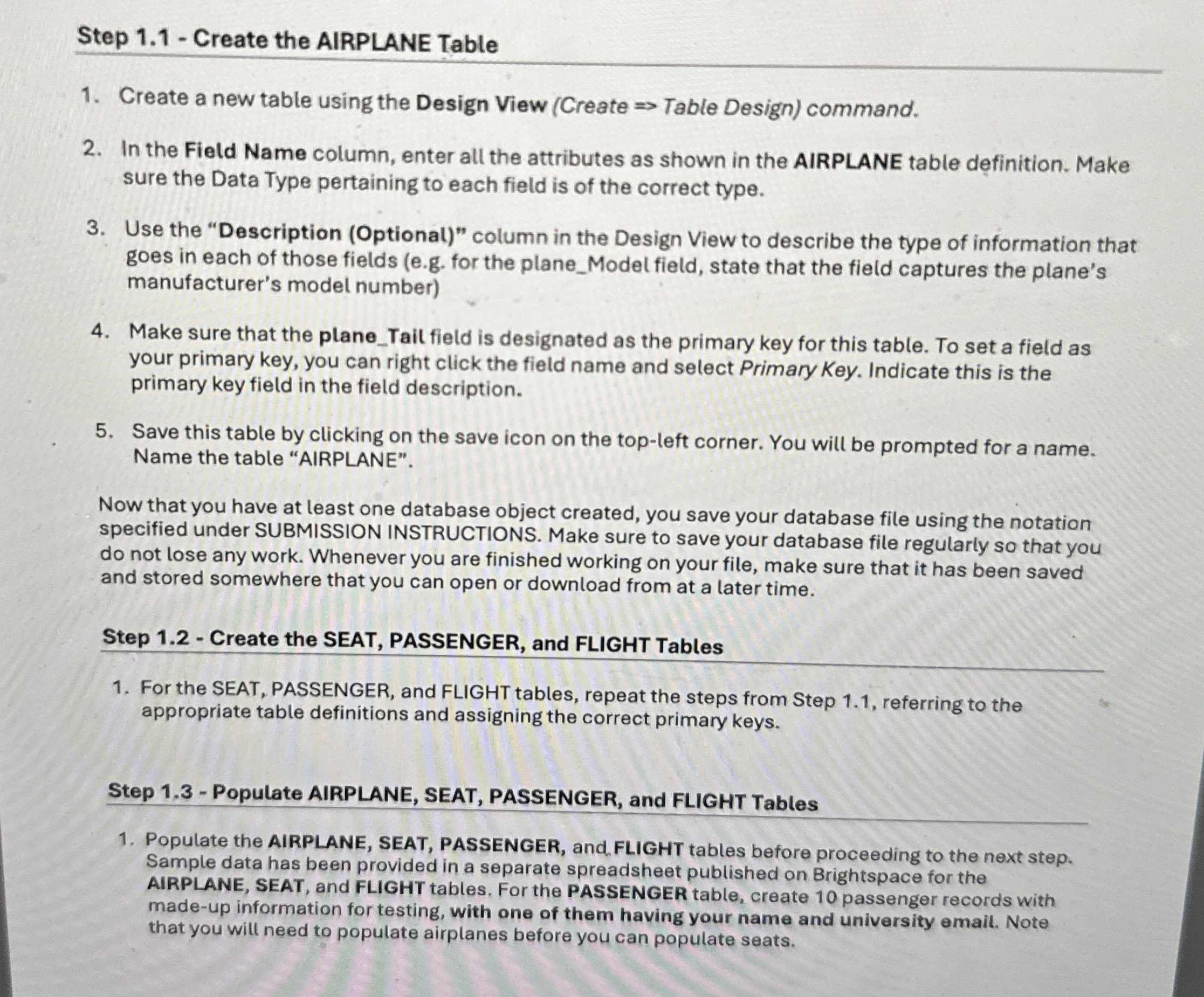
Question: Step 1 . 1 - Create the AIRPLANE Table Create a new table using the Design View ( Create = > Table Design ) command.
Step Create the AIRPLANE Table
Create a new table using the Design View Create Table Design command.
In the Field Name column, enter all the attributes as shown in the AIRPLANE table definition. Make sure the Data Type pertaining to each field is of the correct type.
Use the "Description Optional column in the Design View to describe the type of information that goes in each of those fields eg for the planeModel field, state that the field captures the plane's manufacturer's model number
Make sure that the planeTail field is designated as the primary key for this table. To set a field as your primary key, you can right click the field name and select Primary Key. Indicate this is the primary key field in the field description.
Save this table by clicking on the save icon on the topleft corner. You will be prompted for a name. Name the table "AIRPLANE".
Now that you have at least one database object created, you save your database file using the notation specified under SUBMISSION INSTRUCTIONS. Make sure to save your database file regularly so that you do not lose any work. Whenever you are finished working on your file, make sure that it has been saved and stored somewhere that you can open or download from at a later time.
Step Create the SEAT, PASSENGER, and FLIGHT Tables
For the SEAT, PASSENGER, and FLIGHT tables, repeat the steps from Step referring to the appropriate table definitions and assigning the correct primary keys.
Step Populate AIRPLANE, SEAT, PASSENGER, and FLIGHT Tables
Populate the AIRPLANE, SEAT, PASSENGER, and FLIGHT tables before proceeding to the next step. Sample data has been provided in a separate spreadsheet published on Brightspace for the AIRPLANE, SEAT, and FLIGHT tables. For the PASSENGER table, create passenger records with madeup information for testing, with one of them having your name and university emall. Note that you will need to populate airplanes before you can populate seats.
Step by Step Solution
There are 3 Steps involved in it
1 Expert Approved Answer
Step: 1 Unlock

Question Has Been Solved by an Expert!
Get step-by-step solutions from verified subject matter experts
Step: 2 Unlock
Step: 3 Unlock
 Study Help