







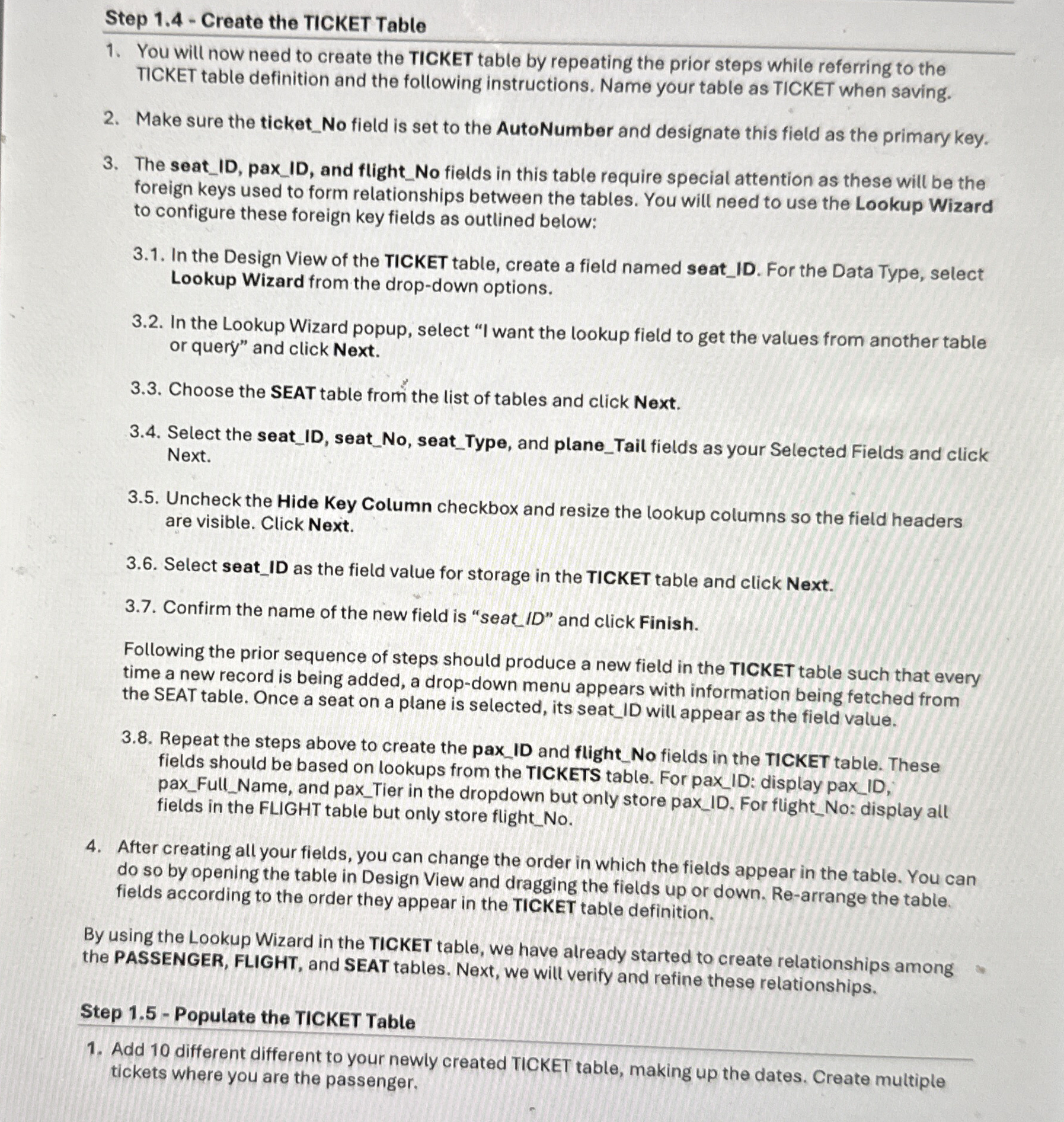
Question: Step 1 . 4 - Create the TICKET Table You will now need to create the TICKET table by repeating the prior steps while referring
Step Create the TICKET Table
You will now need to create the TICKET table by repeating the prior steps while referring to the TICKET table definition and the following instructions. Name your table as TICKET when saving.
Make sure the ticketNo field is set to the AutoNumber and designate this field as the primary key.
The seatID paxID and flightNo fields in this table require special attention as these will be the foreign keys used to form relationships between the tables. You will need to use the Lookup Wizard to configure these foreign key fields as outlined below:
In the Design View of the TICKET table, create a field named seatID For the Data Type, select Lookup Wizard from the dropdown options.
In the Lookup Wizard popup, select "I want the lookup field to get the values from another table or query" and click Next.
Choose the SEAT table from the list of tables and click Next.
Select the seatID seatNo seatType, and planeTail fields as your Selected Fields and click Next.
Uncheck the Hide Key Column checkbox and resize the lookup columns so the field headers are visible. Click Next.
Select seatID as the field value for storage in the TICKET table and click Next.
Confirm the name of the new field is "seat ID and click Finish.
Following the prior sequence of steps should produce a new field in the TICKET table such that every time a new record is being added, a dropdown menu appears with information being fetched from the SEAT table. Once a seat on a plane is selected, its seatID will appear as the field value.
Repeat the steps above to create the paxID and flightNo fields in the TICKET table. These fields should be based on lookups from the TICKETS table. For paxID: display paxID paxFullName, and paxTier in the dropdown but only store paxID For flightNo: display all fields in the FLIGHT table but only store flightNo
After creating all your fields, you can change the order in which the fields appear in the table. You can do so by opening the table in Design View and dragging the fields up or down. Rearrange the table. fields according to the order they appear in the TICKET table definition,
By using the Lookup Wizard in the TICKET table, we have already started to create relationships among the PASSENGER, FLIGHT, and SEAT tables. Next, we will verify and refine these relationships.
Step Populate the TICKET Table
Add different different to your newly created TICKET table, making up the dates. Create multiple tickets where you are the passenger.
Step by Step Solution
There are 3 Steps involved in it
1 Expert Approved Answer
Step: 1 Unlock

Question Has Been Solved by an Expert!
Get step-by-step solutions from verified subject matter experts
Step: 2 Unlock
Step: 3 Unlock
 Study Help