







Question: Step 1: Construct a Context Diagram Drawing from the demonstration that showed how to use ClickChart to produce DFDs, construct a context diagram in which:
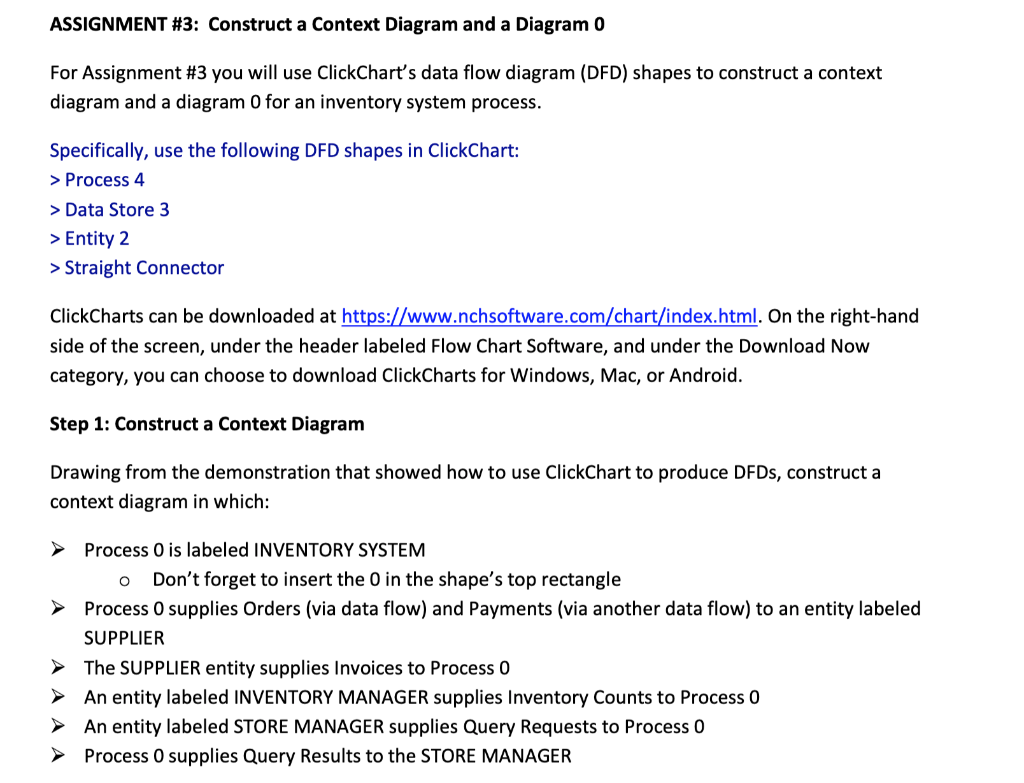
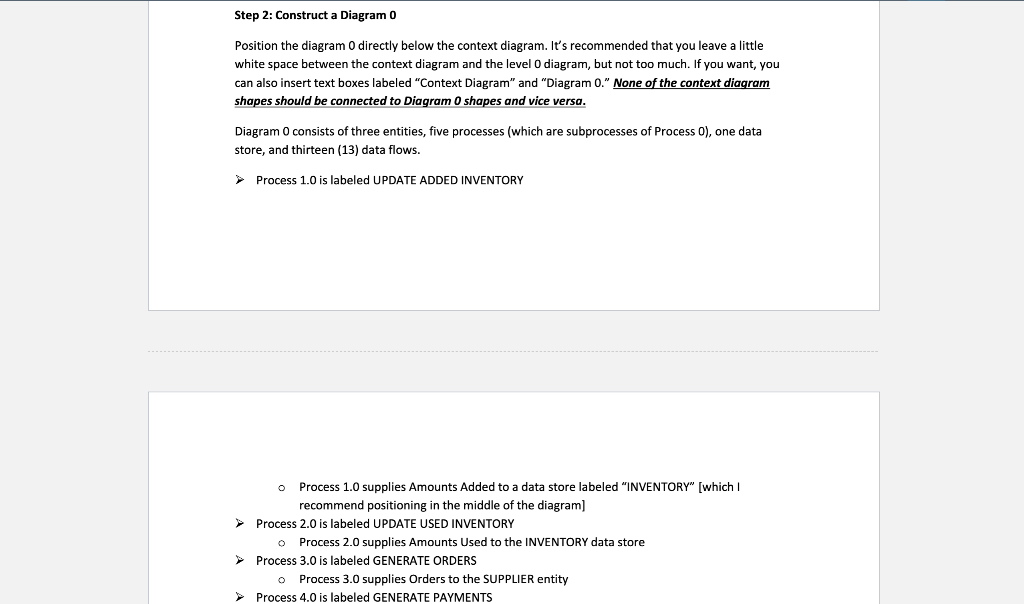
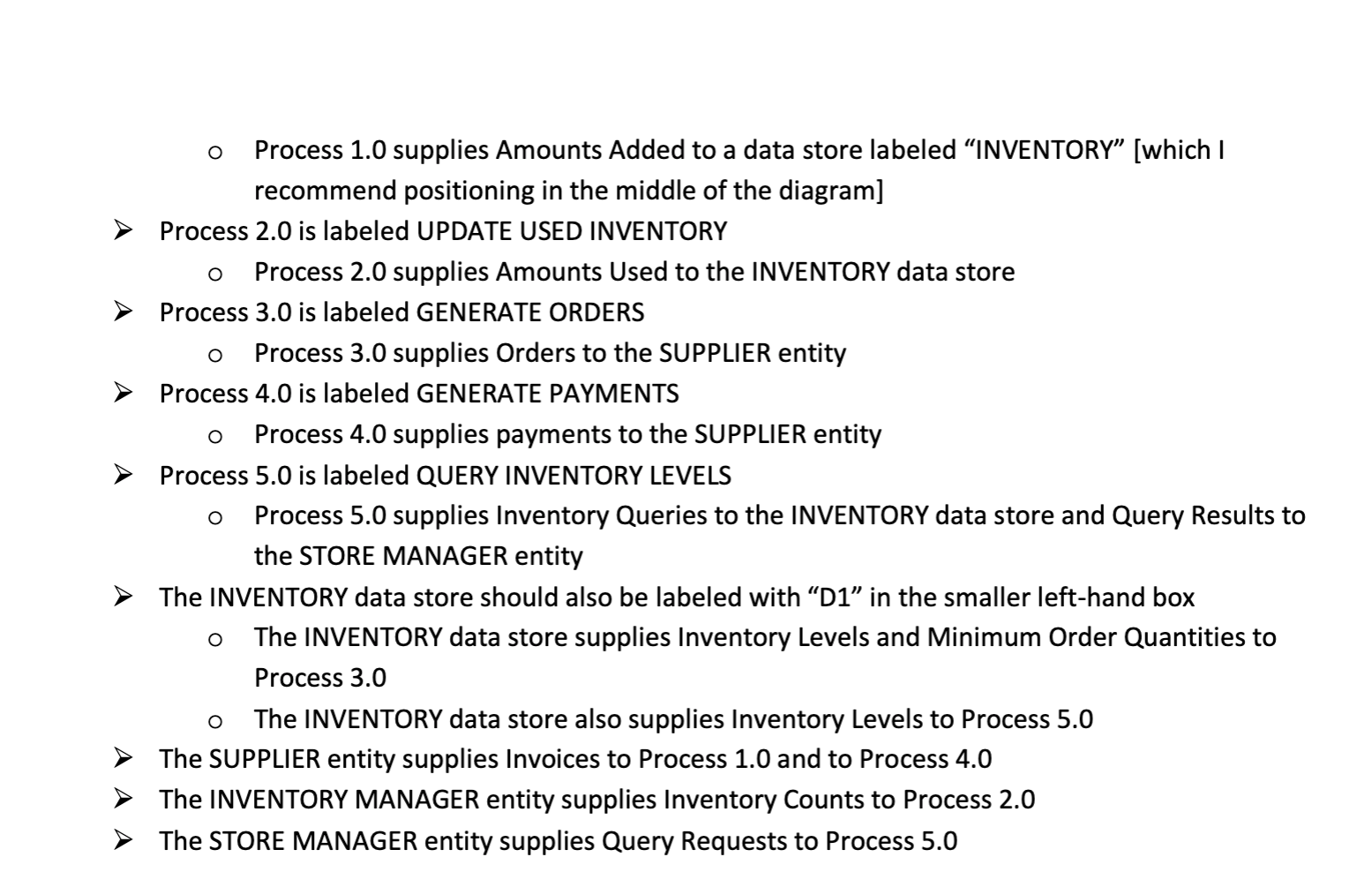
Step 1: Construct a Context Diagram Drawing from the demonstration that showed how to use ClickChart to produce DFDs, construct a context diagram in which: Process 0 is labeled INVENTORY SYSTEM - Don't forget to insert the 0 in the shape's top rectangle Process 0 supplies Orders (via data flow) and Payments (via another data flow) to an entity labeled SUPPLIER The SUPPLIER entity supplies Invoices to Process 0 An entity labeled INVENTORY MANAGER supplies Inventory Counts to Process 0 An entity labeled STORE MANAGER supplies Query Requests to Process 0 Process 0 supplies Query Results to the STORE MANAGER Step 2: Construct a Diagram 0 Position the diagram 0 directly below the context diagram. It's recommended that you leave a little white space between the context diagram and the level 0 diagram, but not too much. If you want, you can also insert text boxes labeled "Context Diagram" and "Diagram 0." None of the context diagram shapes should be connected to Diagram 0 shapes and vice versa. Diagram 0 consists of three entities, five processes (which are subprocesses of Process 0), one data store, and thirteen (13) data flows. Process 1.0 is labeled UPDATE ADDED INVENTORY - Process 1.0 supplies Amounts Added to a data store labeled "INVENTORY" [which I recommend positioning in the middle of the diagram] Process 2.0 is labeled UPDATE USED INVENTORY - Process 2.0 supplies Amounts Used to the INVENTORY data store Process 3.0 is labeled GENERATE ORDERS - Process 3.0 supplies Orders to the SUPPLIER entity Process 4.0 is labeled GENERATE PAYMENTS - Process 1.0 supplies Amounts Added to a data store labeled "INVENTORY" [which I recommend positioning in the middle of the diagram] Process 2.0 is labeled UPDATE USED INVENTORY - Process 2.0 supplies Amounts Used to the INVENTORY data store Process 3.0 is labeled GENERATE ORDERS - Process 3.0 supplies Orders to the SUPPLIER entity Process 4.0 is labeled GENERATE PAYMENTS - Process 4.0 supplies payments to the SUPPLIER entity Process 5.0 is labeled QUERY INVENTORY LEVELS - Process 5.0 supplies Inventory Queries to the INVENTORY data store and Query Results to the STORE MANAGER entity The INVENTORY data store should also be labeled with "D1" in the smaller left-hand box - The INVENTORY data store supplies Inventory Levels and Minimum Order Quantities to Process 3.0 - The INVENTORY data store also supplies Inventory Levels to Process 5.0 The SUPPLIER entity supplies Invoices to Process 1.0 and to Process 4.0 The INVENTORY MANAGER entity supplies Inventory Counts to Process 2.0 The STORE MANAGER entity supplies Query Requests to Process 5.0
Step by Step Solution
There are 3 Steps involved in it

Get step-by-step solutions from verified subject matter experts
 Study Help