Question: Step Instructions Points Possible 1 0 Start Excel. Download and open the file named Excel_Ch02_PS1_BooksInventory.xlsx Grader has automatically added your last name to the beginning
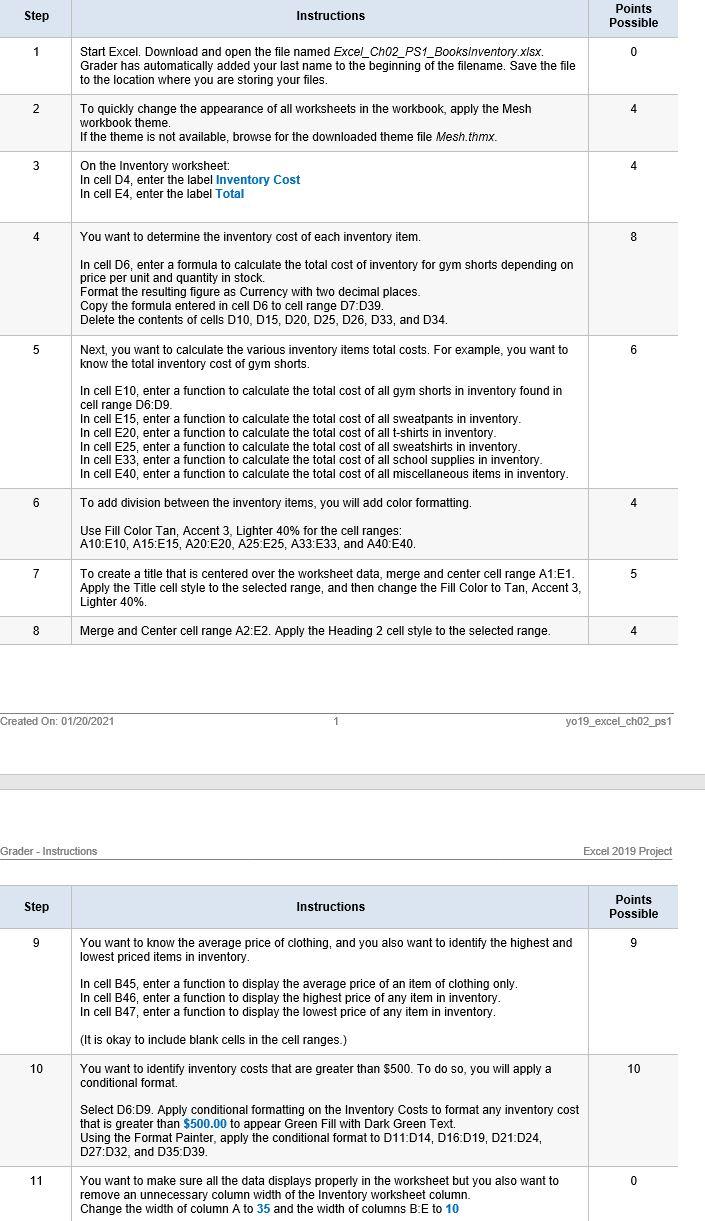
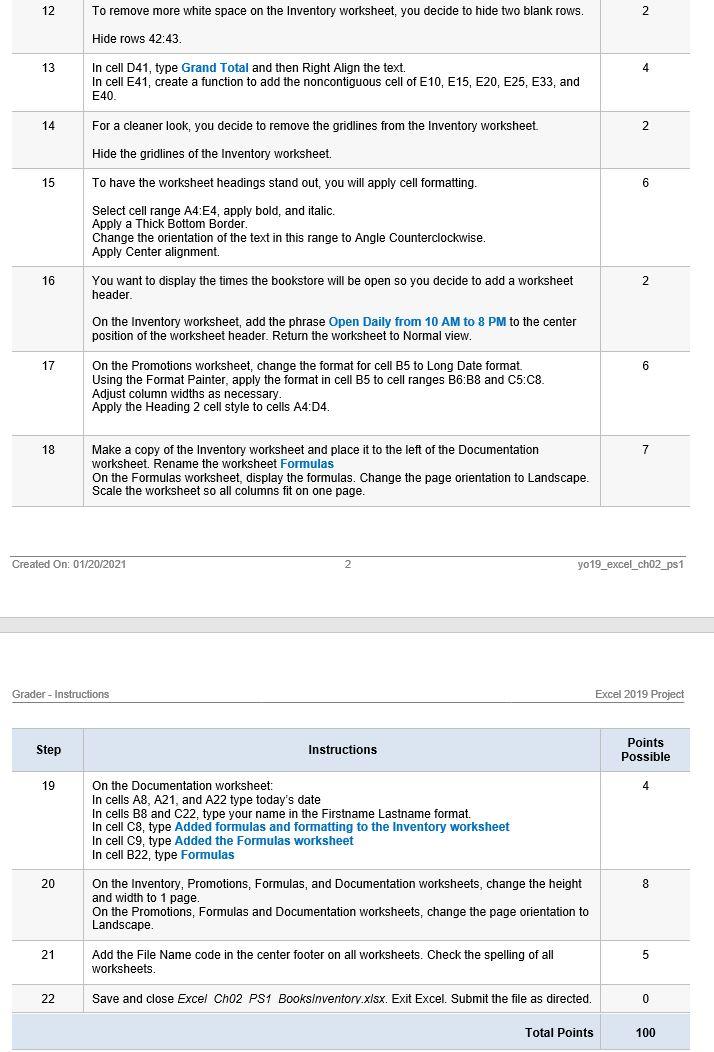
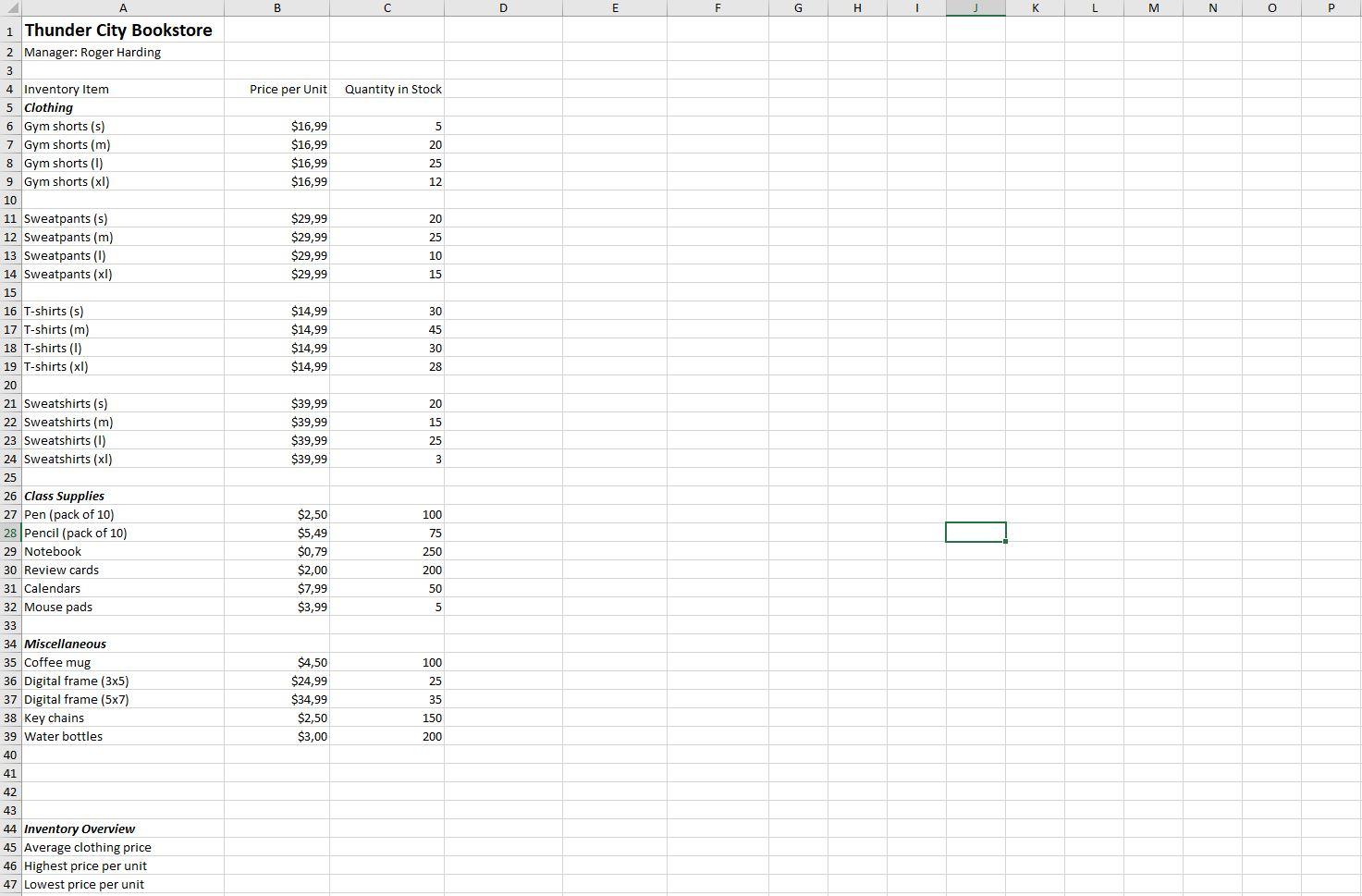
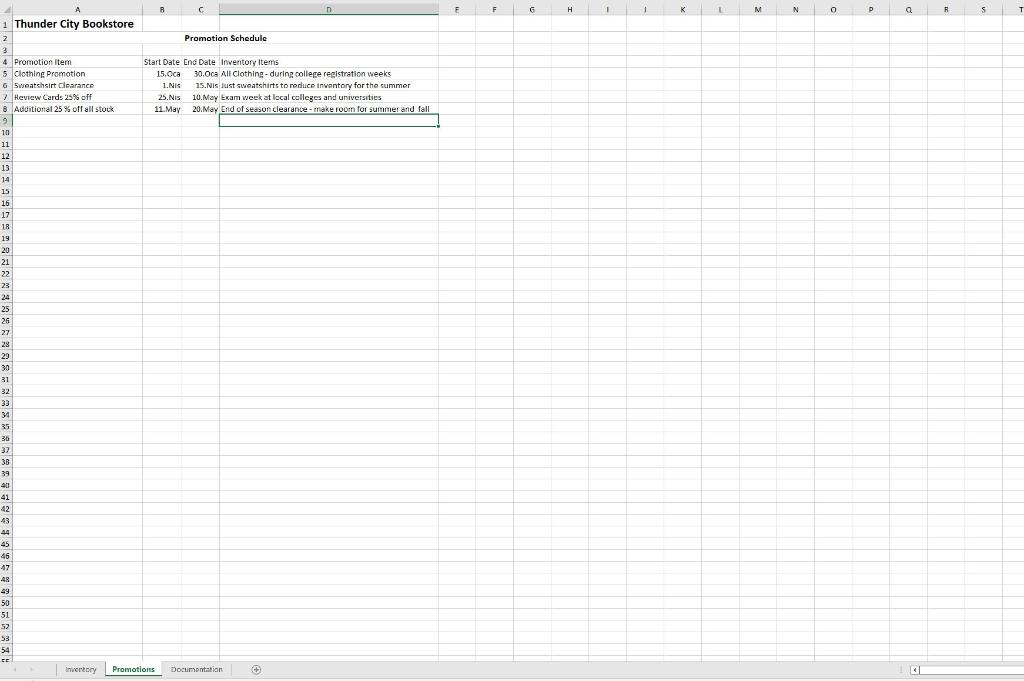
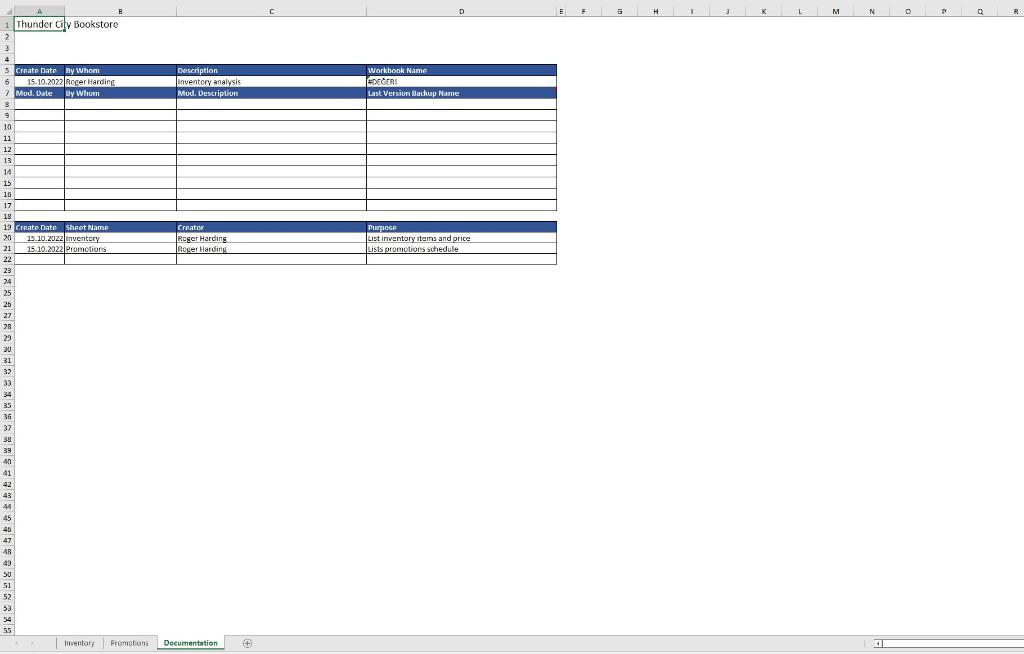
Step Instructions Points Possible 1 0 Start Excel. Download and open the file named Excel_Ch02_PS1_BooksInventory.xlsx Grader has automatically added your last name to the beginning of the filename. Save the file to the location where you are storing your files. 2 4 4 To quickly change the appearance of all worksheets in the workbook, apply the Mesh workbook theme. If the theme is not available, browse for the downloaded theme file Mesh.thmx. 3 4 On the Inventory worksheet: In cell D4, enter the label Inventory Cost In cell E4, enter the label Total 4 You want to determine the inventory cost of each inventory item. 8 In cell D6, enter a formula to calculate the total cost of inventory for gym shorts depending on price per unit and quantity in stock Format the resulting figure as Currency with two decimal places. Copy the formula entered in cell D6 to cell range 07:D39. Delete the contents of cells D10, D15, D20, D25, D26, D33, and D34. 5 6 Next, you want to calculate the various inventory items total costs. For example, you want to know the total inventory cost of gym shorts. In cell E10, enter a function to calculate the total cost of all gym shorts in inventory found in cell range D6:09 In cell E15, enter a function to calculate the total cost of all sweatpants in inventory. In cell E20, enter a function to calculate the total cost of all t-shirts in inventory In cell E25, enter a function to calculate the total cost of all sweatshirts in inventory. In cell E33, enter a function to calculate the total cost of all school supplies in inventory In cell E40, enter a function to calculate the total cost of all miscellaneous items in inventory. 6 To add division between the inventory items, you will add color formatting. 4 Use Fill Color Tan, Accent 3, Lighter 40% for the cell ranges: A10:E10, A15:E15, A20:E20, A25:E25, A33:E33, and A40:E40. 7 7 5 To create a title that is centered over the worksheet data, merge and center cell range A1:E1. Apply the Title cell style to the selected range, and then change the Fill Color to Tan, Accent 3, Lighter 40%. 8 Merge and Center cell range A2:E2. Apply the Heading 2 cell style to the selected range. 4 Created On: 01/20/2021 1 y019_excel_ch02_ps1 Grader - Instructions Excel 2019 Project Step Instructions Points Possible 9 9 You want to know the average price of clothing, and you also want to identify the highest and lowest priced items in inventory. In cell B45, enter a function to display the average price of an item of clothing only. In cell B46, enter a function to display the highest price of any item in inventory In cell B47, enter a function to display the lowest price of any item in inventory. (It is okay to include blank cells in the cell ranges.) 10 10 You want to identify inventory costs that are greater than $500. To do so, you will apply a conditional format. Select D6:09. Apply conditional formatting on the Inventory Costs to format any inventory cost that is greater than $500.00 to appear Green Fill with Dark Green Text. Using the Format Painter, apply the conditional format to D11:014, D16:019, D21:D24, D27:D32, and D35:D39. 11 0 You want to make sure all the data displays properly in the worksheet but you also want to remove an unnecessary column width of the Inventory worksheet column. Change the width of column A to 35 and the width of columns B:E to 10 12 To remove more white space on the Inventory worksheet, you decide to hide two blank rows. 2 Hide rows 42:43. 13 4 In cell D41, type Grand Total and then Right Align the text. In cell E41, create a function to add the noncontiguous cell of E10, E15, E20, E25, E33, and E40. 14 For a cleaner look, you decide to remove the gridlines from the Inventory worksheet 2 Hide the gridlines of the Inventory worksheet. 15 6 To have the worksheet headings stand out, you will apply cell formatting. Select cell range A4:E4, apply bold, and italic. Apply a Thick Bottom Border. Change the orientation of the text in this range to Angle Counterclockwise. Apply Center alignment 16 2 2 You want to display the times the bookstore will be open so you decide to add a worksheet header. On the Inventory worksheet, add the phrase Open Daily from 10 AM to 8 PM to the center position of the worksheet header. Return the worksheet to Normal view. 17 6 6 On the Promotions worksheet, change the format for cell B5 to Long Date format Using the Format Painter, apply the format in cell B5 to cell ranges B6:B8 and C5:C8. Adjust column widths as necessary Apply the Heading 2 cell style to cells A4:04. 18 7 Make a copy of the Inventory worksheet and place it to the left of the Documentation worksheet. Rename the worksheet Formula On the Formulas worksheet, display the formulas. Change the page orientation to Landscape. Scale the worksheet so all columns fit on one page. Created On: 01/20/2021 2 yo19_excel_ch02_ps1 Grader - Instructions Excel 2019 Project Step Instructions Points Possible 19 4 On the Documentation worksheet: In cells A8, A21, and A22 type today's date In cells B8 and C22, type your name in the Firstname Lastname format. In cell C8, type Added formulas and formatting to the Inventory worksheet In cell C9, type Added the Formulas worksheet In cell B22, type Formulas 20 8 On the Inventory, Promotions, Formulas, and Documentation worksheets, change the height and width to 1 page. On the Promotions, Formulas and Documentation worksheets, change the page orientation to Landscape. 21 5 Add the File Name code in the center footer on all worksheets. Check the spelling of all worksheets 22 Save and close Excel Ch02 PS1 BooksInventory.xlsx. Exit Excel. Submit the file as directed. 0 Total Points 100 B D E F G H H 1 K L M N N O P Price per Unit Quantity in Stock 5 20 $16,99 $16,99 $16,99 $16,99 25 12 20 25 $29,99 $29,99 $29,99 $29,99 10 15 30 45 $14,99 $14,99 $14,99 $14,99 30 28 1 Thunder City Bookstore 2 Manager: Roger Harding 3 4 Inventory Item 5 Clothing 6 Gym shorts (s) 7 Gym shorts (m) 8 Gym shorts (1) 9 Gym shorts (xl) 10 11 Sweatpants (s) 12 Sweatpants (m) 13 Sweatpants (1) 14 Sweatpants (xl) 15 16 T-shirts (s) 17 T-shirts (m) 18 T-shirts (1) 19 T-shirts (1) 20 21 Sweatshirts (s) 22 Sweatshirts (m) 23 Sweatshirts (1) 24 Sweatshirts (xl) 25 26 Class Supplies 27 Pen (pack of 10) 28 Pencil (pack of 10) 29 Notebook 30 Review cards 31 Calendars 32 Mouse pads 33 34 Miscellaneous 35 Coffee mug 36 Digital frame (35) 37 Digital frame (5x7) 38 Key chains 39 Water bottles 40 20 15 $39,99 $39,99 $39,99 $39,99 25 3 100 75 $2,50 $5,49 $0,79 $2,00 $7,99 $3,99 250 200 50 5 100 25 $4,50 $24,99 $34,99 $2,50 $3,00 35 150 200 41 42 43 44 Inventory Overview 45 Average clothing price 46 Highest price per unit 47 Lowest price per unit F G H 1 1 M N 0 Q R B C n 1 Thunder City Bookstore 2 Promotion Schedule 3 3 4 Promotion Item Start Date End Date Inventory Items 5 Clothing Promotion 15.Oca 30.Oca All Clothing - during college registration weeks Sweatshirt clearance 1.NIS 15.Nis lust sweatshirts to reduce inventory for the summer 7 Review Cards 25% off 2 25.Nis 10.May Exam week at local colleges and universities 8 Additional 25% off all stock 11 May 20. May End of season clearance - make room for summer and fall 9 10 11 12 13 14 15 16 17 18 19 20 21 22 23 24 25 26 27 29 29 30 31 32 33 34 35 36 37 3B 39 40 41 42 43 44 45 45 47 48 49 50 51 52 53 54 CE Inventory Promotions Documentation D G H M N O D Q R Thunder City Bookstore 2 Description Inventory analysis Mud. Description Workbook Name FOEGERI Last Versiuni Backup Name 4 s Create Date By Whom 5 15.10.2022 Roger Harding 7 Mod. Date By Whom 8 9 9 10 11 12 13 14 15 16 17 18 19 Create Date Sheet Name 2n 15.10.2022 Inventory 21 15.10.2022 Promotions 22 23 Creator Roger Harding Roger Harding Purpose List inventory items and price Lists promotions schedule 24 25 25 27 2R 29 30 31 32 33 34 35 36 37 38 39 40 41 43 4 45 45 AR 49 50 51 52 53 14 55 Imentory Promotions Documentation +




