







Question: steps Tip Distribution You are a server at a local restaurant in California. The tips that you recelve is distributed as follows: you must tip
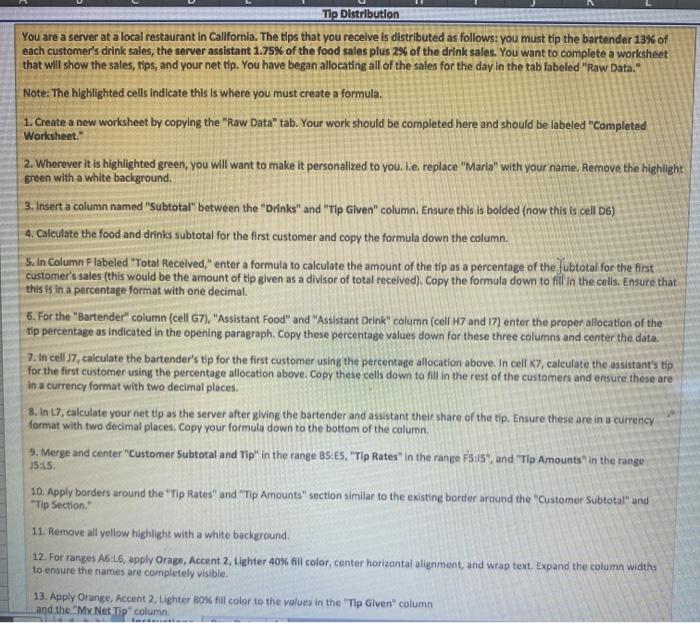
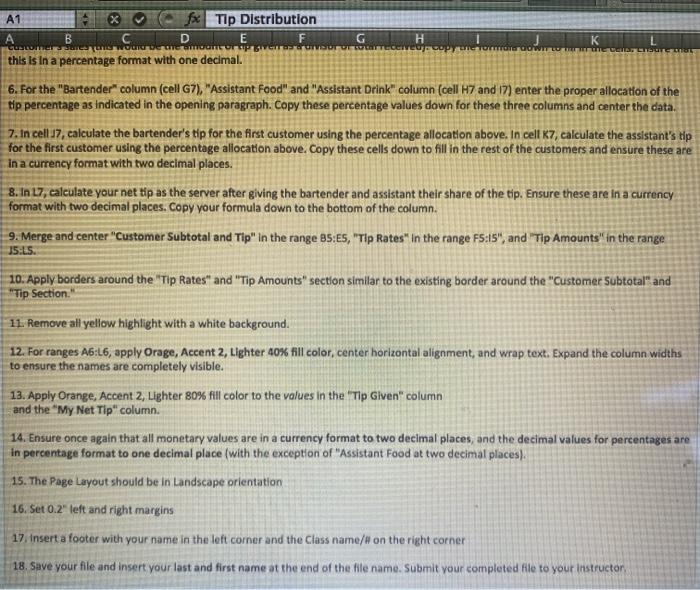
Tip Distribution You are a server at a local restaurant in California. The tips that you recelve is distributed as follows: you must tip the bartender 13% of each customer's drink sales, the server assistant 1.75% of the food sales plus 2% of the drink sales. You want to complete a worksheet that will show the sales, tips, and your net tip. You have began allocating all of the sales for the day in the tab labeled "Raw Data." Note: The highlighted cells indicate this is where you must create a formula 1. Create a new worksheet by copying the "Raw Data" tab. Your work should be completed here and should be labeled "Completed Worksheet. 2. Wherever it is highlighted green, you will want to make it personalized to you. Le replace "Maria" with your name. Remove the highlight green with a white background. 3. Insert a column named "Subtotal" between the "Drinks" and "Tip Given" column. Ensure this is bolded (now this is cell D6) 4. Calculate the food and drinks subtotal for the first customer and copy the formula down the column. 5. In Column Flabeled "Total Received," enter a formula to calculate the amount of the tip as a percentage of the fubtotal for the first customer's sales (this would be the amount of tip given as a divisor of total recelved). Copy the formula down to fill in the cells. Ensure that this is in a percentage format with one decimal. 6. For the "Bartender" column (cell G7). "Assistant Food" and "Assistant Drink" column (cell H7 and 17) enter the proper allocation of the tip percentage as indicated in the opening paragraph. Copy these percentage values down for these three columns and center the data. 7. In cell 37, calculate the bartender's tip for the first customer using the percentage allocation above. In cell K7, calculate the assistant's tip for the first customer using the percentage allocation above. Copy these cells down to fill in the rest of the customers and ensure these are in a currency format with two decimal places. 8. In 17, calculate your net tip as the server after giving the bartender and assistant thele share of the tip. Ensure these are in a currency format with two decimal places, Copy your formula down to the bottom of the column 9. Merge and center "Customer Subtotal and Tip" in the range BS.ES, "Tip Rates" in the range F5:15", and "Tlp Amounts" in the range 15:15 10. Apply borders around the "Tip Rates" and "Tip Amounts" section similar to the existing border around the customer Subtotal" and "Tip Section." 11. Remove all yellow highlight with a white background 12. For ranges A6:46, apply Orage, Accent 2, Lighter 40% fill color, center horizontal alignment, and wrap text, Expand the column widths to ensure the names are completely visible. 13. Apply Orange, Accent 2, Ughter 80% il color to the values in the "Tip Given" column and the "My Net Tip column A1 fx Tip Distribution B D E F WAWI WOULD this is in a percentage format with one decimal. H COP K WCBS LITU 6. For the "Bartender" column (cell G7), "Assistant Food" and "Assistant Drink" column (cell H7 and 17) enter the proper allocation of the tip percentage as indicated in the opening paragraph. Copy these percentage values down for these three columns and center the data. 7. In cell 17, calculate the bartender's tip for the first customer using the percentage allocation above. In cell K7, calculate the assistant's tip for the first customer using the percentage allocation above. Copy these cells down to fill in the rest of the customers and ensure these are in a currency format with two decimal places. 8. In 17, calculate your net tip as the server after giving the bartender and assistant their share of the tip. Ensure these are in a currency format with two decimal places. Copy your formula down to the bottom of the column. 9. Merge and center "Customer Subtotal and Tip" in the range 8S:ES, "Tip Rates" in the range FS:15", and "Tip Amounts" in the range 15:LS 10. Apply borders around the "Tip Rates" and "Tip Amounts" section similar to the existing border around the "Customer Subtotal" and "Tip Section 11. Remove all yellow highlight with a white background. 12. For ranges A6:16, apply Orage, Accent 2, Lighter 40% fill color, center horizontal alignment, and wrap text. Expand the column widths to ensure the names are completely visible. 13. Apply Orange, Accent 2, Lighter 80% fill color to the values in the "Tip Given" column and the "My Net Tip" column. 14. Ensure once again that all monetary values are in a currency format to two decimal places, and the decimal values for percentages are in percentage format to one decimal place with the exception of "Assistant Food at two decimal places). 15. The Page Layout should be in Landscape orientation 16. Set 0.2" left and right margins 17. Insert a footer with your name in the left corner and the Class name/# on the right corner 18. Save your file and insert your last and first name at the end of the file name. Submit your completed file to your instructor Tip Distribution You are a server at a local restaurant in California. The tips that you recelve is distributed as follows: you must tip the bartender 13% of each customer's drink sales, the server assistant 1.75% of the food sales plus 2% of the drink sales. You want to complete a worksheet that will show the sales, tips, and your net tip. You have began allocating all of the sales for the day in the tab labeled "Raw Data." Note: The highlighted cells indicate this is where you must create a formula 1. Create a new worksheet by copying the "Raw Data" tab. Your work should be completed here and should be labeled "Completed Worksheet. 2. Wherever it is highlighted green, you will want to make it personalized to you. Le replace "Maria" with your name. Remove the highlight green with a white background. 3. Insert a column named "Subtotal" between the "Drinks" and "Tip Given" column. Ensure this is bolded (now this is cell D6) 4. Calculate the food and drinks subtotal for the first customer and copy the formula down the column. 5. In Column Flabeled "Total Received," enter a formula to calculate the amount of the tip as a percentage of the fubtotal for the first customer's sales (this would be the amount of tip given as a divisor of total recelved). Copy the formula down to fill in the cells. Ensure that this is in a percentage format with one decimal. 6. For the "Bartender" column (cell G7). "Assistant Food" and "Assistant Drink" column (cell H7 and 17) enter the proper allocation of the tip percentage as indicated in the opening paragraph. Copy these percentage values down for these three columns and center the data. 7. In cell 37, calculate the bartender's tip for the first customer using the percentage allocation above. In cell K7, calculate the assistant's tip for the first customer using the percentage allocation above. Copy these cells down to fill in the rest of the customers and ensure these are in a currency format with two decimal places. 8. In 17, calculate your net tip as the server after giving the bartender and assistant thele share of the tip. Ensure these are in a currency format with two decimal places, Copy your formula down to the bottom of the column 9. Merge and center "Customer Subtotal and Tip" in the range BS.ES, "Tip Rates" in the range F5:15", and "Tlp Amounts" in the range 15:15 10. Apply borders around the "Tip Rates" and "Tip Amounts" section similar to the existing border around the customer Subtotal" and "Tip Section." 11. Remove all yellow highlight with a white background 12. For ranges A6:46, apply Orage, Accent 2, Lighter 40% fill color, center horizontal alignment, and wrap text, Expand the column widths to ensure the names are completely visible. 13. Apply Orange, Accent 2, Ughter 80% il color to the values in the "Tip Given" column and the "My Net Tip column A1 fx Tip Distribution B D E F WAWI WOULD this is in a percentage format with one decimal. H COP K WCBS LITU 6. For the "Bartender" column (cell G7), "Assistant Food" and "Assistant Drink" column (cell H7 and 17) enter the proper allocation of the tip percentage as indicated in the opening paragraph. Copy these percentage values down for these three columns and center the data. 7. In cell 17, calculate the bartender's tip for the first customer using the percentage allocation above. In cell K7, calculate the assistant's tip for the first customer using the percentage allocation above. Copy these cells down to fill in the rest of the customers and ensure these are in a currency format with two decimal places. 8. In 17, calculate your net tip as the server after giving the bartender and assistant their share of the tip. Ensure these are in a currency format with two decimal places. Copy your formula down to the bottom of the column. 9. Merge and center "Customer Subtotal and Tip" in the range 8S:ES, "Tip Rates" in the range FS:15", and "Tip Amounts" in the range 15:LS 10. Apply borders around the "Tip Rates" and "Tip Amounts" section similar to the existing border around the "Customer Subtotal" and "Tip Section 11. Remove all yellow highlight with a white background. 12. For ranges A6:16, apply Orage, Accent 2, Lighter 40% fill color, center horizontal alignment, and wrap text. Expand the column widths to ensure the names are completely visible. 13. Apply Orange, Accent 2, Lighter 80% fill color to the values in the "Tip Given" column and the "My Net Tip" column. 14. Ensure once again that all monetary values are in a currency format to two decimal places, and the decimal values for percentages are in percentage format to one decimal place with the exception of "Assistant Food at two decimal places). 15. The Page Layout should be in Landscape orientation 16. Set 0.2" left and right margins 17. Insert a footer with your name in the left corner and the Class name/# on the right corner 18. Save your file and insert your last and first name at the end of the file name. Submit your completed file to your instructor
Step by Step Solution
There are 3 Steps involved in it

Get step-by-step solutions from verified subject matter experts
 Study Help