







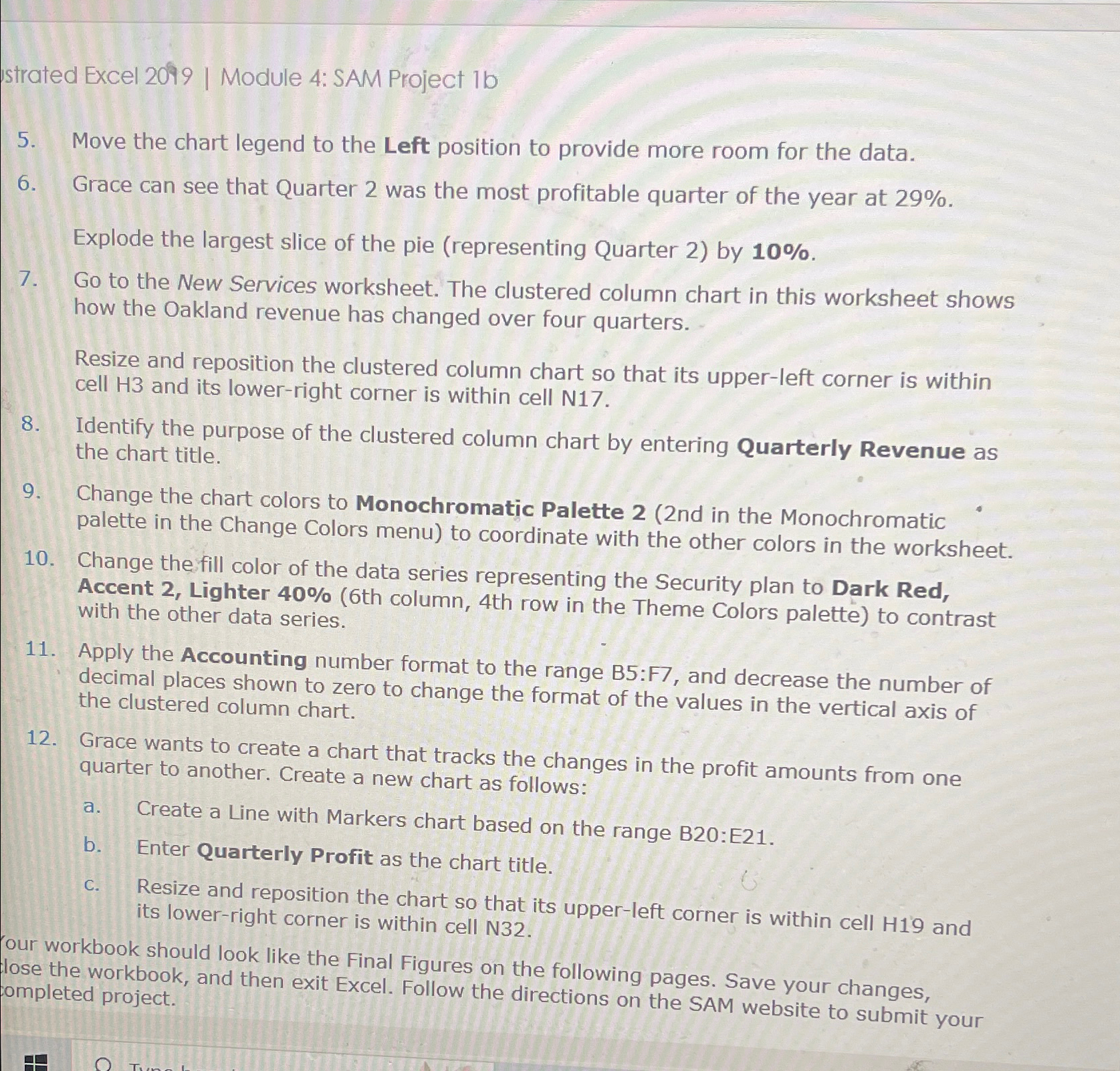
Question: strated Excel 2 0 9 9 | Module 4 : SAM Project 1 b 5 . Move the chart legend to the Left position to
strated Excel Module : SAM Project b
Move the chart legend to the Left position to provide more room for the data.
Grace can see that Quarter was the most profitable quarter of the year at
Explode the largest slice of the pie representing Quarter by
Go to the New Services worksheet. The clustered column chart in this worksheet shows how the Oakland revenue has changed over four quarters.
Resize and reposition the clustered column chart so that its upperleft corner is within cell and its lowerright corner is within cell N
Identify the purpose of the clustered column chart by entering Quarterly Revenue as the chart title.
Change the chart colors to Monochromatic Palette nd in the Monochromatic palette in the Change Colors menu to coordinate with the other colors in the works
Change the Accent Lighter th column, th row in the Theme Colors palette to contrast with the other data series.
Apply the Accounting number format to the range : and decrease the number of decimal places shown to zero to change the format of the values in the vertical axis of the clustered column chart.
Grace wants to create a chart that tracks the changes in the profit amounts from one quarter to another. Create a new chart as follows:
a Create a Line with Markers chart based on the range B:E
b Enter Quarterly Profit as the chart title.
c Resize and reposition the chart so that its upperleft corner is within cell and its lowerright corner is within cell N
our workbook should look like the Final Figures on the following pages. Save your changes, lose the workbook, and then exit Excel. Follow the directions on the SAM website to submit your
Step by Step Solution
There are 3 Steps involved in it
1 Expert Approved Answer
Step: 1 Unlock

Question Has Been Solved by an Expert!
Get step-by-step solutions from verified subject matter experts
Step: 2 Unlock
Step: 3 Unlock
 Study Help