







Question: Table modifications: Open the Gopher Database ( below in Canvas ) Rename it GopherFinalyourname For MemberID 1 2 0 0 ( from tblMember ) put
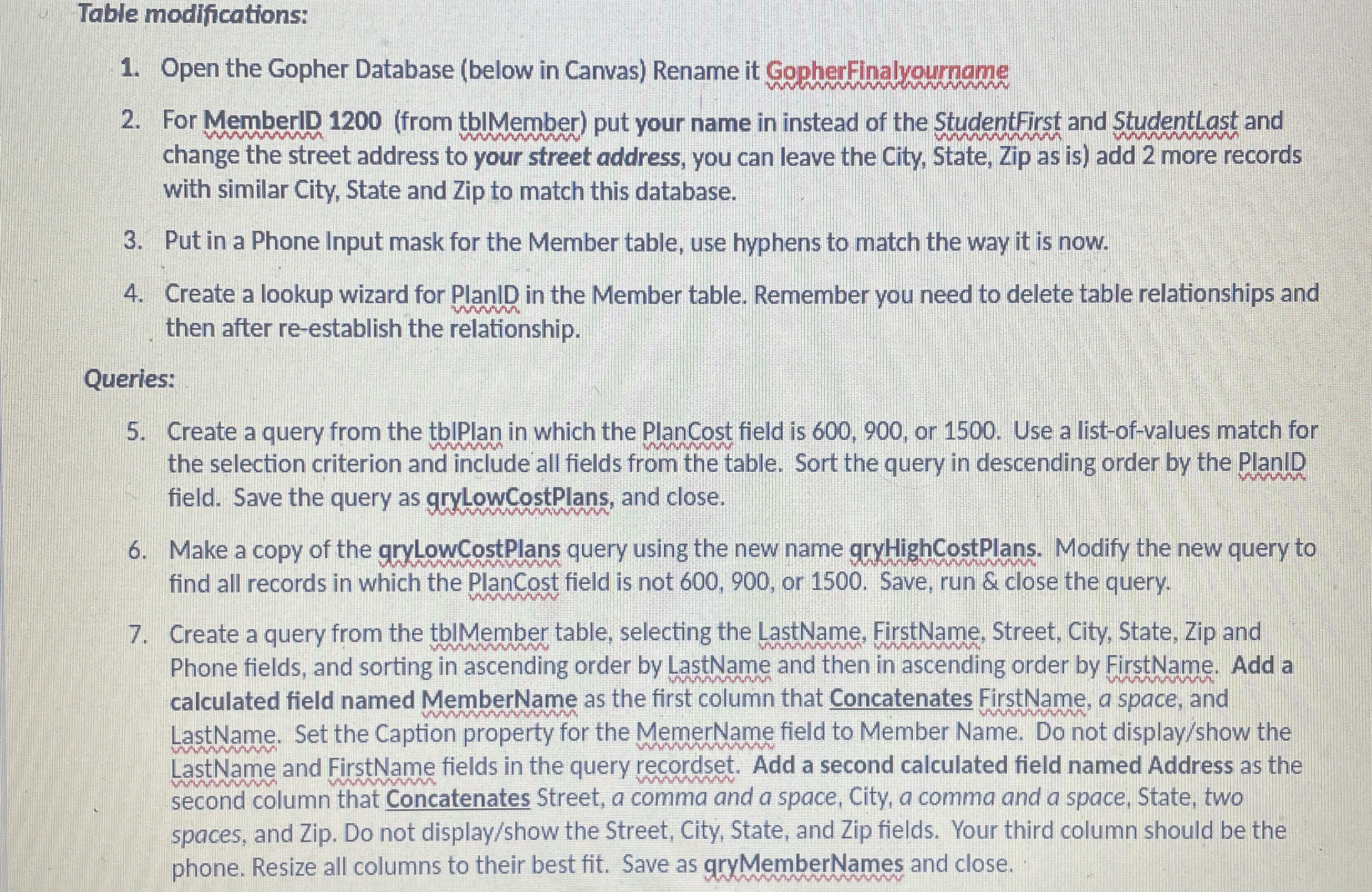
Table modifications:
Open the Gopher Database below in Canvas Rename it GopherFinalyourname
For MemberID from tblMember put your name in instead of the StudentFirst and StudentLast and change the street address to your street address, you can leave the City, State, Zip as is add more records with similar City, State and Zip to match this database.
Put in a Phone Input mask for the Member table, use hyphens to match the way it is now.
Create a lookup wizard for PlanID in the Member table. Remember you need to delete table relationships and then after reestablish the relationship.
Queries:
Create a query from the tblPlan in which the PlanCost field is or Use a listofvalues match for the selection criterion and include all fields from the table. Sort the query in descending order by the PlanlD field. Save the query as gryLowCostPlans, and close.
Make a copy of the gryLowCostPlans query using the new name gryHighCostPlans. Modify the new query to find all records in which the Plancost field is not or Save, run & close the query.
Create a query from the tblMember table, selecting the LastName, FirstName, Street, City, State, Zip and Phone fields, and sorting in ascending order by LastName and then in ascending order by FirstName. Add a calculated field named MemberName as the first column that Concatenates FirstName, a space, and LastName. Set the Caption property for the MemerName field to Member Name. Do not displayshow the LastName and FirstName fields in the query recordset. Add a second calculated field named Address as the second column that Concatenates Street, a comma and a space, City, a comma and a space, State, two spaces, and Zip. Do not displayshow the Street, City, State, and Zip fields. Your third column should be the phone. Resize all columns to their best fit. Save as gryMemberNames and close.
Step by Step Solution
There are 3 Steps involved in it
1 Expert Approved Answer
Step: 1 Unlock

Question Has Been Solved by an Expert!
Get step-by-step solutions from verified subject matter experts
Step: 2 Unlock
Step: 3 Unlock
 Study Help