



Question: Please help me step 1- step18. Thank you. This is sam assess module 3 Font Paragraph SanAll Around Outside Maintenance CREATING AND MODIFYING TABLES AND
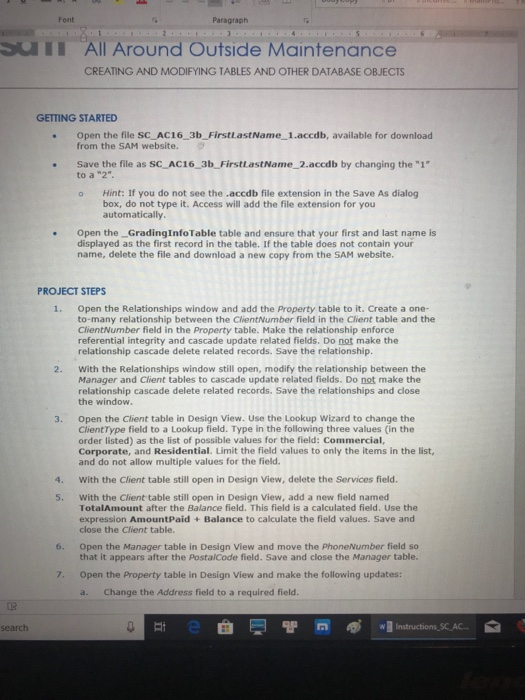
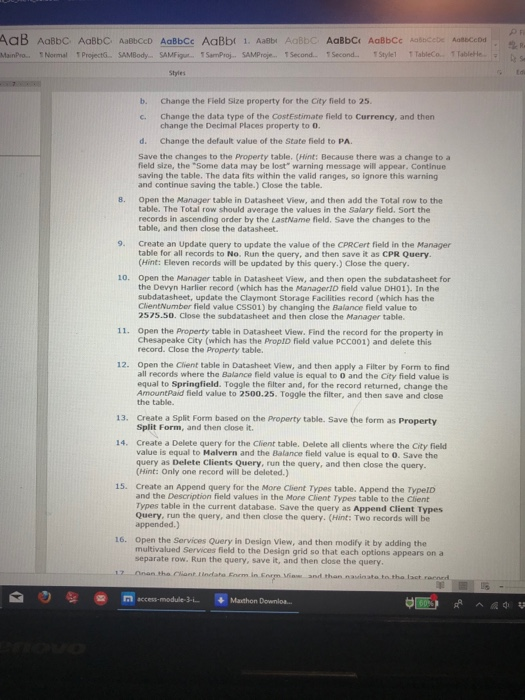
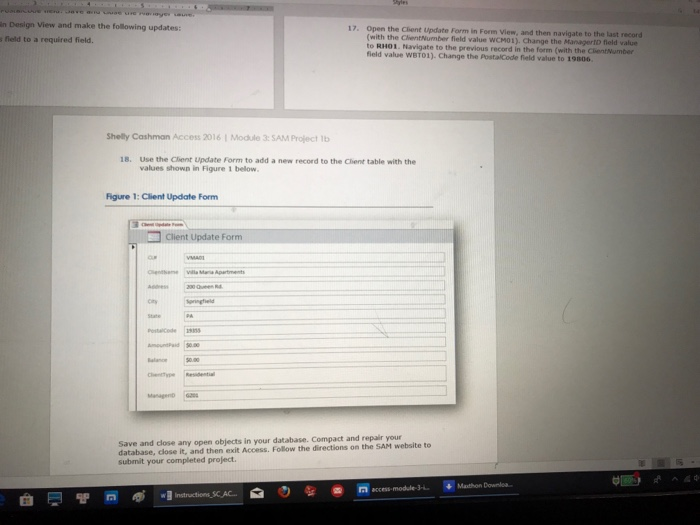
Font Paragraph SanAll Around Outside Maintenance CREATING AND MODIFYING TABLES AND OTHER DATABASE OBJECTS GETTING STARTED . Open the file SC AC16 3b_FirstLastName 1.accdb, available for download from the SAM website. . Save the file as SC AC16 3b FirstLastName 2.accdb by changing the "1 to a "2" Hint: If you do not see the .accdb file extension in the Save As dialog o box, do not type it. Access will add the file extension for you automatically .Open the GradingInfoTable table and ensure that your first and last name is displayed as the first record in the table. If the table does not contain your name, delete the file and download a new copy from the SAM website PROJECT STEPS 1. Open the Relationships window and add the Property table to it. Create a one- to-many relationship between the ClientNumber field in the Client table and the ClientNumber field in the Property table. Make the relationship enforce referential integrity and cascade update related fields. Do not make the relationship cascade delete related records. Save the relationship. With the Relationships window still open, modify the relationship between the Manager and Client tables to cascade update related fields. Do not make the relationship cascade delete related records. Save the relationships and close the window 2. Open the Client table in Design View. Use the Lookup Wizard to change the ClientType field to a Lookup field. Type in the following three values (in the order listed) as the list of possible values for the field: Commercial, Corporate, and Residential. Limit the field values to only the items in the list, and do not allow multiple values for the field. 3. 4. With the Client table still open in Design View, delete the Services field. With the Client table still open in Design View, add a new field named TotalAmount after the Balance field. This field is a calculated field. Use the expression AmountPaid+Balance to calculate the field values. Save and close the Client table. 5. Open the Manager table in Design View and move the PhoneNumber field so that it appears after the PostalCode field. Save and close the Manager table. 6. 7. Open the Property table in Design View and make the following updates: a. Change the Address field to a required field search Font Paragraph SanAll Around Outside Maintenance CREATING AND MODIFYING TABLES AND OTHER DATABASE OBJECTS GETTING STARTED . Open the file SC AC16 3b_FirstLastName 1.accdb, available for download from the SAM website. . Save the file as SC AC16 3b FirstLastName 2.accdb by changing the "1 to a "2" Hint: If you do not see the .accdb file extension in the Save As dialog o box, do not type it. Access will add the file extension for you automatically .Open the GradingInfoTable table and ensure that your first and last name is displayed as the first record in the table. If the table does not contain your name, delete the file and download a new copy from the SAM website PROJECT STEPS 1. Open the Relationships window and add the Property table to it. Create a one- to-many relationship between the ClientNumber field in the Client table and the ClientNumber field in the Property table. Make the relationship enforce referential integrity and cascade update related fields. Do not make the relationship cascade delete related records. Save the relationship. With the Relationships window still open, modify the relationship between the Manager and Client tables to cascade update related fields. Do not make the relationship cascade delete related records. Save the relationships and close the window 2. Open the Client table in Design View. Use the Lookup Wizard to change the ClientType field to a Lookup field. Type in the following three values (in the order listed) as the list of possible values for the field: Commercial, Corporate, and Residential. Limit the field values to only the items in the list, and do not allow multiple values for the field. 3. 4. With the Client table still open in Design View, delete the Services field. With the Client table still open in Design View, add a new field named TotalAmount after the Balance field. This field is a calculated field. Use the expression AmountPaid+Balance to calculate the field values. Save and close the Client table. 5. Open the Manager table in Design View and move the PhoneNumber field so that it appears after the PostalCode field. Save and close the Manager table. 6. 7. Open the Property table in Design View and make the following updates: a. Change the Address field to a required field search
Step by Step Solution
There are 3 Steps involved in it

Get step-by-step solutions from verified subject matter experts