





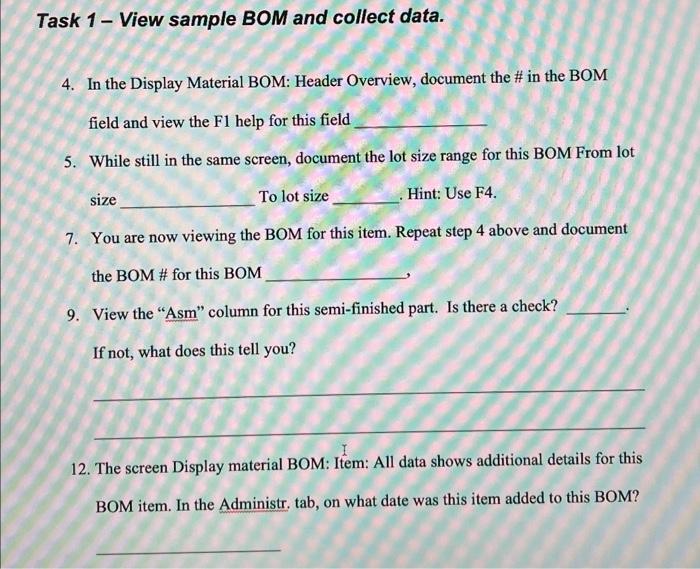
Question: Task 1 - View sample BOM and collect data. 4. In the Display Material BOM: Header Overview, document the # in the BOM field and
Task 1 - View sample BOM and collect data. 4. In
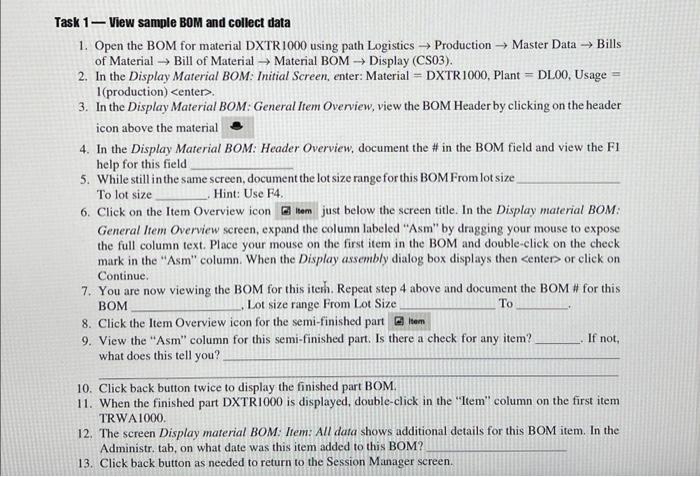
Task 1 - View sample BOM and collect data. 4. In the Display Material BOM: Header Overview, document the # in the BOM field and view the F1 help for this field 5. While still in the same screen, document the lot size range for this BOM From lot size To lot size Hint: Use F4. 7. You are now viewing the BOM for this item. Repeat step 4 above and document the BOM # for this BOM 9. View the "Asm" column for this semi-finished part. Is there a check? If not, what does this tell you? 12. The screen Display material BOM: Item: All data shows additional details for this BOM item. In the Administr. tab, on what date was this item added to this BOM? Task 1 - View sample BOM and collect data 1. Open the BOM for material DXTR 1000 using path Logistics Production Master Data Bills of Material Bill of Material Material BOM Display (CS03). 2. In the Display Material BOM: Initial Screen, enter: Material = DXTR 1000 , Plant = DL00, Usage = 1(production) . 3. In the Display Material BOM: General Item Overview, view the BOM Header by clicking on the header icon above the material 4. In the Display Material BOM: Header Overview, document the # in the BOM field and view the F1 help for this field 5. While still in the same screen, document the lot size range for this BOM From lot size To lot size Hint: Use F4. 6. Click on the Item Overview icon just below the screen title. In the Display material BOM: General ltem Overview screen, expand the column labeled "Asm" by dragging your mouse to expose the full column text. Place your mouse on the first item in the BOM and double-click on the check mark in the "Asm" column. When the Display assembly dialog box displays then or elick on Continue. 7. You are now viewing the BOM for this iterh. Repeat step 4 above and document the BOM # for this BOM Lot size range From Lot Sizs 8. Click the Item Overview icon for the semi-finished part 9. View the "Asm" column for this semi-finished part. Is there a check for any item? If not, what does this tell you? 10. Click back button twice to display the finished part BOM. 11. When the finished part DXTR 1000 is displayed, double-click in the "Item" column on the first item TRWA 1000 . 12. The screen Display material BOM: Item: All data shows additional details for this BOM item. In the Administr. tab, on what date was this item added to this BOM? 13. Click back button as needed to return to the Session Manager screen

Step by Step Solution

There are 3 Steps involved in it

1 Expert Approved Answer
Step: 1 Unlock blur-text-image

Question Has Been Solved by an Expert!

Get step-by-step solutions from verified subject matter experts

Step: 2 Unlock
Step: 3 Unlock

Students Have Also Explored These Related General Management Questions!