







Question: Task Z = Macro 1. Ensure your template from Task 1 is still open. 2. Record a macro that is called InsertFooter, enter an appropriate
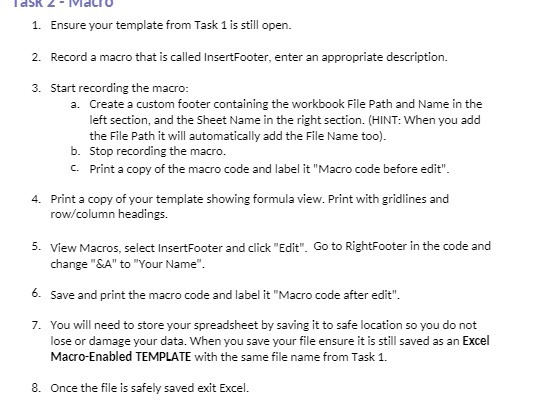
Task Z = Macro 1. Ensure your template from Task 1 is still open. 2. Record a macro that is called InsertFooter, enter an appropriate description. 3. Start recording the macro: a. Create a custom footer containing the workbook File Path and Name in the left section, and the Sheet Name in the right section. (HINT: When you add the File Path it will automatically add the File Name too). b. Stop recording the macro. C. Print a copy of the macro code and label it "Macro code before edit". 4. Print a copy of your template showing formula view. Print with gridlines and row/column headings. 5. View Macros, select InsertFooter and click "Edit". Go to RightFooter in the code and change "&A" to Your Name . 6. Save and print the macro code and label it "Macro code after edit". 7. You will need to store your spreadsheet by saving it to safe location so you do not lose or damage your data. When you save your file ensure it is still saved as an Excel Macro-Enabled TEMPLATE with the same file name from Task 1. 8. Once the file is safely saved exit Excel
Step by Step Solution
There are 3 Steps involved in it

Get step-by-step solutions from verified subject matter experts
 Study Help