







Question: The conditional formatting rule in column G highlights cells that contain the value 5 , the highest evaluation rating. Padma wants to change the highlighting
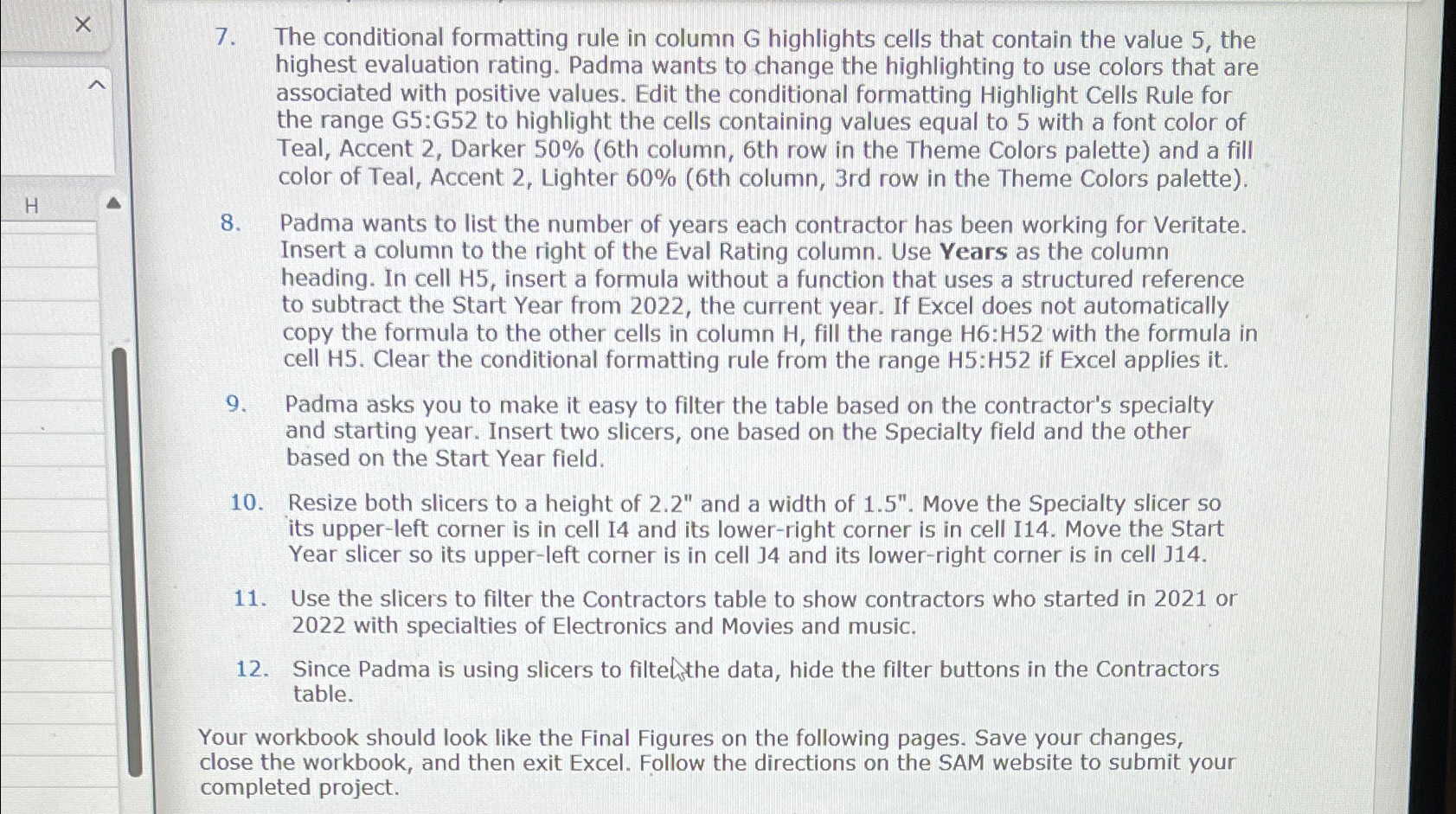
The conditional formatting rule in column highlights cells that contain the value the highest evaluation rating. Padma wants to change the highlighting to use colors that are associated with positive values. Edit the conditional formatting Highlight Cells Rule for the range G:G to highlight the cells containing values equal to with a font color of Teal, Accent Darker th column, th row in the Theme Colors palette and a fill color of Teal, Accent Lighter th column, rd row in the Theme Colors palette
Padma wants to list the number of years each contractor has been working for Veritate. Insert a column to the right of the Eval Rating column. Use Years as the column heading. In cell insert a formula without a function that uses a structured reference to subtract the Start Year from the current year. If Excel does not automatically copy the formula to the other cells in column fill the range : with the formula in cell H Clear the conditional formatting rule from the range H:H if Excel applies it
Padma asks you to make it easy to filter the table based on the contractor's specialty and starting year. Insert two slicers, one based on the Specialty field and the other based on the Start Year field.
Resize both slicers to a height of and a width of Move the Specialty slicer so its upperleft corner is in cell I and its lowerright corner is in cell I Move the Start Year slicer so its upperleft comer is in cell J and its lowerright corner is in cell J
Use the slicers to filter the Contractors table to show contractors who started in or with specialties of Electronics and Movies and music.
Since Padma is using slicers to filtehthe data, hide the filter buttons in the Contractors table.
Your workbook should look like the Final Figures on the following pages. Save your changes, close the workbook, and then exit Excel. Follow the directions on the SAM website to submit your completed project.
Step by Step Solution
There are 3 Steps involved in it
1 Expert Approved Answer
Step: 1 Unlock

Question Has Been Solved by an Expert!
Get step-by-step solutions from verified subject matter experts
Step: 2 Unlock
Step: 3 Unlock
 Study Help