





Question: The function RANDO generates a Random Number from 0 to 99999 in Excel. If I want to generate a Random Number from 0 to 9.9999
The function RANDO generates a Random Number fromThe function RANDO generates a Random Number fromThe function RANDO generates a Random Number from

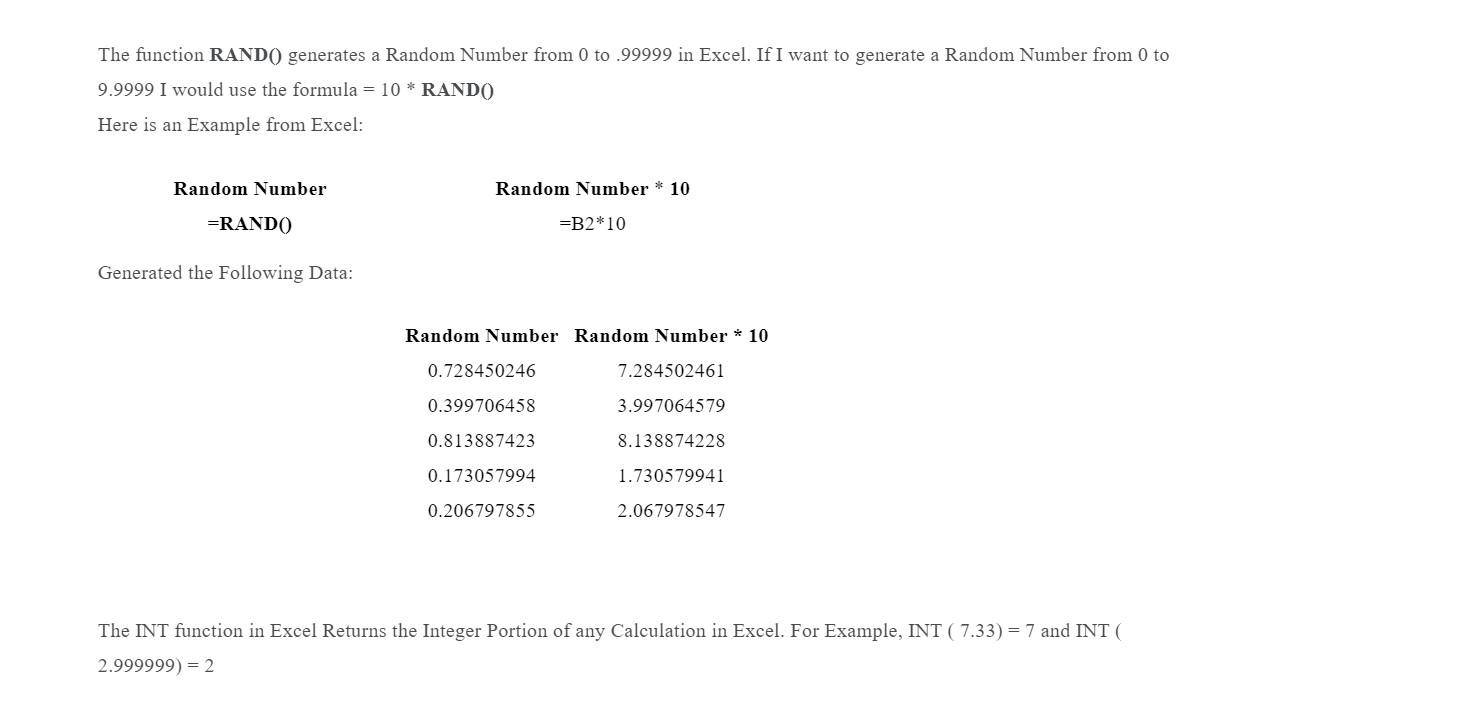
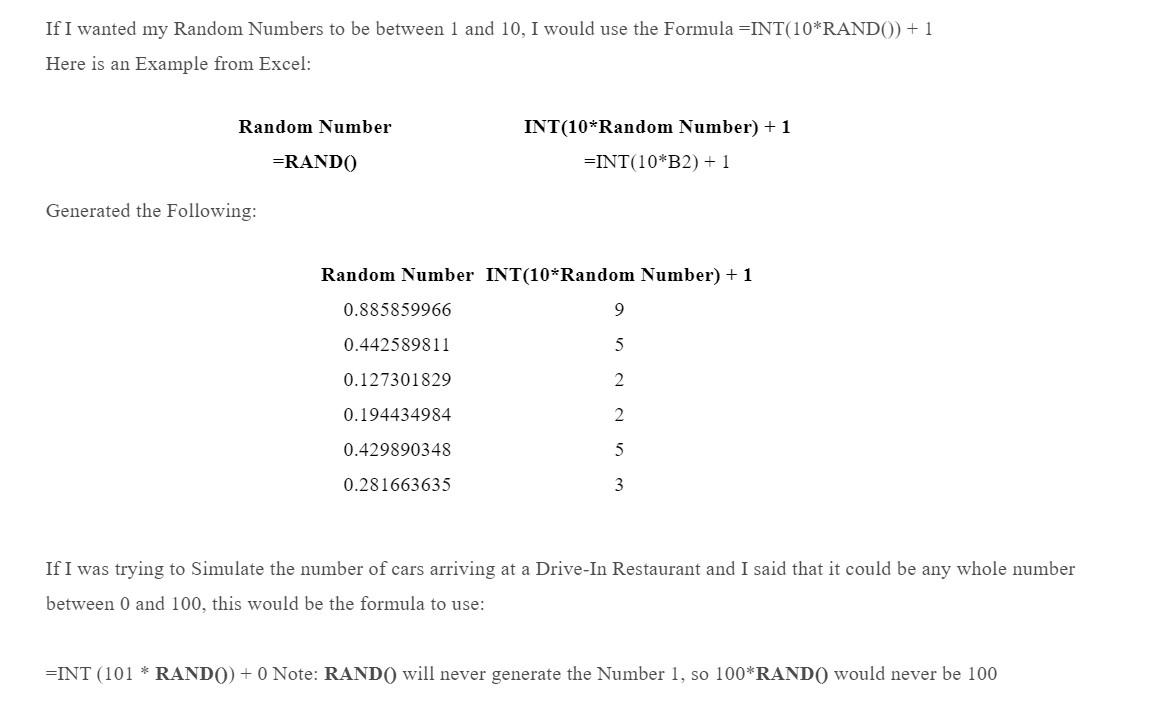
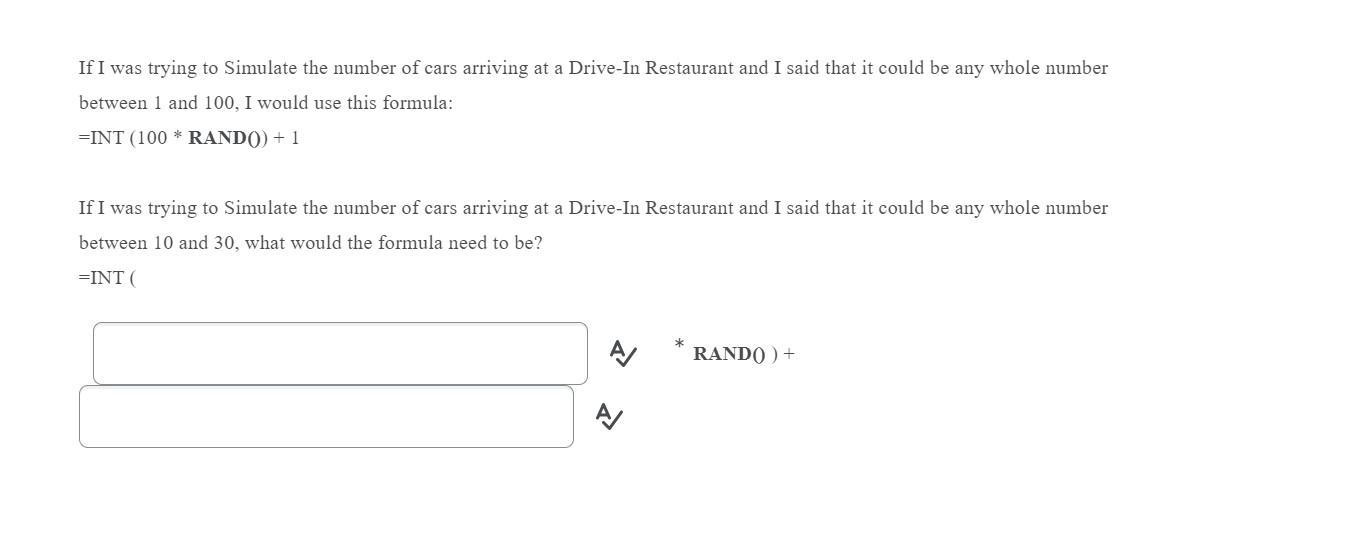
The function RANDO generates a Random Number from 0 to 99999 in Excel. If I want to generate a Random Number from 0 to 9.9999 I would use the formula = 10 * RANDO Here is an Example from Excel: Random Number Random Number * 10 =RANDO =B2*10 Generated the following Data: Random Number Random Number * 10 0.728450246 7.284502461 0.399706458 3.997064579 0.813887423 8.138874228 0.173057994 1.730579941 0.206797855 2.067978547 The INT function in Excel Returns the Integer Portion of any Calculation in Excel. For Example, INT (7.33) = 7 and INT 2.999999) = 2 If I wanted my Random Numbers to be between 1 and 10, I would use the Formula =INT(10*RANDO) +1 Here is an Example from Excel: Random Number INT(10*Random Number) + 1 =INT(10*B2) + 1 =RANDO Generated the following: Random Number INT(10*Random Number) + 1 0.885859966 9 0.442589811 5 0.127301829 2 0.194434984 2 0.429890348 5 0.281663635 3 If I was trying to Simulate the number of cars arriving at a Drive-In Restaurant and I said that it could be any whole number between 0 and 100, this would be the formula to use: =INT (101 * RANDO) + 0 Note: RANDO) will never generate the Number 1, so 100*RAND() would never be 100 If I was trying to Simulate the number of cars arriving at a Drive-In Restaurant and I said that it could be any whole number between 1 and 100, I would use this formula: =INT (100 * RANDO) + 1 If I was trying to Simulate the number of cars arriving at a Drive-In Restaurant and I said that it could be any whole number between 10 and 30, what would the formula need to be? =INT AJ RANDO) + AJ
Step by Step Solution

There are 3 Steps involved in it

1 Expert Approved Answer
Step: 1 Unlock blur-text-image

Question Has Been Solved by an Expert!

Get step-by-step solutions from verified subject matter experts

Step: 2 Unlock
Step: 3 Unlock

Students Have Also Explored These Related General Management Questions!