







Question: the next page. Save the Excel Template to your computer: In Blackboard Open the template of the Excel spreadsheet, Template-Project 1; and then save it
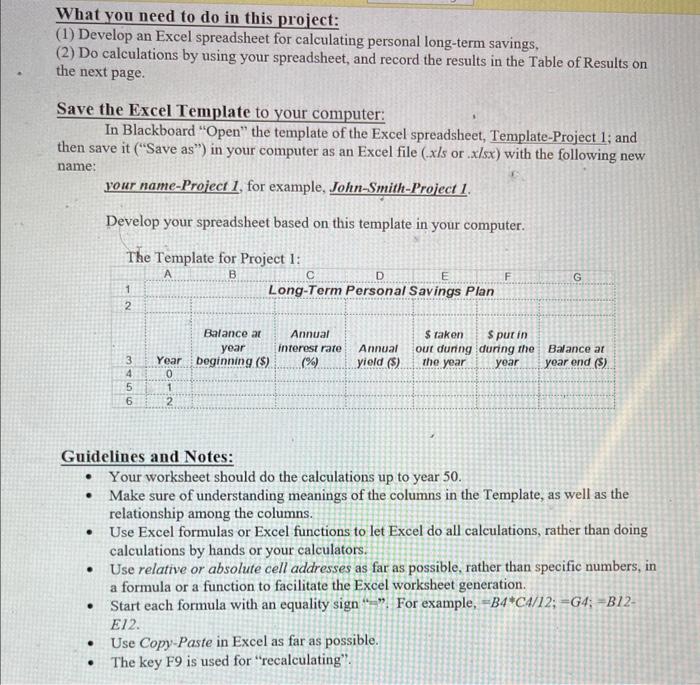
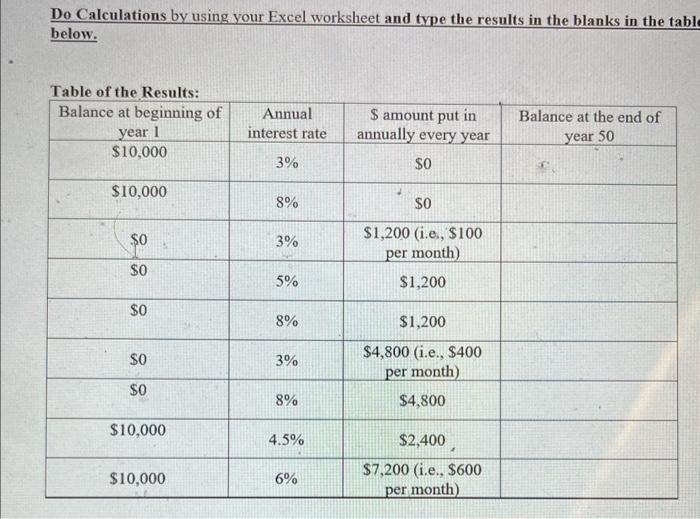
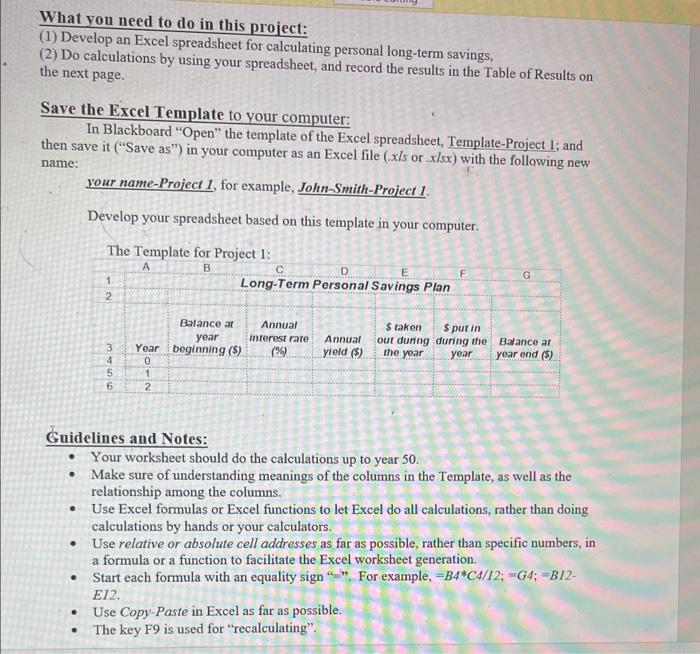
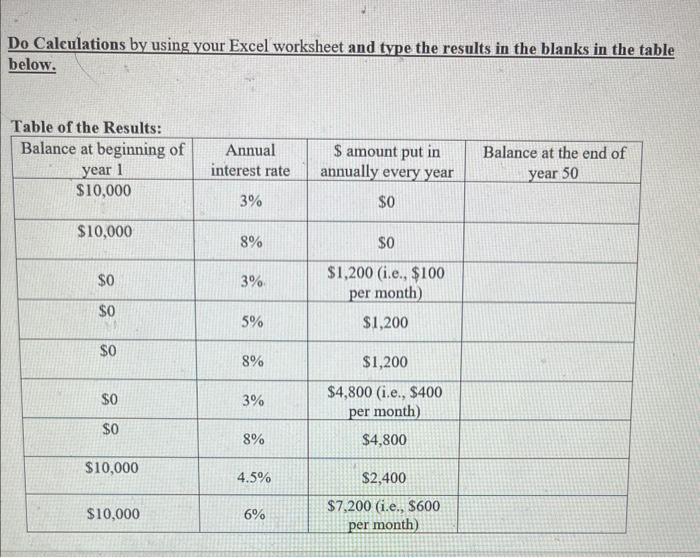
the next page. Save the Excel Template to your computer: In Blackboard "Open" the template of the Excel spreadsheet, Template-Project 1; and then save it ("Save as") in your computer as an Excel file (.x/s or .x/sx) with the following new name: your name-Project 1, for example, John-Smith-Project 1. Develop your spreadsheet based on this template in your computer. Guidelines and Notes: - Your worksheet should do the calculations up to year 50. - Make sure of understanding meanings of the columns in the Template, as well as the relationship among the columns. - Use Excel formulas or Excel functions to let Excel do all calculations, rather than doing calculations by hands or your calculators. - Use relative or absolute cell addresses as far as possible, rather than specific numbers, in a formula or a function to facilitate the Excel worksheet generation. - Start each formula with an equality sign"=. For example, =B4C4/12;=G4;=B12 E12. - Use Copy-Paste in Excel as far as possible. - The key F9 is used for "recalculating". Do Calculations by using your Excel worksheet and type the results in the blanks in the tab below. (2) Do calculations by using your spreadsheet, and record the results in the Table of Results on the next page. Save the Excel Template to your computer: In Blackboard "Open" the template of the Excel spreadsheet, Template-Project 1; and then save it ("Save as") in your computer as an Excel file (x/s or xlsx) with the following new name: your name-Project 1, for example, Joltn-Smith-Project 1. Develop your spreadsheet based on this template in your computer. Guidelines and Notes: - Your worksheet should do the calculations up to year 50 . - Make sure of understanding meanings of the columns in the Template, as well as the relationship among the columns. - Use Excel formulas or Excel functions to let Excel do all calculations, rather than doing calculations by hands or your calculators. - Use relative or absolute cell addresses as far as possible, rather than specific numbers, in a formula or a function to facilitate the Excel worksheet generation. - Start each formula with an equality sign "=". For example, =B4C4/12;=G4;=B12 E12. - Use Copy-Paste in Excel as far as possible. - The key F9 is used for "recalculating". Do Calculations by using your Excel worksheet and type the results in the blanks in the table below
Step by Step Solution
There are 3 Steps involved in it

Get step-by-step solutions from verified subject matter experts
 Study Help