



Question: THE SUBJECT IS WEB DEVELOPMENT I have to update a CSS I previously did. I have trouble being sure where to place codes. When I
THE SUBJECT IS WEB DEVELOPMENT
I have to update a CSS I previously did. I have trouble being sure where to place codes. When I ran my page it was incorrect.
Could someone please help me to figure out what I did wrong. The book is "Basic Web Design HTML & CSS 4th edition, Felke & Morris, page 245, "Pacific Trails Resort"
HERE'S THE STEPS I WAS ASKED TO FOLLOWED:
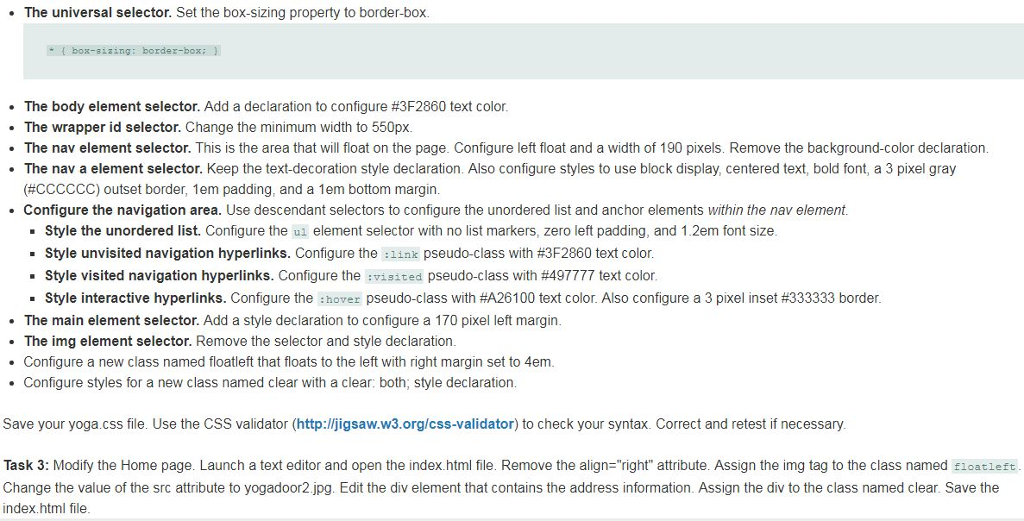
The universal selector. Set the box-sizing property to border-box -box-sizing: border-box: The body element selector. Add a declaration to configure #3F2860 text color The wrapper id selector. Change the minimum width to 550px. . The nav element selector. This is the area that will float on the page. Configure left float and a width of 190 pixels. Remove the background-color declaration The nav a element selector. Keep the text-decoration style declaration. Also configure styles to use block display, centered text, bold font, a 3 pixel gray (#CCCCCC) outset border. Iem padding, and a 1 em bottom margin Configure the navigation area. Use descendant selectors to configure the unordered list and anchor elements within the nav element Style the unordered list. Configure the u element selector with no list markers, zero left padding, and 1.2em font size Style unvisited navigation hyperlinks. Configure the: link pseudo-class with #3F2860 text color . . Style visited navigation hyperlinks. Configure the : visited pseudo-class with #497777 text color Style interactive hyperlinks. Configure the :hover pseudo-class with #A26100 text color. Also configure a 3 pixel inset #333333 border The main element selector. Add a style declaration to configure a 170 pixel left margin The img element selector. Remove the selector and style declaration .Configure a new class named floatleft that floats to the left with right margin set to 4em . Configure styles for a new class named clear with a clear: both, style declaration Save your yoga.css file. Use the CSS validator (http://jigsaw.w3.org/css-validator) to check your syntax. Correct and retest if necessary Task 3: Modify the Home page. Launch a text editor and open the index.html file. Remove the align-"right" attribute. Assign the img tag to the class named loatleft Change the value of the src attribute to yogadoor2 jpg. Edit the div element that contains the address information. Assign the div to the class named clear. Save the index.html file The universal selector. Set the box-sizing property to border-box -box-sizing: border-box: The body element selector. Add a declaration to configure #3F2860 text color The wrapper id selector. Change the minimum width to 550px. . The nav element selector. This is the area that will float on the page. Configure left float and a width of 190 pixels. Remove the background-color declaration The nav a element selector. Keep the text-decoration style declaration. Also configure styles to use block display, centered text, bold font, a 3 pixel gray (#CCCCCC) outset border. Iem padding, and a 1 em bottom margin Configure the navigation area. Use descendant selectors to configure the unordered list and anchor elements within the nav element Style the unordered list. Configure the u element selector with no list markers, zero left padding, and 1.2em font size Style unvisited navigation hyperlinks. Configure the: link pseudo-class with #3F2860 text color . . Style visited navigation hyperlinks. Configure the : visited pseudo-class with #497777 text color Style interactive hyperlinks. Configure the :hover pseudo-class with #A26100 text color. Also configure a 3 pixel inset #333333 border The main element selector. Add a style declaration to configure a 170 pixel left margin The img element selector. Remove the selector and style declaration .Configure a new class named floatleft that floats to the left with right margin set to 4em . Configure styles for a new class named clear with a clear: both, style declaration Save your yoga.css file. Use the CSS validator (http://jigsaw.w3.org/css-validator) to check your syntax. Correct and retest if necessary Task 3: Modify the Home page. Launch a text editor and open the index.html file. Remove the align-"right" attribute. Assign the img tag to the class named loatleft Change the value of the src attribute to yogadoor2 jpg. Edit the div element that contains the address information. Assign the div to the class named clear. Save the index.html file
Step by Step Solution
There are 3 Steps involved in it

Get step-by-step solutions from verified subject matter experts