



Question: The Tip Left column in the Friday worksheet contains a fill color and number formatting. You want to fill these formats to the other daily
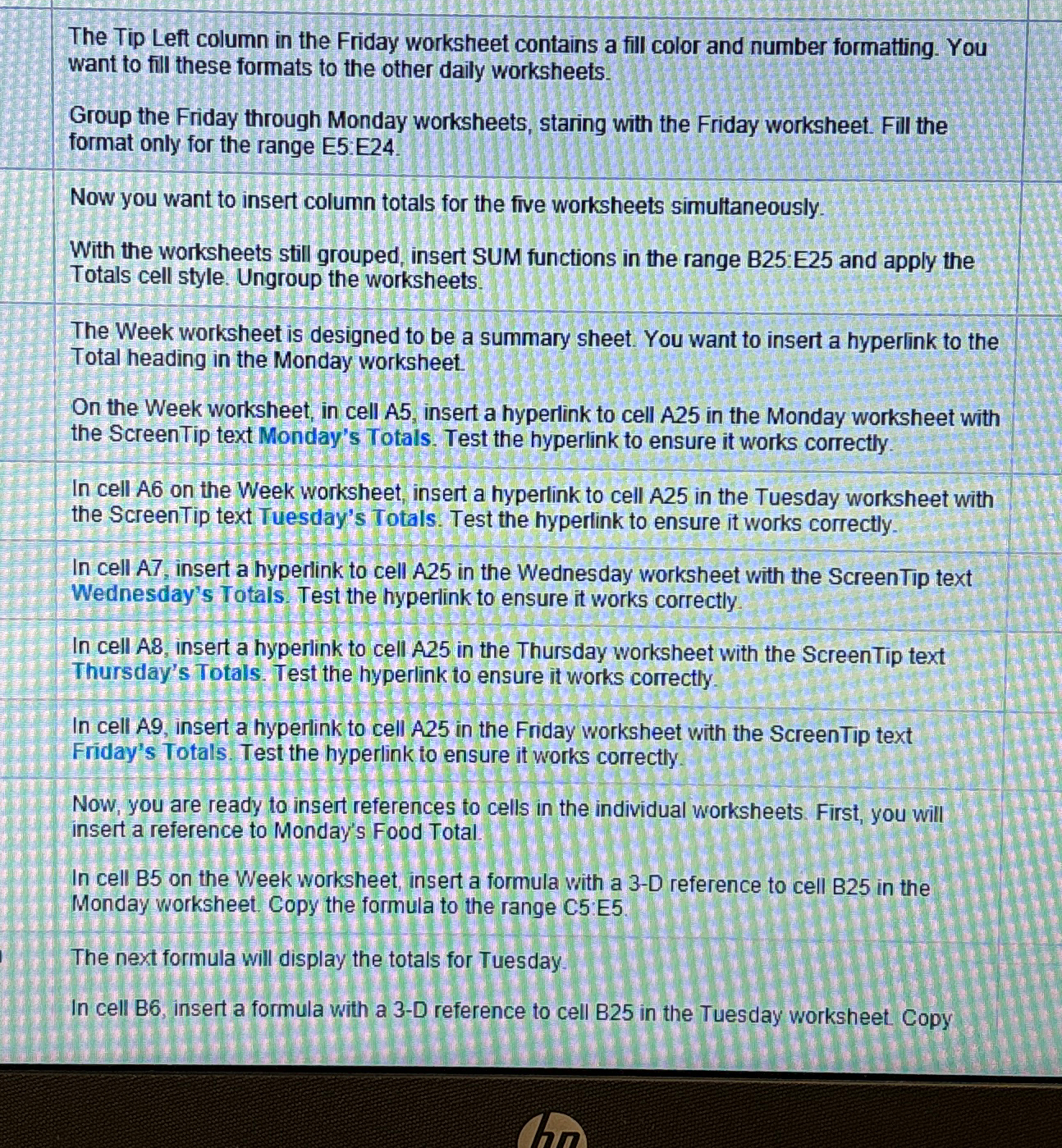
The Tip Left column in the Friday worksheet contains a fill color and number formatting. You want to fill these formats to the other daily worksheets.
Group the Friday through Monday worksheets, staring with the Friday worksheet. Fill the format only for the range E:E
Now you want to insert column totals for the five worksheets simultaneously.
With the worksheets still grouped, insert SUM functions in the range B:E and apply the Totals cell style. Ungroup the worksheets.
The Week worksheet is designed to be a summary sheet. You want to insert a hyperlink to the Total heading in the Monday worksheet.
On the Week worksheet, in cell A insert a hyperlink to cell A in the Monday worksheet with the ScreenTip text Monday's Totals. Test the hyperlink to ensure it works correctly.
In cell A on the Week worksheet, insert a hyperlink to cell A in the Tuesday worksheet with the ScreenTip text Tuesday's Totals. Test the hyperlink to ensure it works correctly.
In cell A insert a hyperlink to cell A in the Wednesday worksheet with the ScreenTip text Wednesday's Totals. Test the hyperlink to ensure it works correctly.
In cell A insert a hyperlink to cell A in the Thursday worksheet with the ScreenTip text Thursday's Totals. Test the hyperlink to ensure it works correctly.
In cell A insert a hyperlink to cell A in the Friday worksheet with the ScreenTip text Friday's Totals. Test the hyperlink to ensure it works correctly.
Now, you are ready to insert references to cells in the individual worksheets. First, you will insert a reference to Monday's Food Total.
In cell B on the Week worksheet, insert a formula with a D reference to cell B in the Monday worksheet. Copy the formula to the range C:E
The next formula will display the totals for Tuesday.
In cell B insert a formula with a D reference to cell B in the Tuesday worksheet Copy
Step by Step Solution
There are 3 Steps involved in it
1 Expert Approved Answer
Step: 1 Unlock

Question Has Been Solved by an Expert!
Get step-by-step solutions from verified subject matter experts
Step: 2 Unlock
Step: 3 Unlock