







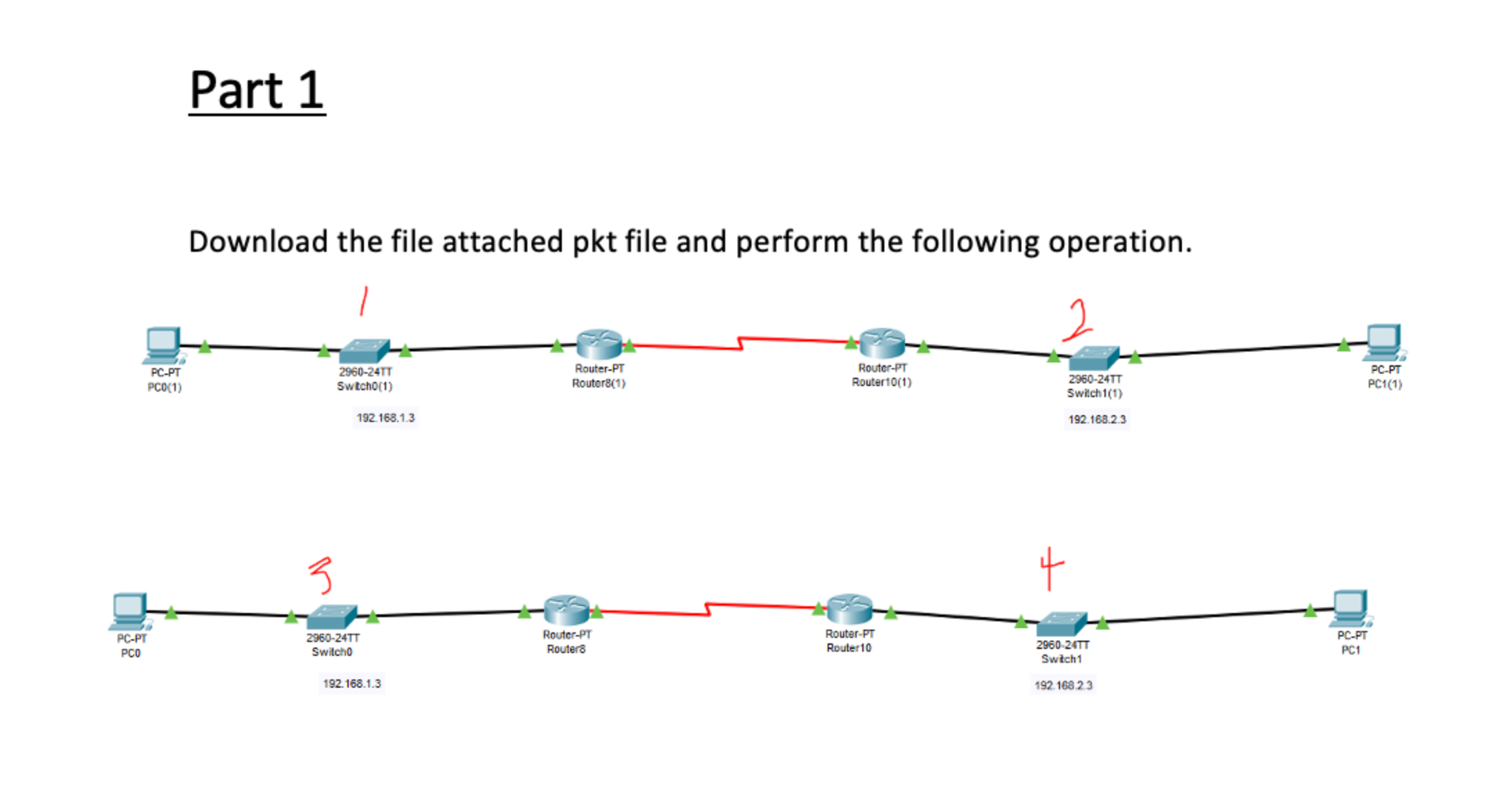
Question: The two network has the same configuration from the one we used in class. Instructions You need to set up each of the four switches
The two network has the same configuration from the one we used in class.
Instructions
You need to set up each of the four switches to enable Telnet or SSH
For Switch configure all vty lines to enable telnet using only password to login
For Switch configure all vty lines to enable SSH using only password to login
For Switch configure all vty lines to enable telnet using username and password to login
For Switch configure all vty lines to enable SSH using username and password to login
Use the ip address given below the switch and for all four switch with subnet mask
Router and Routers IP is for faDG for SW and and Router and Routers IP is for faDG for SW and
Note: Router and are default gateway for SW and AND Routerand are default gateway for SW and respectively.
Make sure you test your configuration. From each PC try to telnet or ssh the switch on its network and the other network.
To Telnet from the PC go to the command prompt and type telnet followed by the switchs IP
To SSH from the PC go to the command prompt and type ssh l followed by the username and IP for username and password OR and type ssh l followed by the hostname and IP for password only configuration
If you use a different password from the one given, please indicate it in the comment when you submit.
Use the correct IP address given in the lab. The one given in this document is for demonstration.
Note: Make sure you use the correct default gateway on each switch.
Configuration for telnet with only password
From usermode, enter enable command to go into privilege mode.
From privilege mode, enter configure terminal to enter global configuration mode.
From global configuration mode, enter vty line mode
o Line vty
Enter your password
o password cisco
To enforce it to use only password use login
o login
Type exit to go back to configuration mode
Set enable password very important
o enable secret cisco
Enter Interface mode for vlan to set up the switchs IP address make sure to use the correct IP address as shown under the switches
o Interface vlan
o Ip address
o no shutdown this command is used to bring up an interface
Type exit to go back to global configuration mode
In global configuration mode, enter the default gateway address routermake sure each switch has the correct default gateway address
o ip defaultgateway You need this to be able to go out of your network
In enable mode, verify that your vlan ip address is set and in up up state using show ip interface brief command
Configuration for telnet with username and password
From global configuration mode, enter vty line mode
o line vty
To enable username and password use login local
o login local
Type exit to go back to configuration mode
Set enable password very important
o enable secret cisco
Enter Interface mode for vlan to set up ip address make sure to use the correct IP address as shown under the switches
o Interface vlan
o Ip address
o no shutdown
Type exit to go back to global configuration mode
In global configuration mode, enter the default gateway address routermake sure each switch as the correct default gateway address
o ip defaultgateway You need this to be able to go out of your network
Set username and password
o username myUsername secret myPassword
o please indicate your usename and password in the file
Configuration for SSH with only password
From global configuration mode, enter vty line mode
o Line vty
Enter your password
o password cisco
To enable it to use only password use login
o login
o transport input SSHor use all
Type exit to go back to configuration mode
Set enable password very important
o enable secret myPassword
Set up information needed for ssh
o hostname UseSwitchNum
o ip domainname mydomainName.com
o crypto key generate rsa press enter
Enter or
o ip ssh version
Enter Interface mode for vlan to set up ip address. make sure to use the correct IP address as shown under the switches
o Interface vlan
o Ip address
o no shutdown
Type exit to go back to global configuration mode
In global configuration mode, enter the default gateway address routermake sure each switch has the correct default gateway address
o Ip defaultgateway You need this to be able to go out of your network
Configuration for SSH with username and password
From global configuration mode, enter vty line mode.
o line vty
To enable it to username and password, use login local.
o login local
o Transport input SSHor use all
Type exit to go back t
Step by Step Solution
There are 3 Steps involved in it
1 Expert Approved Answer
Step: 1 Unlock

Question Has Been Solved by an Expert!
Get step-by-step solutions from verified subject matter experts
Step: 2 Unlock
Step: 3 Unlock
 Study Help