







Question: This is how the SqliteConnection.Java File looks like: The sqlite-jdbc.jar file I am using is version: 3.30.1 TY in advance! What kind of information do
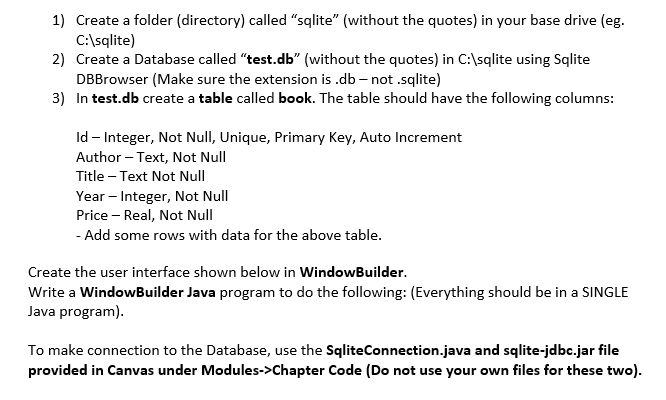
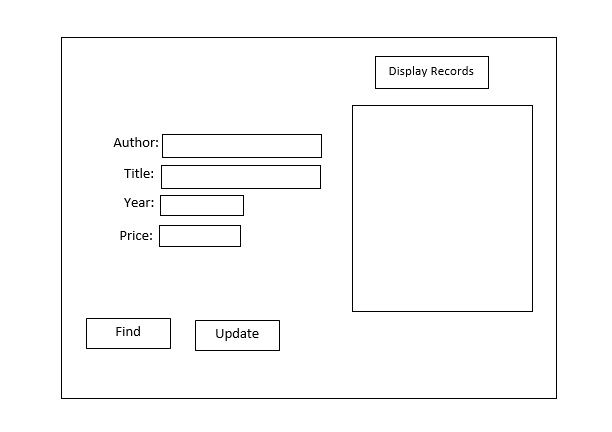
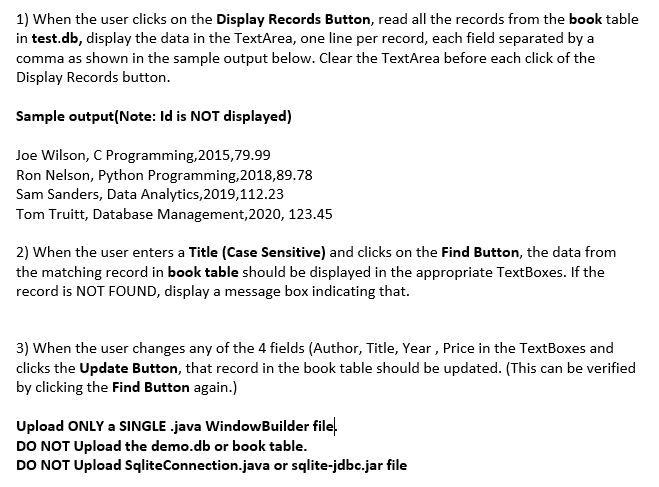
This is how the SqliteConnection.Java File looks like:
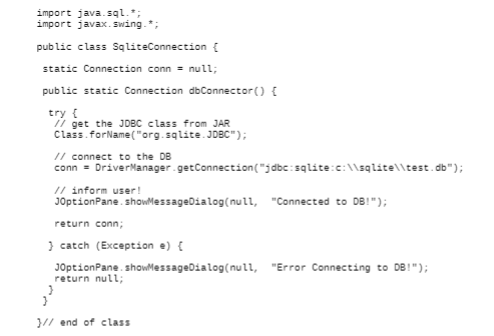
The sqlite-jdbc.jar file I am using is version: 3.30.1
TY in advance!
What kind of information do you need? be specific please
1) Create a folder (directory) called "sqlite" (without the quotes) in your base drive (eg. C:\sqlite) 2) Create a Database called test.db (without the quotes) in C:\sqlite using Sqlite DBBrowser (Make sure the extension is .db-not.sqlite) 3) In test.db create a table called book. The table should have the following columns: Id Integer, Not Null, Unique, Primary Key, Auto Increment Author - Text, Not Null Title - Text Not Null Year - Integer, Not Null Price - Real, Not Null - Add some rows with data for the above table. Create the user interface shown below in WindowBuilder. Write a WindowBuilder Java program to do the following: (Everything should be in a SINGLE Java program). To make connection to the Database, use the SqliteConnection.java and sqlite-jdbc.jar file provided in Canvas under Modules->Chapter Code (Do not use your own files for these two). Display Records Author: Title: Year: Price: Find Update 1) When the user clicks on the Display Records Button, read all the records from the book table in test.db, display the data in the TextArea, one line per record, each field separated by a comma as shown in the sample output below. Clear the TextArea before each click of the Display Records button. Sample output(Note: Id is NOT displayed) Joe Wilson, C Programming, 2015,79.99 Ron Nelson, Python Programming, 2018,89.78 Sam Sanders, Data Analytics, 2019,112.23 Tom Truitt, Database Management 2020, 123.45 2) When the user enters a Title (Case Sensitive) and clicks on the Find Button, the data from the matching record in book table should be displayed in the appropriate TextBoxes. If the record is NOT FOUND, display a message box indicating that. 3) When the user changes any of the 4 fields (Author, Title, Year, Price in the TextBoxes and clicks the Update Button, that record in the book table should be updated. (This can be verified by clicking the Find Button again.) Upload ONLY a SINGLE .java WindowBuilder file! DO NOT Upload the demo.db or book table. DO NOT Upload sqliteConnection.java or sqlite-jdbc.jar file import java.sql.*; import javax.swing.*; public class SoliteConnection static Connection conn = null; public static Connection dbconnector() { try ! 11 get the JDBC class from JAR Class. forName("org.sqlite. JDBC"); // connect to the DB conn = DriverManager.getConnection("jdbe: sqlite:C:\\sqlite\\test.db"); // inform user! JOptionPane showMessageDialog(null, "connected to DB1"); return conn; } catch (Exception e) { JOptionPane showMessageDialog(null, "Error Connecting to DB!"); return null; }// end of class 1) Create a folder (directory) called "sqlite" (without the quotes) in your base drive (eg. C:\sqlite) 2) Create a Database called test.db (without the quotes) in C:\sqlite using Sqlite DBBrowser (Make sure the extension is .db-not.sqlite) 3) In test.db create a table called book. The table should have the following columns: Id Integer, Not Null, Unique, Primary Key, Auto Increment Author - Text, Not Null Title - Text Not Null Year - Integer, Not Null Price - Real, Not Null - Add some rows with data for the above table. Create the user interface shown below in WindowBuilder. Write a WindowBuilder Java program to do the following: (Everything should be in a SINGLE Java program). To make connection to the Database, use the SqliteConnection.java and sqlite-jdbc.jar file provided in Canvas under Modules->Chapter Code (Do not use your own files for these two). Display Records Author: Title: Year: Price: Find Update 1) When the user clicks on the Display Records Button, read all the records from the book table in test.db, display the data in the TextArea, one line per record, each field separated by a comma as shown in the sample output below. Clear the TextArea before each click of the Display Records button. Sample output(Note: Id is NOT displayed) Joe Wilson, C Programming, 2015,79.99 Ron Nelson, Python Programming, 2018,89.78 Sam Sanders, Data Analytics, 2019,112.23 Tom Truitt, Database Management 2020, 123.45 2) When the user enters a Title (Case Sensitive) and clicks on the Find Button, the data from the matching record in book table should be displayed in the appropriate TextBoxes. If the record is NOT FOUND, display a message box indicating that. 3) When the user changes any of the 4 fields (Author, Title, Year, Price in the TextBoxes and clicks the Update Button, that record in the book table should be updated. (This can be verified by clicking the Find Button again.) Upload ONLY a SINGLE .java WindowBuilder file! DO NOT Upload the demo.db or book table. DO NOT Upload sqliteConnection.java or sqlite-jdbc.jar file import java.sql.*; import javax.swing.*; public class SoliteConnection static Connection conn = null; public static Connection dbconnector() { try ! 11 get the JDBC class from JAR Class. forName("org.sqlite. JDBC"); // connect to the DB conn = DriverManager.getConnection("jdbe: sqlite:C:\\sqlite\\test.db"); // inform user! JOptionPane showMessageDialog(null, "connected to DB1"); return conn; } catch (Exception e) { JOptionPane showMessageDialog(null, "Error Connecting to DB!"); return null; }// end of class
Step by Step Solution
There are 3 Steps involved in it

Get step-by-step solutions from verified subject matter experts
 Study Help