



Question: this is one question broken into 3 parts. need explanations. cheers Saws 4 3 1 2 5 West East ON 6 12 8 13 9
this is one question broken into 3 parts. need explanations. cheers
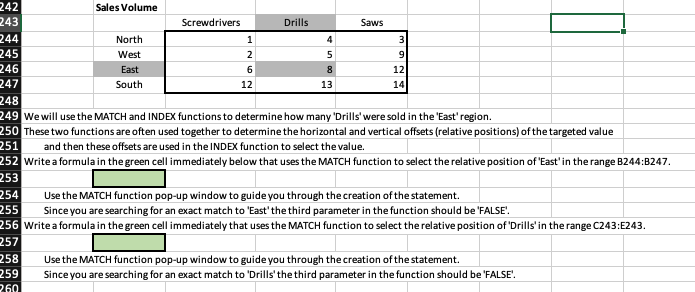
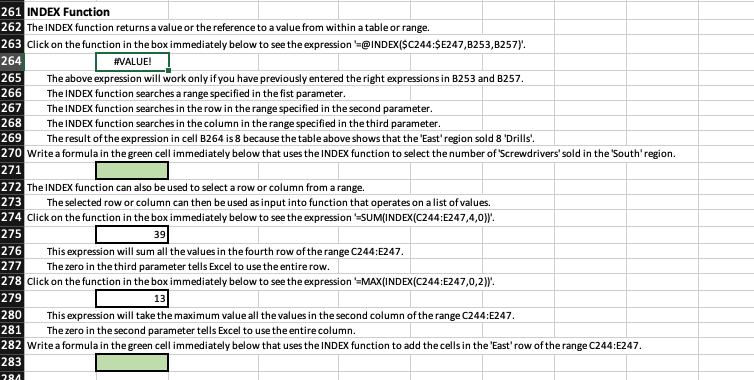
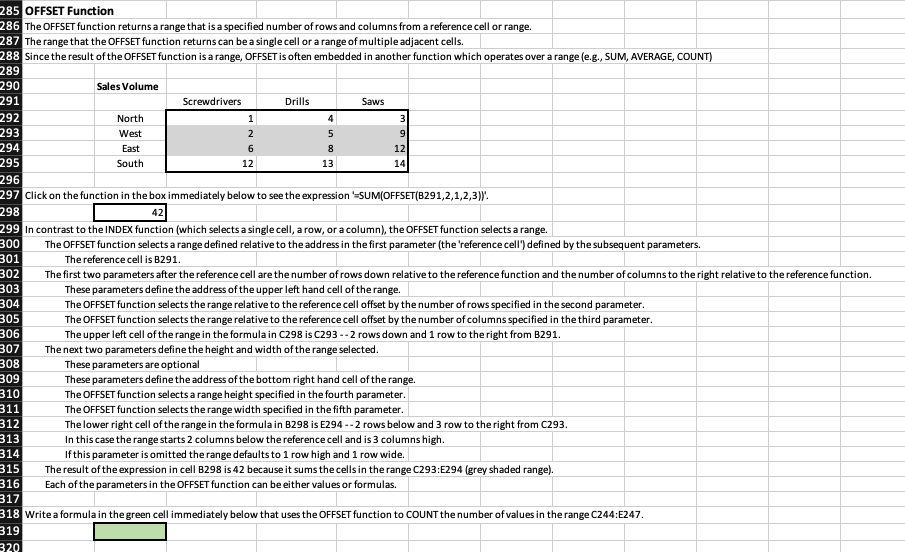
Saws 4 3 1 2 5 West East ON 6 12 8 13 9 12 14 242 Sales Volume 243 Screwdrivers Drills 244 North 245 246 247 South 248 249 We will use the MATCH and INDEX functions to determine how many 'Drills' were sold in the 'East' region. 250 These two functions are often used together to determine the horizontal and vertical offsets (relative positions of the targeted value 251 and then these offsets are used in the INDEX function to select the value. 252 Write a formula in the green cell immediately below that uses the MATCH function to select the relative position of "East' in the range B244:B247. 253 254 Use the MATCH function pop-up window to guide you through the creation of the statement. 255 Since you are searching for an exact match to 'East' the third parameter in the function should be 'FALSE'. 256 Write a formula in the green cell immediately that uses the MATCH function to select the relative position of 'Drills' in the range C243:E243. 257 258 259 260 Use the MATCH function pop-up window to guide you through the creation of the statement. Since you are searching for an exact match to Drills' the third parameter in the function should be "FALSE 266 261 INDEX Function 262 The INDEX function returns a value or the reference to a value from within a table or range. 263 Click on the function in the box immediately below to see the expression =@INDEX($C244:$E247,8253,8257). 264 #VALUE! 265 The above expression will work only if you have previously entered the right expressions in B253 and B257. The INDEX function searches a range specified in the fist parameter. 267 The INDEX function searches in the row in the range specified in the second parameter. 268 The INDEX function searches in the column in the range specified in the third parameter. 269 The result of the expression in cell B264 is 8 because the table above shows that the "East' region sold 8 'Drills'. 270 Write a formula in the green cell immediately below that uses the INDEX function to select the number of 'Screwdrivers' sold in the South' region. 271 272 The INDEX function can also be used to select a row or column from a range. 273 The selected row or column can then be used as input into function that operates on a list of values. 274 Click on the function in the box immediately below to see the expression SUM(INDEX(C244:E247,4,0)). 275 39 This expression will sum all the values in the fourth row of the range C244:E247. 277 The zero in the third parameter tells Excel to use the entire row. 278 Click on the function in the box immediately below to see the expression =MAX(INDEX(C244:E247,0,2)). 279 This expression will take the maximum value all the values in the second column of the range C244:E247. 281 The zero in the second parameter tells Excel to use the entire column. 282 Write a formula in the green cell immediately below that uses the INDEX function to add the cells in the 'East' row of the range C244:E247. 283 276 280 284 285 OFFSET Function 286 The OFFSET function returns a range that is a specified number of rows and columns from a reference cell or range. 287 The range that the OFFSET function returns can be a single cell or a range of multiple adjacent cells. 288 Since the result of the OFFSET function is a range, OFFSET is often embedded in another function which operates over a range (e.g., SUM, AVERAGE, COUNT) 289 290 Sales Volume 291 Screwdrivers Drills Saws 292 North 1 293 West 2 294 6 8 12 295 South 12 13 14 4 3 5 9 East o N 296 42 297 Click on the function in the box immediately below to see the expression -SUM(OFFSET(B291,2,1,2,3). 298 299 In contrast to the INDEX function (which selects a single cell, a row, or a column), the OFFSET function selects a range. 300 The OFFSET function selects a range defined relative to the address in the first parameter (the 'reference cell')defined by the subsequent parameters. 301 The reference cell is B291. 302 The first two parameters after the reference cell are the number of rows down relative to the reference function and the number of columns to the right relative to the reference function. 303 These parameters define the address of the upper left hand cell of the range. 304 The OFFSET function selects the range relative to the reference cell offset by the number of rows specified in the second parameter. 305 The OFFSET function selects the range relative to the reference cell offset by the number of columns specified in the third parameter. 306 The upper left cell of the range in the formula in C298 is C293 -- 2 rows down and 1 row to the right from B291. 307 The next two parameters define the height and width of the range selected. 308 These parameters are optional 309 These parameters define the address of the bottom right hand cell of the range. 310 The OFFSET function selects a range height specified in the fourth parameter. 311 The OFFSET function selects the range width specified in the fifth parameter. 312 The lower right cell of the range in the formula in B298 is E294 --2 rows below and 3 row to the right from C293. 313 In this case the range starts 2 columns below the reference cell and is 3 columns high. 314 If this parameter is omitted the range defaults to 1 row high and 1 row wide. 315 The result of the expression in cell B298 is 42 because it sums the cells in the range C293:E294 (grey shaded range). Each of the parameters in the OFFSET function can be either values or formulas. 317 318 Write a formula in the green cell immediately below that uses the OFFSET function to COUNT the number of values in the range C244:E247. 319 320 316 Saws 4 3 1 2 5 West East ON 6 12 8 13 9 12 14 242 Sales Volume 243 Screwdrivers Drills 244 North 245 246 247 South 248 249 We will use the MATCH and INDEX functions to determine how many 'Drills' were sold in the 'East' region. 250 These two functions are often used together to determine the horizontal and vertical offsets (relative positions of the targeted value 251 and then these offsets are used in the INDEX function to select the value. 252 Write a formula in the green cell immediately below that uses the MATCH function to select the relative position of "East' in the range B244:B247. 253 254 Use the MATCH function pop-up window to guide you through the creation of the statement. 255 Since you are searching for an exact match to 'East' the third parameter in the function should be 'FALSE'. 256 Write a formula in the green cell immediately that uses the MATCH function to select the relative position of 'Drills' in the range C243:E243. 257 258 259 260 Use the MATCH function pop-up window to guide you through the creation of the statement. Since you are searching for an exact match to Drills' the third parameter in the function should be "FALSE 266 261 INDEX Function 262 The INDEX function returns a value or the reference to a value from within a table or range. 263 Click on the function in the box immediately below to see the expression =@INDEX($C244:$E247,8253,8257). 264 #VALUE! 265 The above expression will work only if you have previously entered the right expressions in B253 and B257. The INDEX function searches a range specified in the fist parameter. 267 The INDEX function searches in the row in the range specified in the second parameter. 268 The INDEX function searches in the column in the range specified in the third parameter. 269 The result of the expression in cell B264 is 8 because the table above shows that the "East' region sold 8 'Drills'. 270 Write a formula in the green cell immediately below that uses the INDEX function to select the number of 'Screwdrivers' sold in the South' region. 271 272 The INDEX function can also be used to select a row or column from a range. 273 The selected row or column can then be used as input into function that operates on a list of values. 274 Click on the function in the box immediately below to see the expression SUM(INDEX(C244:E247,4,0)). 275 39 This expression will sum all the values in the fourth row of the range C244:E247. 277 The zero in the third parameter tells Excel to use the entire row. 278 Click on the function in the box immediately below to see the expression =MAX(INDEX(C244:E247,0,2)). 279 This expression will take the maximum value all the values in the second column of the range C244:E247. 281 The zero in the second parameter tells Excel to use the entire column. 282 Write a formula in the green cell immediately below that uses the INDEX function to add the cells in the 'East' row of the range C244:E247. 283 276 280 284 285 OFFSET Function 286 The OFFSET function returns a range that is a specified number of rows and columns from a reference cell or range. 287 The range that the OFFSET function returns can be a single cell or a range of multiple adjacent cells. 288 Since the result of the OFFSET function is a range, OFFSET is often embedded in another function which operates over a range (e.g., SUM, AVERAGE, COUNT) 289 290 Sales Volume 291 Screwdrivers Drills Saws 292 North 1 293 West 2 294 6 8 12 295 South 12 13 14 4 3 5 9 East o N 296 42 297 Click on the function in the box immediately below to see the expression -SUM(OFFSET(B291,2,1,2,3). 298 299 In contrast to the INDEX function (which selects a single cell, a row, or a column), the OFFSET function selects a range. 300 The OFFSET function selects a range defined relative to the address in the first parameter (the 'reference cell')defined by the subsequent parameters. 301 The reference cell is B291. 302 The first two parameters after the reference cell are the number of rows down relative to the reference function and the number of columns to the right relative to the reference function. 303 These parameters define the address of the upper left hand cell of the range. 304 The OFFSET function selects the range relative to the reference cell offset by the number of rows specified in the second parameter. 305 The OFFSET function selects the range relative to the reference cell offset by the number of columns specified in the third parameter. 306 The upper left cell of the range in the formula in C298 is C293 -- 2 rows down and 1 row to the right from B291. 307 The next two parameters define the height and width of the range selected. 308 These parameters are optional 309 These parameters define the address of the bottom right hand cell of the range. 310 The OFFSET function selects a range height specified in the fourth parameter. 311 The OFFSET function selects the range width specified in the fifth parameter. 312 The lower right cell of the range in the formula in B298 is E294 --2 rows below and 3 row to the right from C293. 313 In this case the range starts 2 columns below the reference cell and is 3 columns high. 314 If this parameter is omitted the range defaults to 1 row high and 1 row wide. 315 The result of the expression in cell B298 is 42 because it sums the cells in the range C293:E294 (grey shaded range). Each of the parameters in the OFFSET function can be either values or formulas. 317 318 Write a formula in the green cell immediately below that uses the OFFSET function to COUNT the number of values in the range C244:E247. 319 320 316
Step by Step Solution
There are 3 Steps involved in it

Get step-by-step solutions from verified subject matter experts