







Question: this is the file i got when i clicked on the link 1. First, download the csv file containing the credit card transaction information from
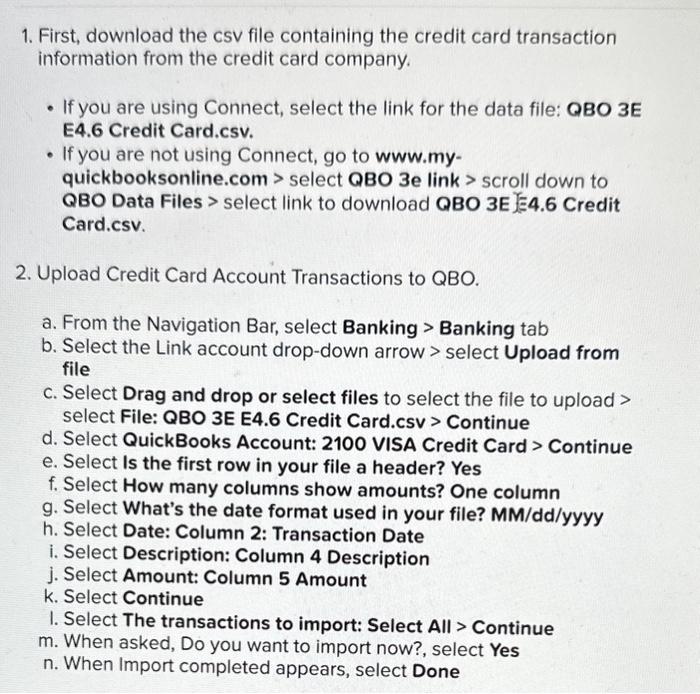
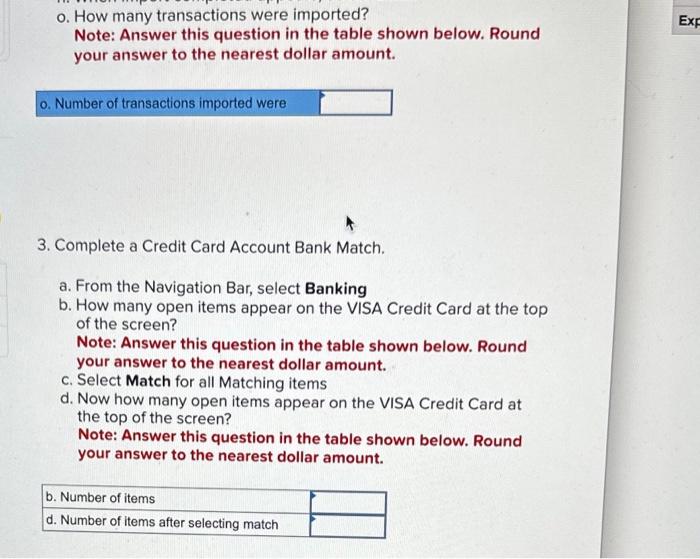
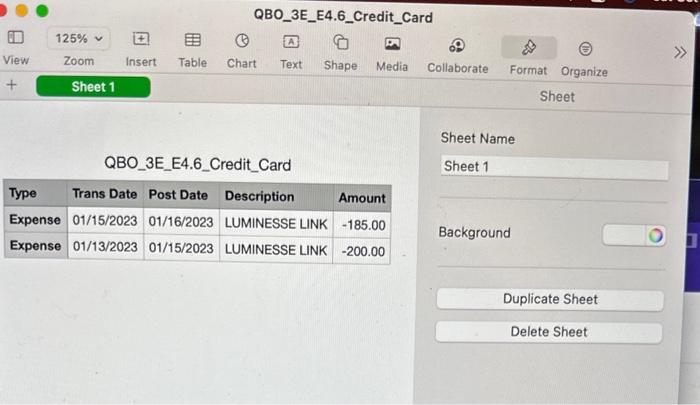
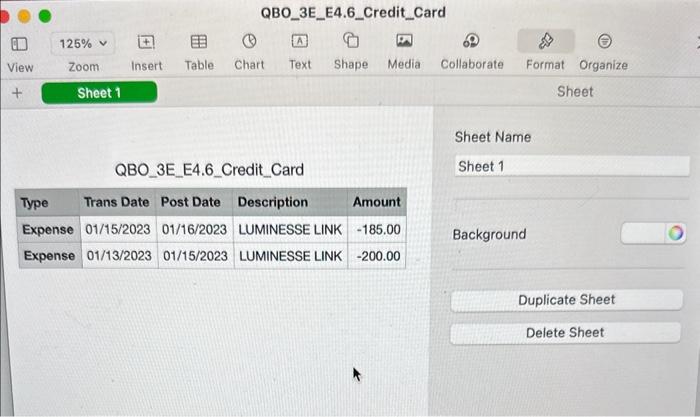
1. First, download the csv file containing the credit card transaction information from the credit card company. - If you are using Connect, select the link for the data file: QBO3E E4.6 Credit Card.csv. - If you are not using Connect, go to www.myquickbooksonline.com > select QBO3e link > scroll down to QBO Data Files > select link to download QBO 3E E 4.6 Credit Card.csv. 2. Upload Credit Card Account Transactions to QBO. a. From the Navigation Bar, select Banking > Banking tab b. Select the Link account drop-down arrow > select Upload from file c. Select Drag and drop or select files to select the file to upload > select File: QBO 3E E4.6 Credit Card.csv > Continue d. Select QuickBooks Account: 2100 VISA Credit Card > Continue e. Select Is the first row in your file a header? Yes f. Select How many columns show amounts? One column g. Select What's the date format used in your file? MM/dd/yyyy h. Select Date: Column 2: Transaction Date i. Select Description: Column 4 Description j. Select Amount: Column 5 Amount k. Select Continue 1. Select The transactions to import: Select All > Continue m. When asked, Do you want to import now?, select Yes n. When Import completed appears, select Done o. How many transactions were imported? Note: Answer this question in the table shown below. Round your answer to the nearest dollar amount. 3. Complete a Credit Card Account Bank Match. a. From the Navigation Bar, select Banking b. How many open items appear on the VISA Credit Card at the top of the screen? Note: Answer this question in the table shown below. Round your answer to the nearest dollar amount. c. Select Match for all Matching items d. Now how many open items appear on the VISA Credit Card at the top of the screen? Note: Answer this question in the table shown below. Round your answer to the nearest dollar amount. Sheet Name QBO_3E_E4.6_Credit_Card Sheet Name QBO_3E_E4.6_Credit_Card 1. First, download the csv file containing the credit card transaction information from the credit card company. - If you are using Connect, select the link for the data file: QBO3E E4.6 Credit Card.csv. - If you are not using Connect, go to www.myquickbooksonline.com > select QBO3e link > scroll down to QBO Data Files > select link to download QBO 3E E 4.6 Credit Card.csv. 2. Upload Credit Card Account Transactions to QBO. a. From the Navigation Bar, select Banking > Banking tab b. Select the Link account drop-down arrow > select Upload from file c. Select Drag and drop or select files to select the file to upload > select File: QBO 3E E4.6 Credit Card.csv > Continue d. Select QuickBooks Account: 2100 VISA Credit Card > Continue e. Select Is the first row in your file a header? Yes f. Select How many columns show amounts? One column g. Select What's the date format used in your file? MM/dd/yyyy h. Select Date: Column 2: Transaction Date i. Select Description: Column 4 Description j. Select Amount: Column 5 Amount k. Select Continue 1. Select The transactions to import: Select All > Continue m. When asked, Do you want to import now?, select Yes n. When Import completed appears, select Done o. How many transactions were imported? Note: Answer this question in the table shown below. Round your answer to the nearest dollar amount. 3. Complete a Credit Card Account Bank Match. a. From the Navigation Bar, select Banking b. How many open items appear on the VISA Credit Card at the top of the screen? Note: Answer this question in the table shown below. Round your answer to the nearest dollar amount. c. Select Match for all Matching items d. Now how many open items appear on the VISA Credit Card at the top of the screen? Note: Answer this question in the table shown below. Round your answer to the nearest dollar amount. Sheet Name QBO_3E_E4.6_Credit_Card Sheet Name QBO_3E_E4.6_Credit_Card
Step by Step Solution
There are 3 Steps involved in it

Get step-by-step solutions from verified subject matter experts
 Study Help