







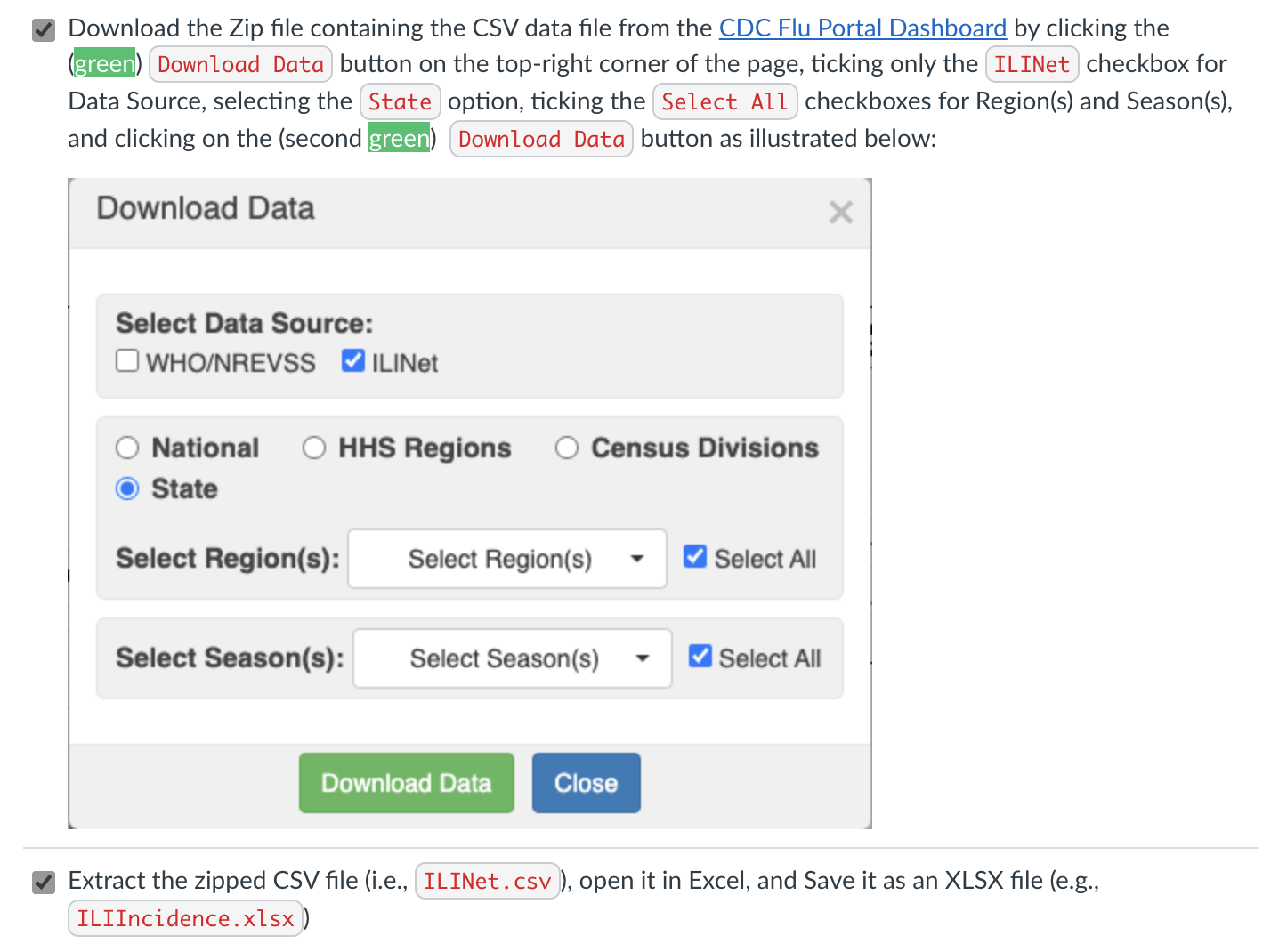
Question: This is the link to download the data: https://gis.cdc.gov/grasp/fluview/fluportaldashboard.html Download the Zip file containing the CSV data file from the CDC Flu Portal Dashboard by
This is the link to download the data:
https://gis.cdc.gov/grasp/fluview/fluportaldashboard.html
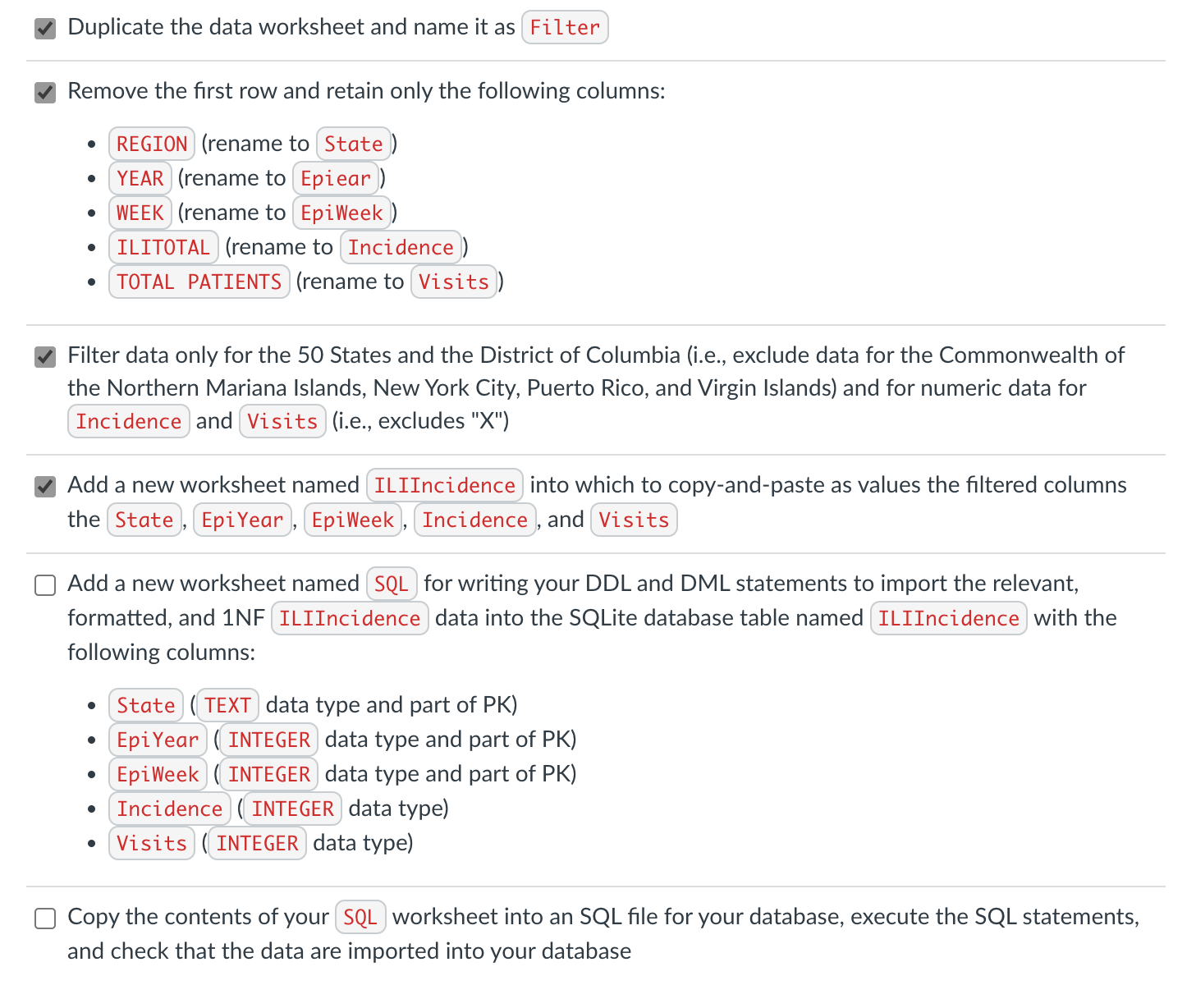
Download the Zip file containing the CSV data file from the CDC Flu Portal Dashboard by clicking the button on the top-right corner of the page, ticking only the checkbox for Data Source, selecting the option, ticking the checkboxes for Region(s) and Season(s), and clicking on the (second button as illustrated below: Download Data Select Data Source: WHO/NREVSS ILINet National HHS Regions Census Divisions State Select Region(s): Select All Select Season(s): Select All Extract the zipped CSV file (i.e., ), open it in Excel, and Save it as an XLSX file (e.g., Duplicate the data worksheet and name it as Remove the first row and retain only the following columns: -(renameto(renameto-(renameto(renameto(renameto, Filter data only for the 50 States and the District of Columbia (i.e., exclude data for the Commonwealth of the Northern Mariana Islands, New York City, Puerto Rico, and Virgin Islands) and for numeric data for and (i.e., excludes "X") Add a new worksheet named into which to copy-and-paste as values the filtered columns the , and Add a new worksheet named for writing your DDL and DML statements to import the relevant, formatted, and 1NF data into the SQLite database table named with the following columns: Copy the contents of your _ worksheet into an SQL file for your database, execute the SQL statements, and check that the data are imported into your database Download the Zip file containing the CSV data file from the CDC Flu Portal Dashboard by clicking the button on the top-right corner of the page, ticking only the checkbox for Data Source, selecting the option, ticking the checkboxes for Region(s) and Season(s), and clicking on the (second button as illustrated below: Download Data Select Data Source: WHO/NREVSS ILINet National HHS Regions Census Divisions State Select Region(s): Select All Select Season(s): Select All Extract the zipped CSV file (i.e., ), open it in Excel, and Save it as an XLSX file (e.g., Duplicate the data worksheet and name it as Remove the first row and retain only the following columns: -(renameto(renameto-(renameto(renameto(renameto, Filter data only for the 50 States and the District of Columbia (i.e., exclude data for the Commonwealth of the Northern Mariana Islands, New York City, Puerto Rico, and Virgin Islands) and for numeric data for and (i.e., excludes "X") Add a new worksheet named into which to copy-and-paste as values the filtered columns the , and Add a new worksheet named for writing your DDL and DML statements to import the relevant, formatted, and 1NF data into the SQLite database table named with the following columns: Copy the contents of your _ worksheet into an SQL file for your database, execute the SQL statements, and check that the data are imported into your database
Step by Step Solution
There are 3 Steps involved in it

Get step-by-step solutions from verified subject matter experts
 Study Help