







Question: this is the work sheet that need fix and thats how to do it step by step i wnat the solution with explanati and picter
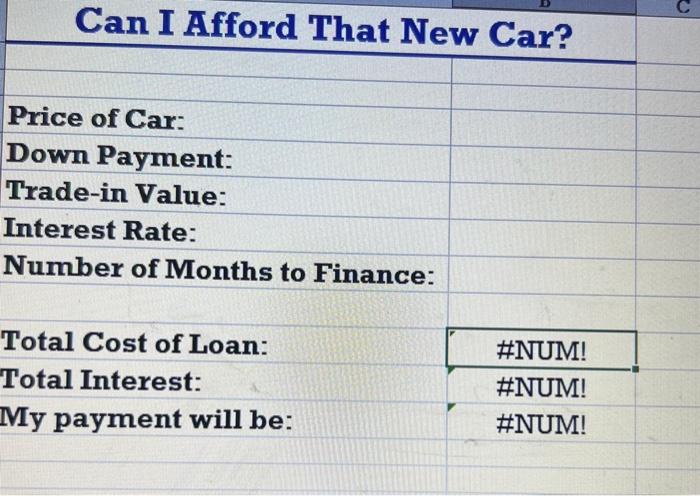
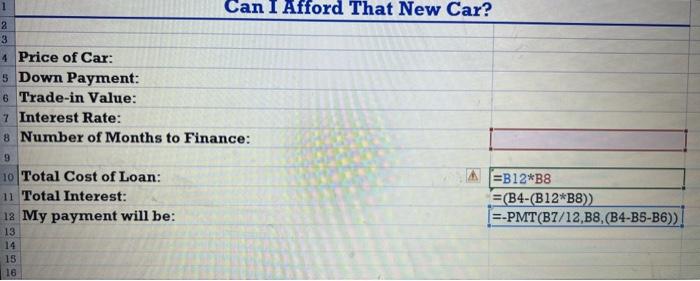
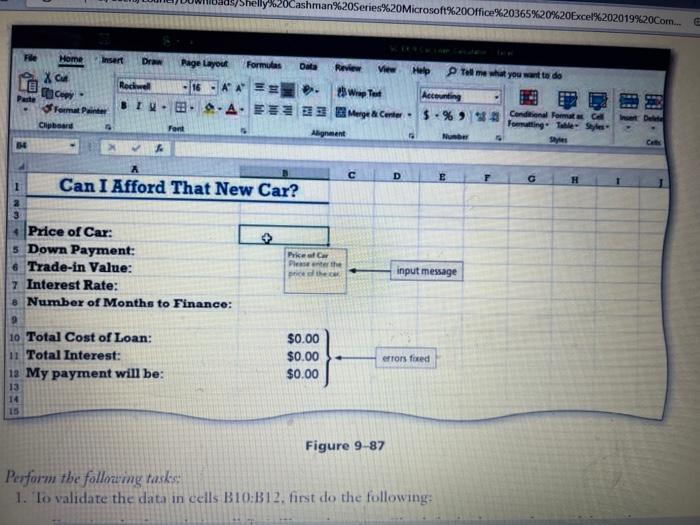
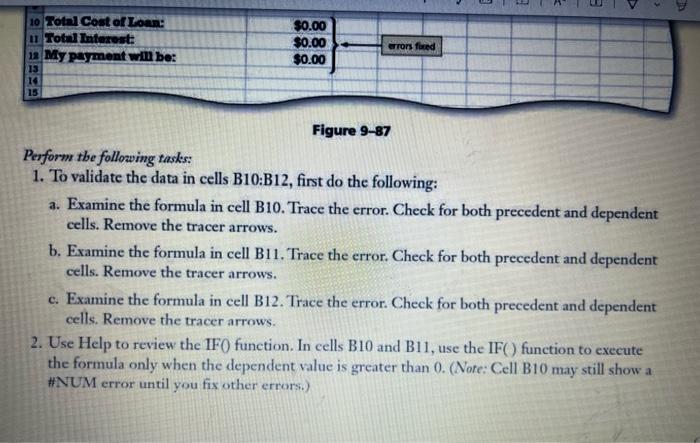
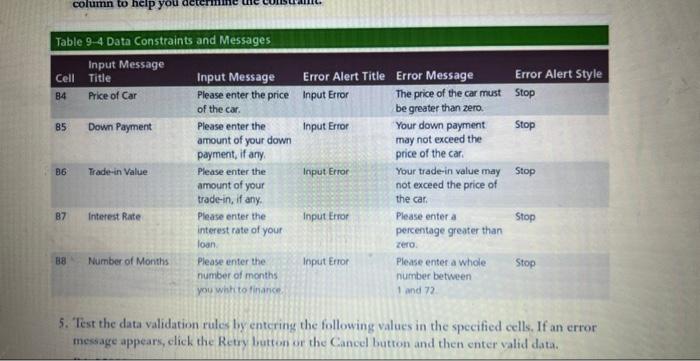
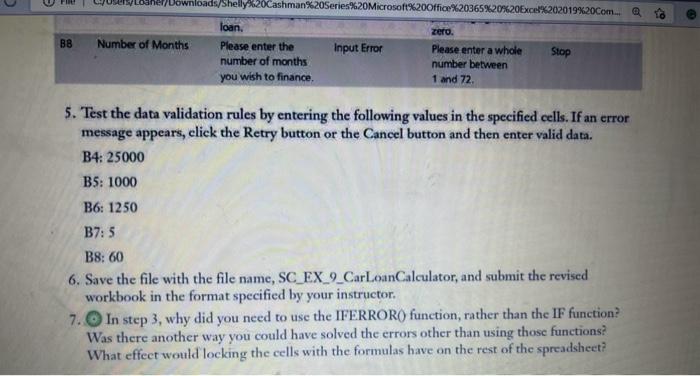
Can I Afford That New Car? Price of Cax: Down Payment: Trade-in Value: Interest Rate: Number of Months to Finance: \begin{tabular}{l|l|} \hline Total Cost of Loan: & \#NUM! \\ \hline Total Interest: & \#NUM! \\ \hline My payment will be: & \#NUM! \end{tabular} Can I Afford That New Car? Price of Car: Down Payment: Trade-in Value: Interest Rate: Number of Months to Finance: Total Cost of Loan: Total Interest: Iy payment will be: Perform the follorimg tasks: Figure 9-87 Perform the following tasks: 1. To validate the data in cells B10:B12, first do the following: a. Examine the formula in cell B10. Trace the error. Check for both precedent and dependent cells. Remove the tracer arrows. b. Examine the formula in cell B11. Trace the error. Check for both precedent and dependent cells. Remove the tracer arrows. c. Examine the formula in cell B12. Trace the error. Check for both precedent and dependent cells. Remove the tracer arrows. 2. Use Help to review the IF0 function. In cells B10 and B11, use the IF() function to execute the formula only when the dependent value is greater than 0 . (Note: Cell B10 may still show a \#NUM error until you fix other errors.) 5. 'Test the data validation rules by entering the following values in the specified cells. If an error message appears, elick the Retry butten or the Cancel button and then enter valid data. 5. Test the data validation rules by entering the following values in the specified cells. If an error message appears, click the Retry button or the Cancel button and then enter valid data. B4:25000 B5: 1000 B6: 1250 B7: 5 B8: 60 6. Save the file with the file name, SC_EX_9_CarLoanCalculator, and submit the revised workbook in the format specified by your instructor. 7. (C) In step3, why did you need to use the IFERRORO function, rather than the IF function? Was there another way you could have solved the errors other than using those functions? What effect would locking the cells with the formulas have on the rest of the spreadsheet? Can I Afford That New Car? Price of Cax: Down Payment: Trade-in Value: Interest Rate: Number of Months to Finance: \begin{tabular}{l|l|} \hline Total Cost of Loan: & \#NUM! \\ \hline Total Interest: & \#NUM! \\ \hline My payment will be: & \#NUM! \end{tabular} Can I Afford That New Car? Price of Car: Down Payment: Trade-in Value: Interest Rate: Number of Months to Finance: Total Cost of Loan: Total Interest: Iy payment will be: Perform the follorimg tasks: Figure 9-87 Perform the following tasks: 1. To validate the data in cells B10:B12, first do the following: a. Examine the formula in cell B10. Trace the error. Check for both precedent and dependent cells. Remove the tracer arrows. b. Examine the formula in cell B11. Trace the error. Check for both precedent and dependent cells. Remove the tracer arrows. c. Examine the formula in cell B12. Trace the error. Check for both precedent and dependent cells. Remove the tracer arrows. 2. Use Help to review the IF0 function. In cells B10 and B11, use the IF() function to execute the formula only when the dependent value is greater than 0 . (Note: Cell B10 may still show a \#NUM error until you fix other errors.) 5. 'Test the data validation rules by entering the following values in the specified cells. If an error message appears, elick the Retry butten or the Cancel button and then enter valid data. 5. Test the data validation rules by entering the following values in the specified cells. If an error message appears, click the Retry button or the Cancel button and then enter valid data. B4:25000 B5: 1000 B6: 1250 B7: 5 B8: 60 6. Save the file with the file name, SC_EX_9_CarLoanCalculator, and submit the revised workbook in the format specified by your instructor. 7. (C) In step3, why did you need to use the IFERRORO function, rather than the IF function? Was there another way you could have solved the errors other than using those functions? What effect would locking the cells with the formulas have on the rest of the spreadsheet
Step by Step Solution
There are 3 Steps involved in it

Get step-by-step solutions from verified subject matter experts
 Study Help