







Question: this java clas 1. Continue to use the Game project created in Lab2. Add a shuffle method in your Deck class. You need to get
this java clas
1. Continue to use the Game project created in Lab2. Add a shuffle method in your Deck class.
You need to get familiar with Collection in java and use Collections.shuffle() method to shuffle your cards. (5pts)
Hint: Collections.shuffle(deck);
2. Add a new java swing form file called GameGUI, which will be the game interface for your game.
Download and unzip the card images from the WesternOnline. Save the images in your project folder.
In the game interface, create a Deal button and a Draw pile. Use a jLabel to represent the draw pile and attached the back image of the card to the label to represent the draw pile. (5pts)
How to run the interface from main? Put the following code in your main method.
GameGUI g = new GameGUI();
g.setVisible(true);
3. Create a method called getImage() in Card class. It will return the name of card images as a String. (5pts)
Shuffle the cards. When the user clicks a deal button on the screen, display the first two cards from the deck. You need to use two jLabels to represent the cards. (5pts)
How to connect card images to the JLabels?
Example: Card c = new Card(1, 2);
//jLabel1.setIcon(new javax.swing.ImageIcon(getClass().getResource("/images/2Diamond.png")));
Using your location of card images and encode it to the getImage() method.
jLabel1.setIcon(new javax.swing.ImageIcon(getClass().getResource(c. getImage())));
Sample code for Card class. If you did not complete your last lab assignment, you can refer to the following code.
private int suit, value;
private String[] cardSuit = {"Spades", "Diamonds", "Hearts", "Clubs"}; private String[] cardValue = {"Ace", "2", "3", "4", "5", "6", "7", "8", "9", "10", "JACK", "QUEEN", "KING"};
public Card(int cSuit, int cValue)
{ suit = csuit;
value = cValue;
}
public String toString()
{ String cardInfo = cardValue[value] + " of " + cardSuit[suit];
return cardInfo;
}
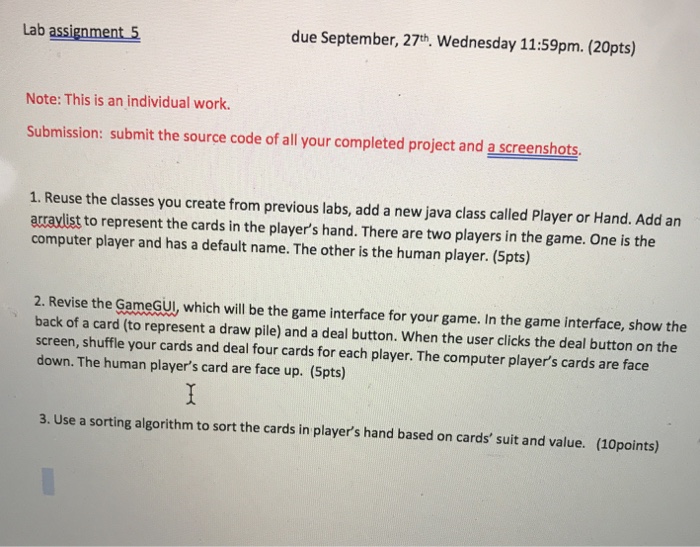
Lab assignment 5 due September, 27th, Wednesday 11:59pm. (20pts) Note: This is an individual work. Submission: submit the source code of all your completed project and a screenshots 1. Reuse the classes you create from previous labs, add a new java class called Player or Hand. Add an acravlist to represent the cards in the player's hand. There are two players in the game. One is the computer player and has a default name. The other is the human player. (5pts) 2. Revise the GameGuJ, which will be the game interface for your game. In the game interface, show the back of a card (to represent a draw pile) and a deal button. When the user clicks the deal button on the screen, shuffle your cards and deal four cards for each player. The computer player's cards are face down. The human player's card are face up. (5pts) 3. Use a sorting algorithm to sort the cards in player's hand based on cards' suit and value. (10points) Lab assignment 5 due September, 27th, Wednesday 11:59pm. (20pts) Note: This is an individual work. Submission: submit the source code of all your completed project and a screenshots 1. Reuse the classes you create from previous labs, add a new java class called Player or Hand. Add an acravlist to represent the cards in the player's hand. There are two players in the game. One is the computer player and has a default name. The other is the human player. (5pts) 2. Revise the GameGuJ, which will be the game interface for your game. In the game interface, show the back of a card (to represent a draw pile) and a deal button. When the user clicks the deal button on the screen, shuffle your cards and deal four cards for each player. The computer player's cards are face down. The human player's card are face up. (5pts) 3. Use a sorting algorithm to sort the cards in player's hand based on cards' suit and value. (10points)
Step by Step Solution
There are 3 Steps involved in it

Get step-by-step solutions from verified subject matter experts
 Study Help