







Question: Tuscany Now ( PLEASE INCLUDE HOW TO DO STEPS ) ADDING MEDIA AND SPECIAL EFFECTS TO A PRESENTATION Of GETIING STARTED Open the file NP
Tuscany Now PLEASE INCLUDE HOW TO DO STEPS
ADDING MEDIA AND SPECIAL EFFECTS TO A PRESENTATION
Of GETIING STARTED
Open the file NPPPTbFirstLastNamepptx available for download from the SAM website.
Save the file as NPPPTbFirstlastNamepptx by changing the to a
If you do not see the pptx file extension in the Save As dialog box, do not type it The program will add the file extension for you automatically.
To complete this SAM Project, you will also need to download and save the following data files from the SAM website onto your computer:
SupportPPTbCypresses.mp
SupportPPTbOliveTree.jpg
SupportPPTbTuscanypptx
With the file NPPPTbFirstLastNamepptx still open, ensure that your first and last name is displayed in the presenter notes on Slide
If the presenter notes do not display your name, delete the file and download a new copy from the SAM website.
PROJECT STEPS
You work for Tuscany Now, a tour company based in Siena, Italy, and with an office in New York. The company takes small groups on walking and cultural tours of Tuscany. You work in the New York office and have been asked to deliver a presentation about the company to a group of seniors at a local community center. The goal of the presentation is to present information about Tuscany Now and to entice attendees to purchase a tour.
Start this project by applying the custom theme from the file SupportPPTbTuscany.pptx to all slides in the presentation.
On Slide All About Tuscany Now" add an animation to the bulleted list as follows:
a Select the bulleted list in the content placeholder and then apply the wipe Entrance animation to the bulleted list.
b Change the direction of the animation to From Left.
With Slide still displaying, use the content placeholder on the left to insert the picture SupportPPTbOliveTree.jpg into the presentation.
Styles
x
Editing
Voice
Editor
New rerspecives rowerroin ZUIY I IMoquie : SAM rroject io
On Slide Small Is Good" insert and format a shape as follows:
a To the right of the bulleted list insert a Sun shape from the Basic Shapes section.
b Resize the shape to a height of and a width of
c Add the text Fun! to the shape.
d Apply the Intense EffectGreen, Accent nd column, th row in the Theme Styles palette shape style to the sun shape.
e Use Smart Guide to align the top of the bulleted list and the top of the shape along the top line, as shown in Figure
nll Figure : Sun Shape Positioned on Slide
Small Is Good!
All groups contain between four and twelve travelers
Personalized itineraries to suit each group's interests
Contact with localsfarm stays, cooking classes, art tours
With Slide still displaying, apply the picture style Rotated, white to the picture at the bottom of the slide.
On Slide Location add a textbox below the picture as follows:
a Add the following text to the textbox: Fabulous Siena!
b Resize the textbox to a height of and a width of
c Change the fill of the box to Lime, 'Accent Lighter th column, nd row in the Theme Colors palette
d Change the weight of the shape outline to point.
e Use Smart Guide to alian the center of the text hox and the center of the nicture.
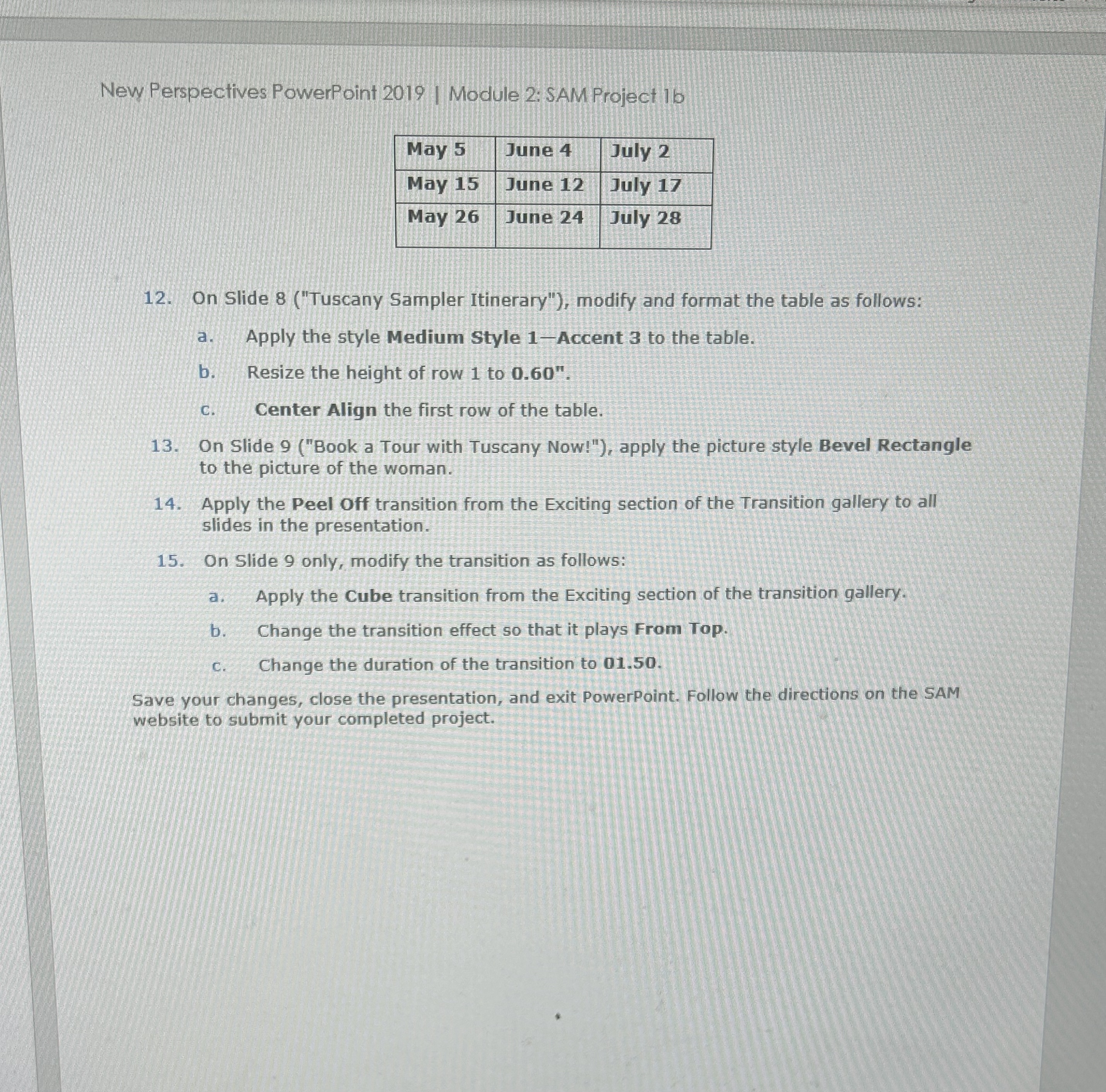
New Perspectives PowerPoint Module : SAM Project
tableMay June July May June July May June July
On Slide Tuscany Sampler Itinerary" modify and format the table as follows:
a Apply the style Medium Style Accent to the table.
b Resize the height of row to
c Center Align the first row of the table.
On Slide Book a Tour with Tuscany Now!" apply the picture style Bevel Rectangle to the picture of the woman.
Apply the Peel Off transition from the Exciting section of the Transition gallery to all slides in the presentation.
On Slide only, modify the transition as follows:
a Apply the Cube transition from the Exciting section of the transition gallery.
b Change the transition effect so that it plays From Top.
c Change the duration of the transition to
Save your changes, close the presentation, and exit PowerPoint. Follow the directions on the SAM website to submit your completed project.
Step by Step Solution
There are 3 Steps involved in it
1 Expert Approved Answer
Step: 1 Unlock

Question Has Been Solved by an Expert!
Get step-by-step solutions from verified subject matter experts
Step: 2 Unlock
Step: 3 Unlock
 Study Help