







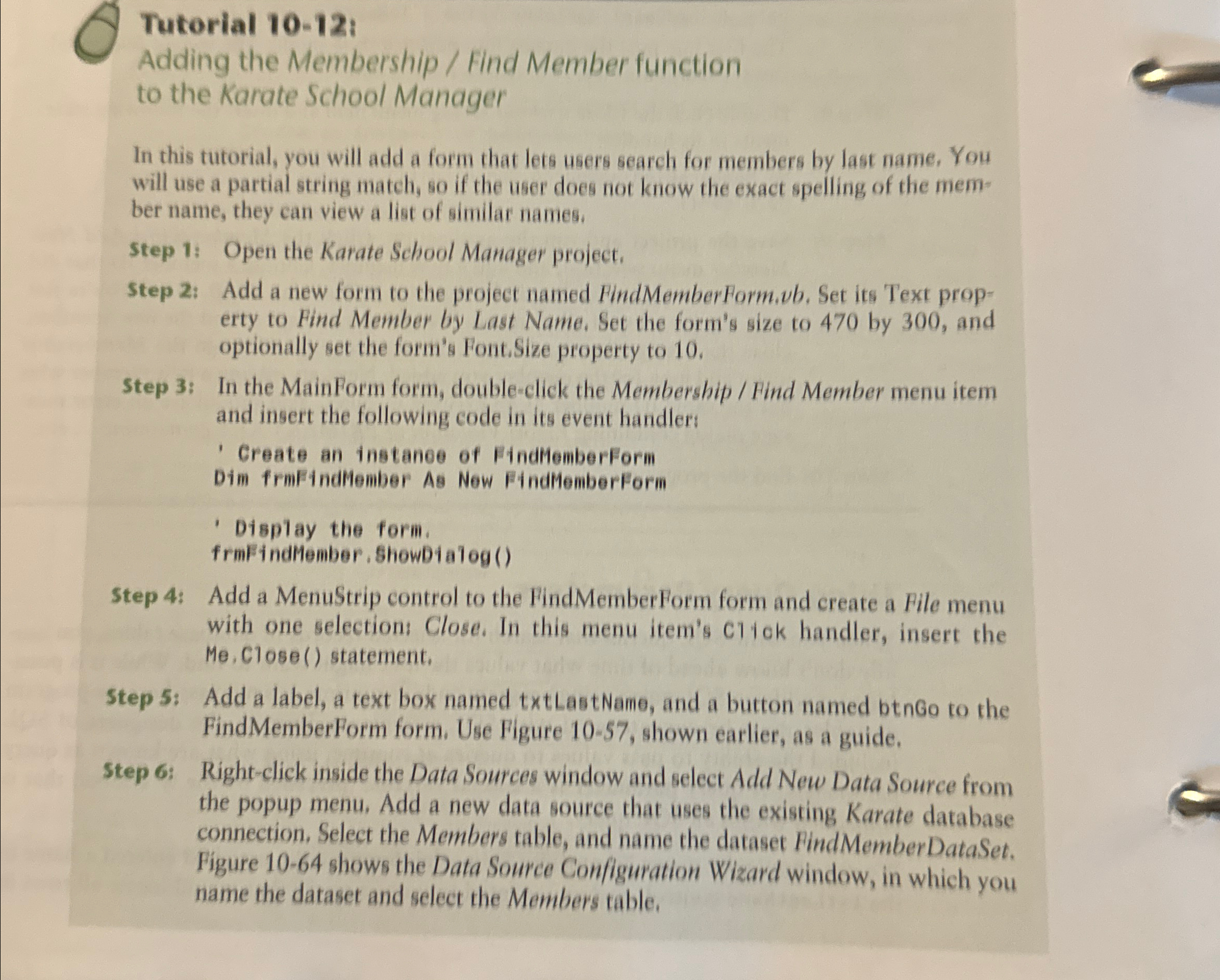
Question: Tutorial 1 0 - 1 2 i Adding the Membership / Find Member function to the Karate School Manager In this tutorial, you will add
Tutorial i
Adding the Membership Find Member function to the Karate School Manager
In this tutorial, you will add a form that lets users search for members by last name, You will use a partial string match, so if the user does not know the exact spelling of the member name, they can view a list of similar names.
Step : Open the Karate School Manager project.
Step : Add a new form to the project named FindMemberForm.vb Set its Text property to Find Member by Last Name. Set the form's size to by and optionally set the form's Font.Size property to
Step : In the MainForm form, doubleclick the Membership Find Member menu item and insert the following code in its event handler:
Create an instance of FindMemberForm
Dim frmF indilember As New FindHemberForm
Display the form.
frmFindMember, ShowDialog
Step : Add a MenuStrip control to the FindMemberForm form and create a File menu with one selection: Close. In this menu item's Clyok handler, insert the Close statement,
Step : Add a label, a text box named txtLastName, and a button named btnGo to the FindMemberForm form. Use Figure shown earlier, as a guide.
Step : Rightclick inside the Data Sources window and select Add New Data Source from the popup menu. Add a new data source that uses the existing Karate database connection. Select the Members table, and name the dataset FindMemberDataSet. Figure shows the Data Source Configuration Wizard window, in which you name the dataset and select the Members table.
Step by Step Solution
There are 3 Steps involved in it
1 Expert Approved Answer
Step: 1 Unlock

Question Has Been Solved by an Expert!
Get step-by-step solutions from verified subject matter experts
Step: 2 Unlock
Step: 3 Unlock
 Study Help