







Question: UNIX COMMAND PROMPT BASED CHAPTER 3, LAB 1: INTRODUCING A FEW UTILITIES (15 MINUTES) LEARNING OBJECTIVES AND OUTCOMES In this lab you will learn how
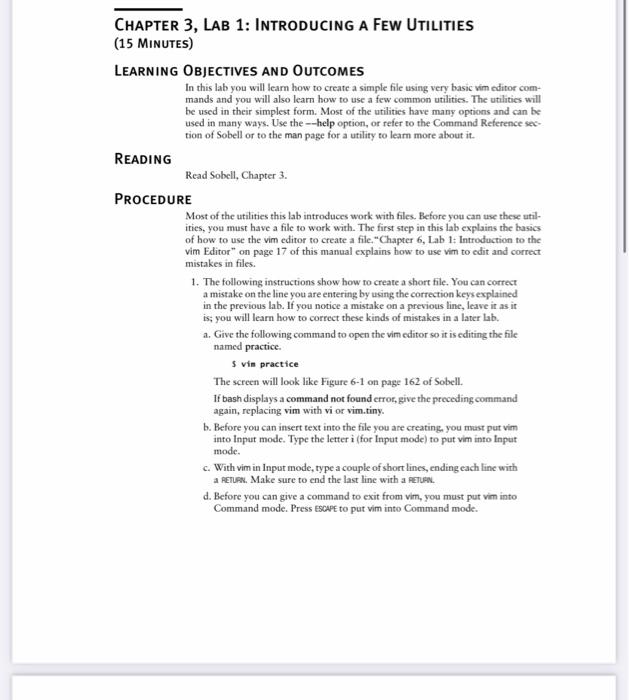
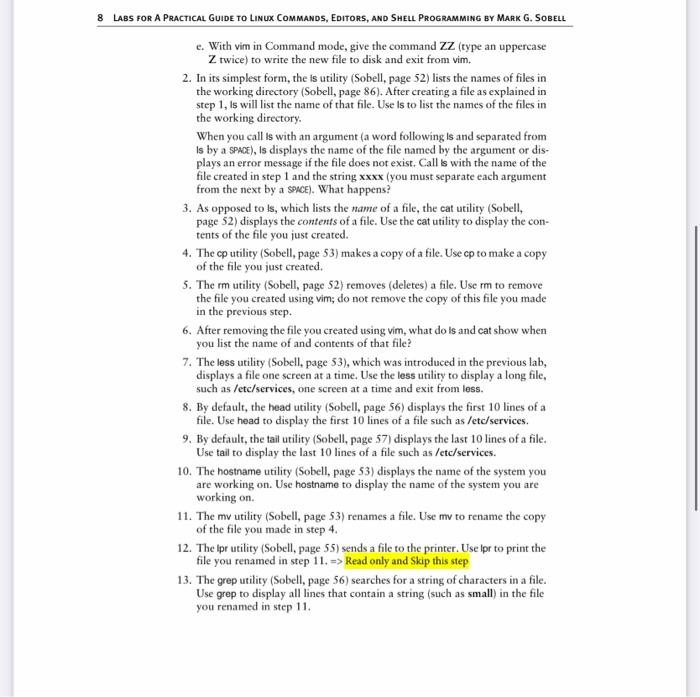
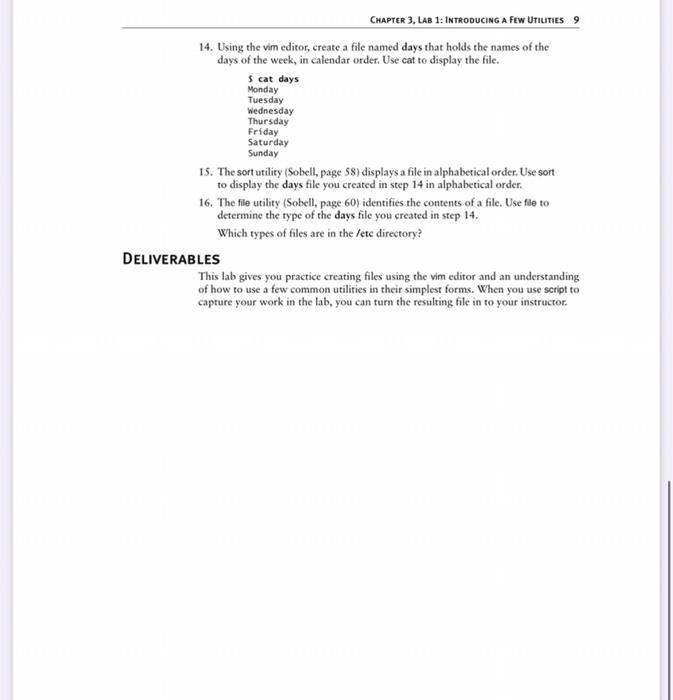
CHAPTER 3, LAB 1: INTRODUCING A FEW UTILITIES (15 MINUTES) LEARNING OBJECTIVES AND OUTCOMES In this lab you will learn how to create a simple file using very basic vim editor com- mands and you will also learn how to use a few common utilities. The utilities will be used in their simplest form. Most of the utilities have many options and can be used in many ways. Use the--help option, or refer to the Command Reference sec tion of Sobell or to the man page for a utility to learn more about it. READING Read Sobell, Chapter 3. PROCEDURE Most of the utilities this lab introduces work with files. Before you can use these util- ities, you must have a file to work with. The first step in this lab explains the basics of how to use the vim editor to create a file. "Chapter 6, Lab 1: Introduction to the vim Editor" on page 17 of this manual explains how to use vim to edit and correct mistakes in files. 1. The following instructions show how to create a short file. You can correct a mistake on the line you are entering by using the correction keys explained in the previous lab. If you notice a mistake on a previous line, leave it as it is: you will learn how to correct these kinds of mistakes in a later lab. 1. Give the following command to open the vim editor so it is editing the file named practice. S vin practice The screen will look like Figure 6-1 on page 162 of Sobell. If bash displays a command not found error, give the preceding command again, replacing vim with vi or vim.tiny. b. Before you can insert text into the file you are creating, you must put vim into Input mode. Type the letter i (for Input mode) to put vim into Input c. With vim in Input mode, type a couple of short lines, ending each line with a RETUAR. Make sure to end the last line with a FETUAR d. Before you can give a command to exit from vim, you must put vim into Command mode. Press ESCAPE to put vim into Command mode. mode. 8 LABS FOR A PRACTICAL GUIDE TO LINUX COMMANDS, EDITORS, AND SHELL PROGRAMMING BY MARK G. SOBELL e. With vim in Command mode, give the command ZZ (type an uppercase Z twice) to write the new file to disk and exit from vim. 2. In its simplest form, the is utility (Sobell, page 52) lists the names of files in the working directory (Sobell, page 86). After creating a file as explained in step 1, Is will list the name of that file. Use is to list the names of the files in the working directory. When you call ts with an argument (a word following is and separated from Is by a SPACE), is displays the name of the file named by the argument or dis- plays an error message if the file does not exist. Call is with the name of the file created in step 1 and the string xxxx (you must separate each argument from the next by a SPACE). What happens? 3. As opposed to Is, which lists the name of a file, the cat utility (Sobell, page 52) displays the contents of a file. Use the cat utility to display the con- tents of the file you just created. 4. The cp utility (Sobell, page 53) makes a copy of a file. Use cp to make a copy of the file you just created. 5. The rm utility (Sobell, page 52) removes (deletes) a file. Use mi to remove the file you created using vim; do not remove the copy of this file you made in the previous step. 6. After removing the file you created using vim, what do Is and cat show when you list the name of and contents of that file? 7. The less utility (Sobell, page 53), which was introduced in the previous lab, displays a file one screen at a time. Use the less utility to display a long file, such as /etc/services, one screen at a time and exit from less. 8. By default, the head utility (Sobell, page 56) displays the first 10 lines of a file. Use head to display the first 10 lines of a file such as /etc/services. 9. By default, the tail utility (Sobell, page 57) displays the last 10 lines of a file. Use tail to display the last 10 lines of a file such as /etc/services. 10. The hostname utility (Sobell, page 53) displays the name of the system you are working on. Use hostname to display the name of the system you are working on. 11. The mv utility (Sobell, page 53) renames a file. Use my to rename the copy of the file you made in step 4. 12. The Ipr utility (Sobell, page 55) sends a file to the printer. Use Ipr to print the file you renamed in step 11. => Read only and Skip this step 13. The grep utility (Sobell, page 56) searches for a string of characters in a file. Use grep to display all lines that contain a string (such as small) in the file you renamed in step 11. Monday CHAPTER 3, LAB 1: INTRODUCING A FEW UTILITIES 14. Using the vim editor, create a file named days that holds the names of the days of the week, in calendar order. Use cat to display the file. Scat days Tuesday Wednesday Thursday Friday Saturday Sunday 15. The sort utility (Sobell, page 58) displays a file in alphabetical order. Use sort to display the days file you created in step 14 in alphabetical order. 16. The file utility (Sobell, page 60) identifies the contents of a file. Use file to determine the type of the days file you created in step 14. Which types of files are in the letc directory? DELIVERABLES This lab gives you practice creating files using the vim editor and an understanding of how to use a few common utilities in their simplest forms. When you use script to capture your work in the lab, you can turn the resulting file in to your instructor
Step by Step Solution
There are 3 Steps involved in it

Get step-by-step solutions from verified subject matter experts
 Study Help