







Question: Use Excel work sheet to build two Mortgage Amortization Tables. Instructions: 1. Open the Mortgage Project Excel file. In the Student ID worksheet, please put
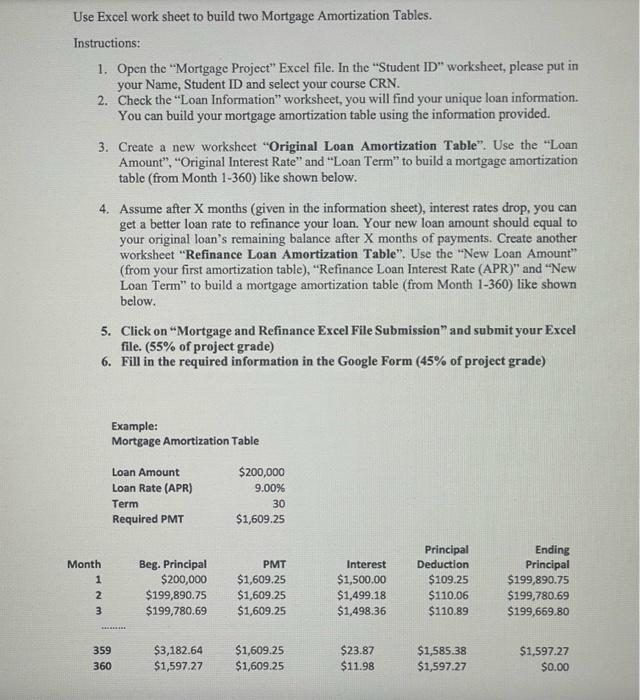
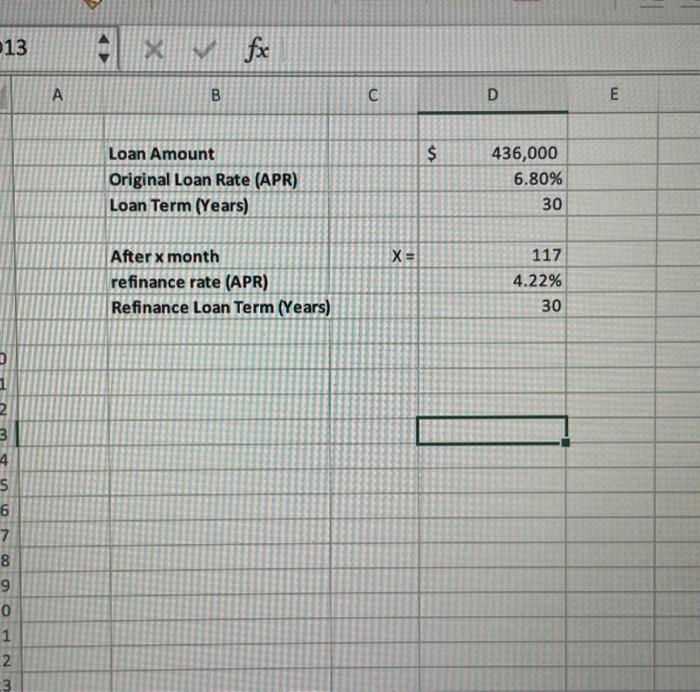
Use Excel work sheet to build two Mortgage Amortization Tables. Instructions: 1. Open the "Mortgage Project" Excel file. In the "Student ID" worksheet, please put in your Name, Student ID and select your course CRN. 2. Check the "Loan Information" worksheet, you will find your unique loan information. You can build your mortgage amortization table using the information provided. 3. Create a new worksheet "Original Loan Amortization Table". Use the "Loan Amount", "Original Interest Rate" and "Loan Term" to build a mortgage amortization table (from Month 1-360) like shown below. 4. Assume after X months (given in the information sheet), interest rates drop, you can get a better loan rate to refinance your loan. Your new loan amount should equal to your original loan's remaining balance after X months of payments. Create another worksheet "Refinance Loan Amortization Table". Use the "New Loan Amount" (from your first amortization table), "Refinance Loan Interest Rate (APR)" and "New Loan Term" to build a mortgage amortization table (from Month 1-360) like shown below. 5. Click on "Mortgage and Refinance Excel File Submission" and submit your Excel file. ( 55% of project grade) 6. Fill in the required information in the Google Form ( 45% of project grade) Example: Mortgage Amortization Table 13 fx A B C E Loan Amount Original Loan Rate (APR) Loan Term (Years) $436,000 After x month refinance rate (APR) x= Refinance Loan Term (Years) 6.80% 30 117 4.22% 30
Step by Step Solution
There are 3 Steps involved in it

Get step-by-step solutions from verified subject matter experts
 Study Help