







Question: use JAVA to make a GUI application that follows the MVC design pattern. The application will store a contact list. Each contact will store a
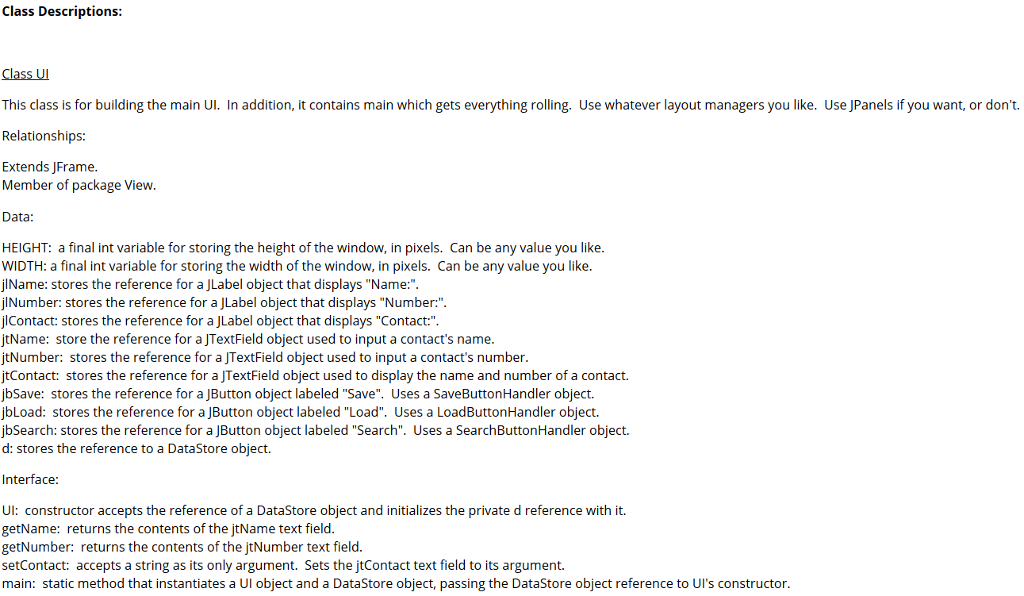
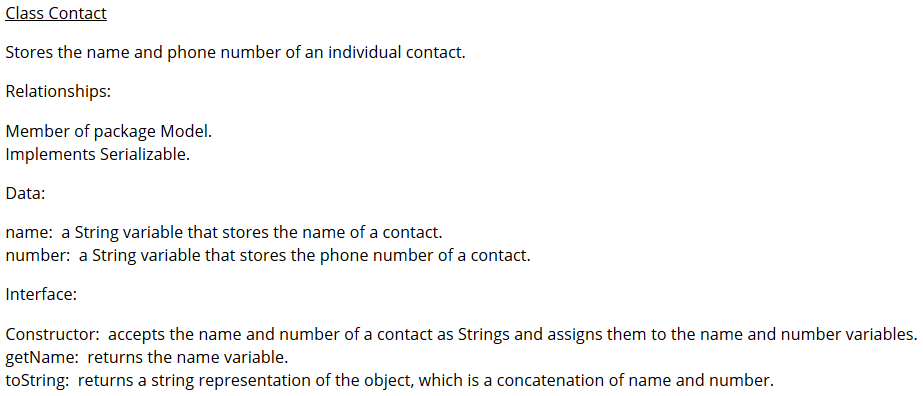
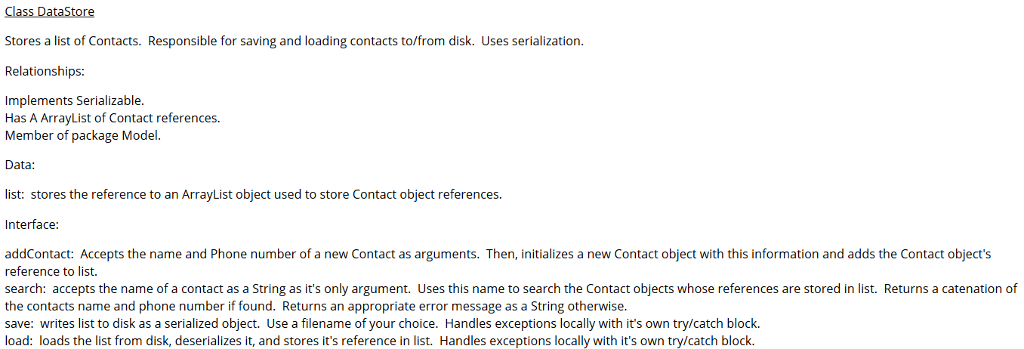
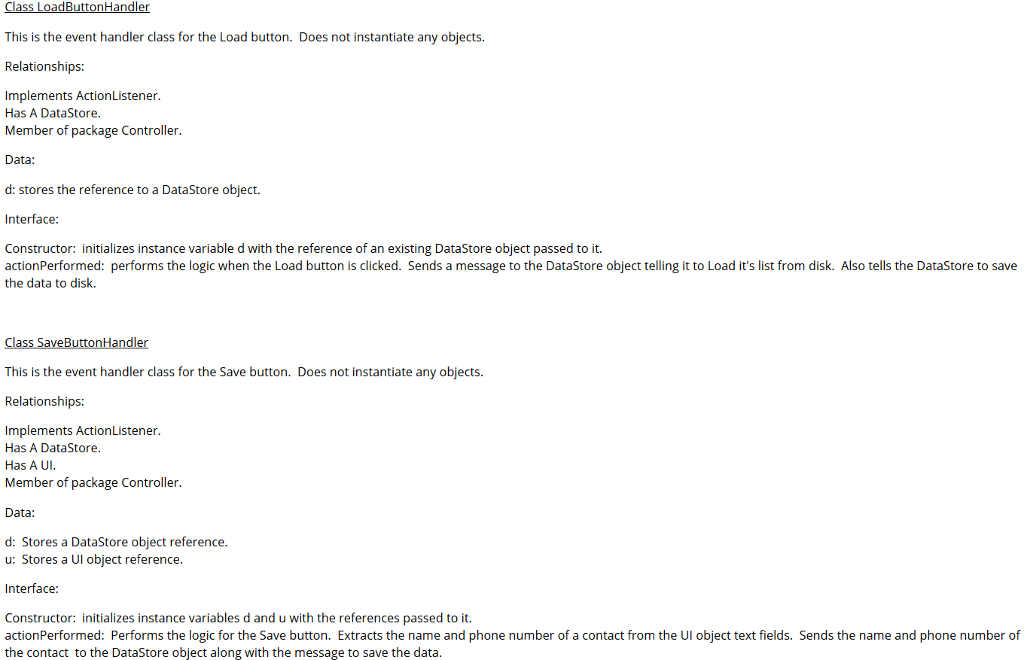
use JAVA to make a GUI application that follows the MVC design pattern. The application will store a contact list. Each contact will store a name and a phone number. The application will provide a simple UI and will use serialization to store the contacts to a file.
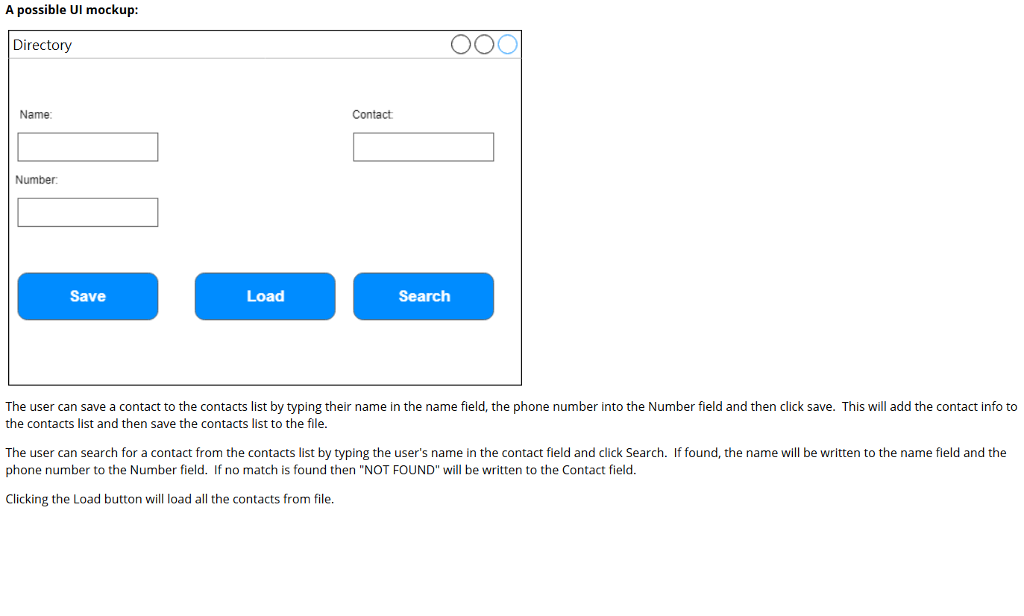
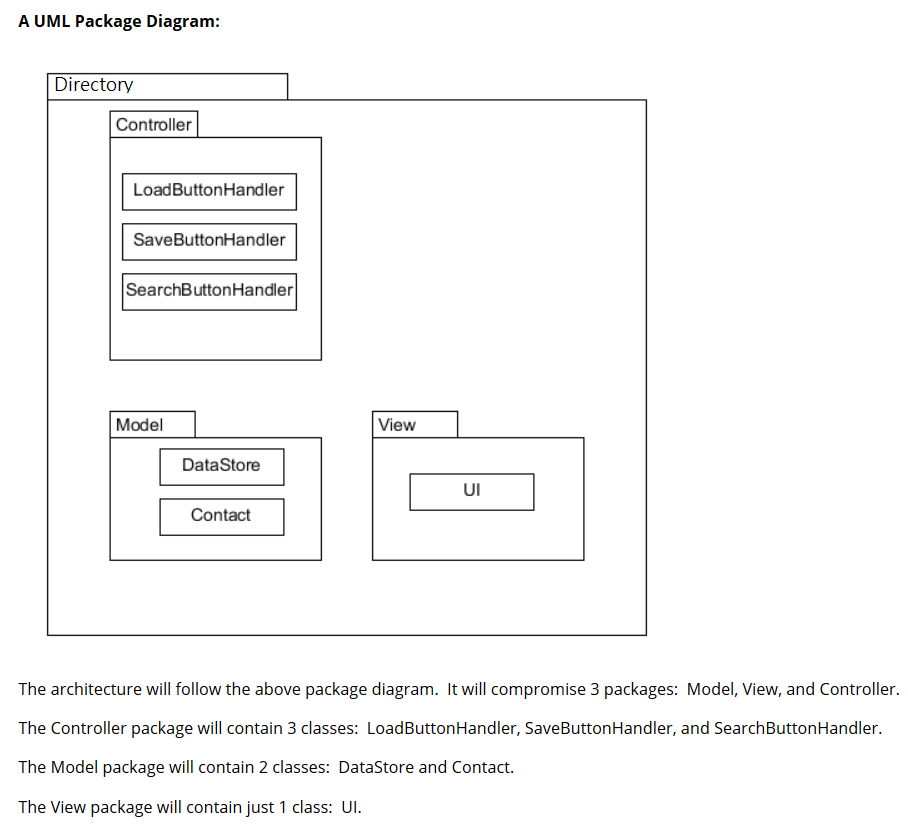
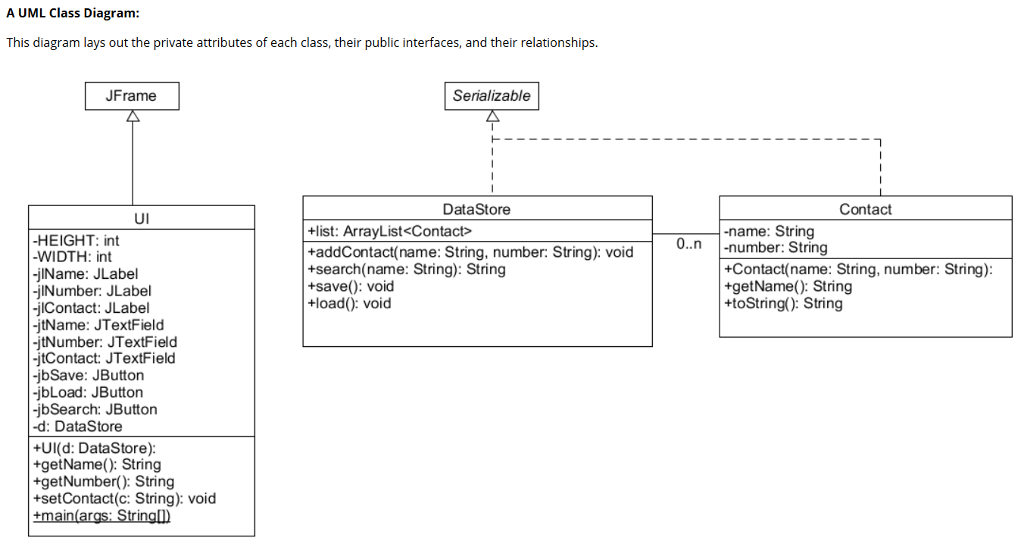
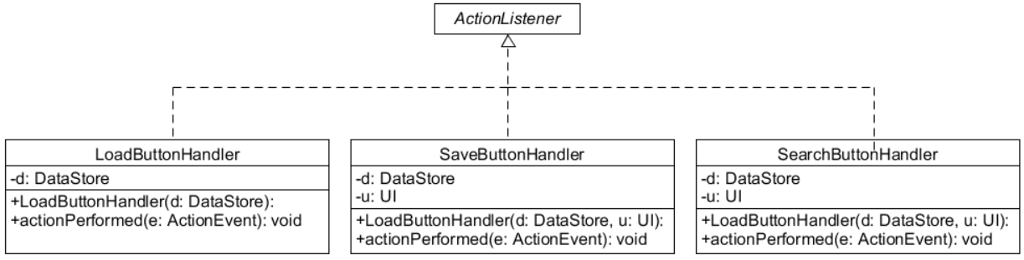
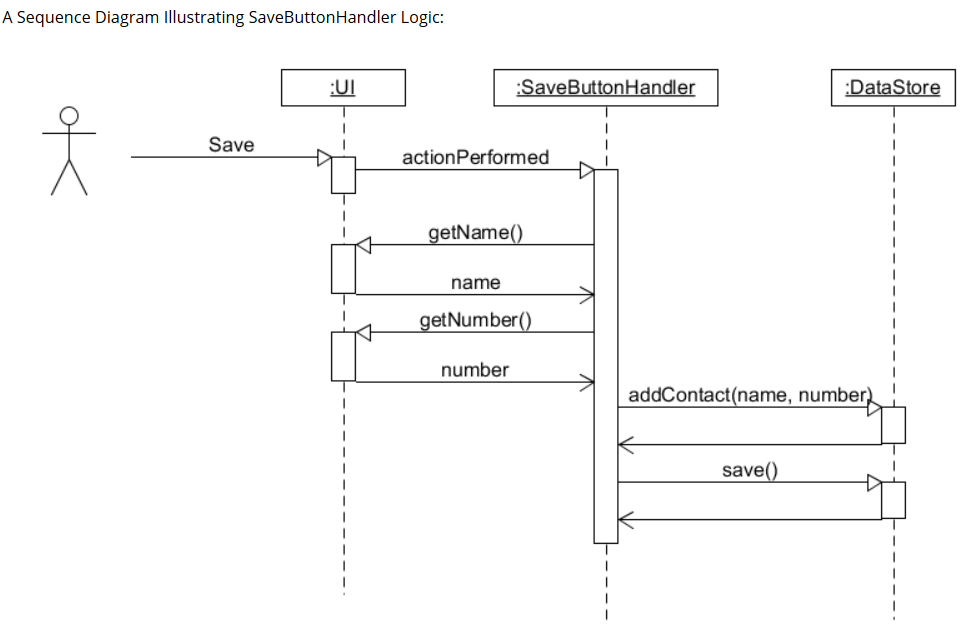
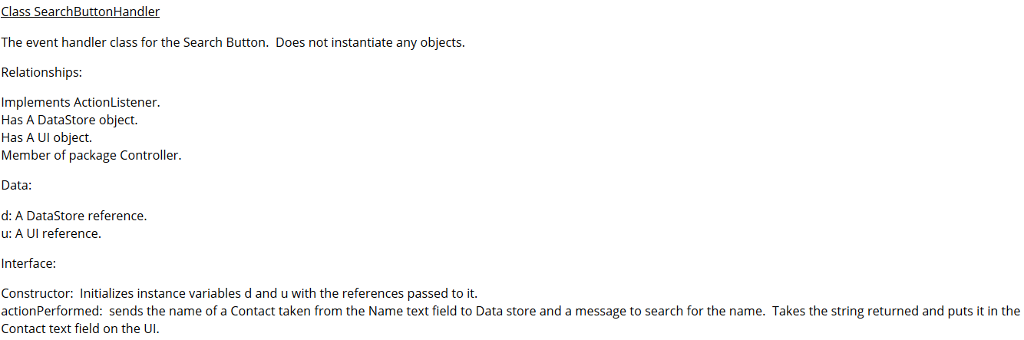
this is what I am doing so far.....
package View;
import javax.swing.*; import java.awt.*; import Controller.*; import Model.DataStore;
public class UI extends JFrame { private final int HEIGHT = 150, WIDTH = 400; private JPanel jpWest, jpCenter, jpEast, jpSouth; private JLabel jlName, jlNumber, jlContact; private JTextField jtName, jtNumber,jtContact; private JButton jbSave, jbLoad, jbSearch; private DataStore d;
public UI(DataStore d) { this.d = d; // setting up the JFrame Window setSize(WIDTH,HEIGHT); setDefaultCloseOperation(JFrame.EXIT_ON_CLOSE); setTitle("HW12"); // set up 4 panels // This is the west panel(Name) jpWest = new JPanel(); jpWest.setLayout(new FlowLayout()); jlName = new JLabel("Name:"); jtName = new JTextField(5); jpWest.add(jlName); jpWest.add(jtName); // This is the center panel(Number) jpCenter = new JPanel(); jpCenter.setLayout(new FlowLayout()); jlNumber = new JLabel("Number:"); jtNumber = new JTextField(5); jpCenter.add(jlNumber); jpCenter.add(jtNumber); // This is the east panel(Contact) jpEast = new JPanel(); jpEast.setLayout(new FlowLayout()); jlContact = new JLabel("Contact:"); jtContact = new JTextField(5); jpEast.add(jlContact); jpEast.add(jtContact); // This is the south panel(Button) jpSouth = new JPanel(); jpSouth.setLayout(new FlowLayout()); jbSave = new JButton("Save"); jbSave.addActionListener(new SaveButtonHandler(d,this)); jbLoad = new JButton("Load"); jbLoad.addActionListener(new LoadButtonHandler(d)); jbSearch = new JButton("Search"); jbSearch.addActionListener(new SearchButtonHandler(d,this)); jpSouth.add(jbSave); jpSouth.add(jbLoad); jpSouth.add(jbSearch); // hanging the panels on the Frame add(jpWest, BorderLayout.WEST); add(jpCenter, BorderLayout.CENTER); add(jpEast, BorderLayout.EAST); add(jpSouth, BorderLayout.SOUTH); // making everything visible setVisible(true); } public String getName() { return jtName.getText(); } public String getNumber() { return jtNumber.getText(); } public void setContact(String c) { jtContact.setText(c); } public static void main(String[] args) { new UI(new DataStore()); }
}
Step by Step Solution
There are 3 Steps involved in it

Get step-by-step solutions from verified subject matter experts
 Study Help