







Question: Use Open GL to complete these steps. When the user presses the ESC key, program stops running and exits. 2. When the user left clicks
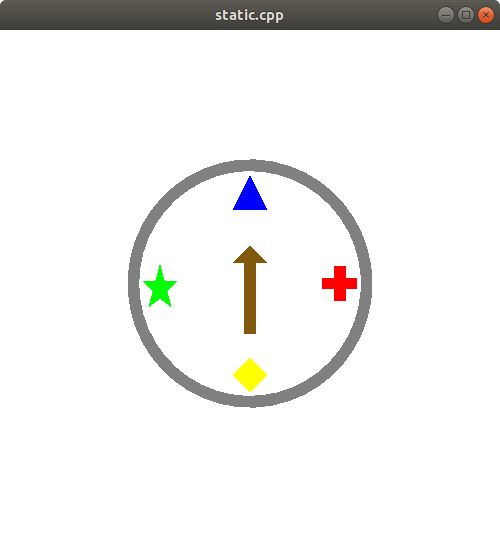
Use Open GL to complete these steps.
-
When the user presses the ESC key, program stops running and exits.
2. When the user left clicks the mouse on any of four shapes objects (triangle, cross, diamond, or star) on the screen, a black frame will be drawn around the shape, and a text message will appear at the bottom of the screen stating that the object is selected and press SPACE to spin. For example, if user clicks on the green star following image will be generated:
The thickness of the frame and the font type are up to the programmer. Only one shape can be selected at a time. The mouse selection region does not have to be precise. A circular region at shape center with diameter n can be used as the selection region of that shape.
3. After the selection of a shape, the user presses the SPACE key. The brown arrow starts spinning clockwise around its center (black point) and randomly stops at a shape (after passing at least 3 and at most 15 shapes). The rotation is expected to be smooth, so the user will see a transition from one shape to another shape. Please set your FPS (frames per second) as 30. There will be 5-degree rotation change between each frame. And each time the user presses the key, arrow will point a random shape. The arrow will never stop between shapes. SPACE key will not work if a shape is not selected.
If the arrow stops at the selected shape, a You win! message appears at the bottom of the screen. If arrow stops at a different shape, the message will print You lose!. For example:
4. When the user right clicks the mouse on one of the four shape objects (triangle, cross, diamond, and star) a pop-up color menu will appear. The user will see four color options: purple, orange, cyan, and pink. When he/she selects a color, the color of that shape is replaced with the new color.
-
When the user presses R/r key, all four shape objects will be translated (or shifted) counter-clockwise. For instance, one key press will move triangle to the west, star to the south, diamond to the east, and cross to the north (as shown in following figure).
Similar to the item 3, this transition will be smooth. The user will see all shapes are moving from their initial positions to their new positions.
static.cpp static.cpp
Step by Step Solution
There are 3 Steps involved in it

Get step-by-step solutions from verified subject matter experts
 Study Help