







Question: USE PACKET TRACER!!!!! Background Dynamic Host Configuration Protocol (DHCP) is an open industry standard that automatically configures TCP/IP settings on client computers. The use of
USE PACKET TRACER!!!!!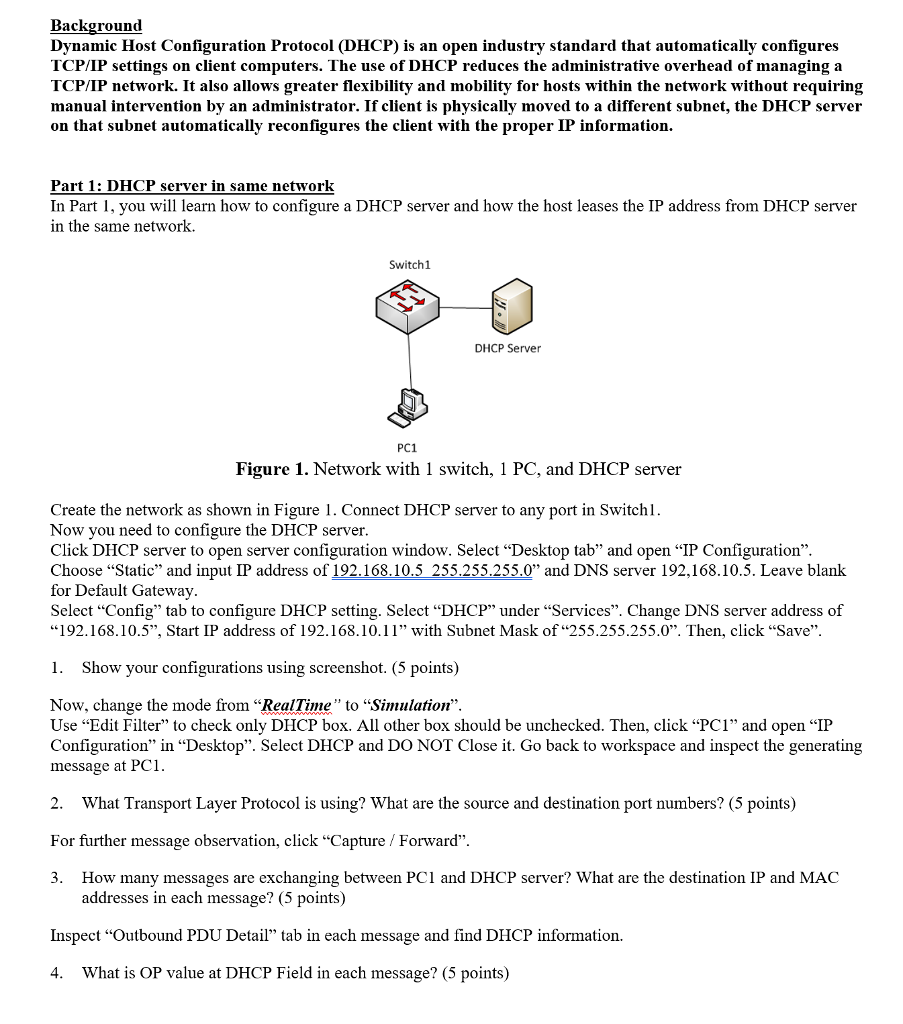
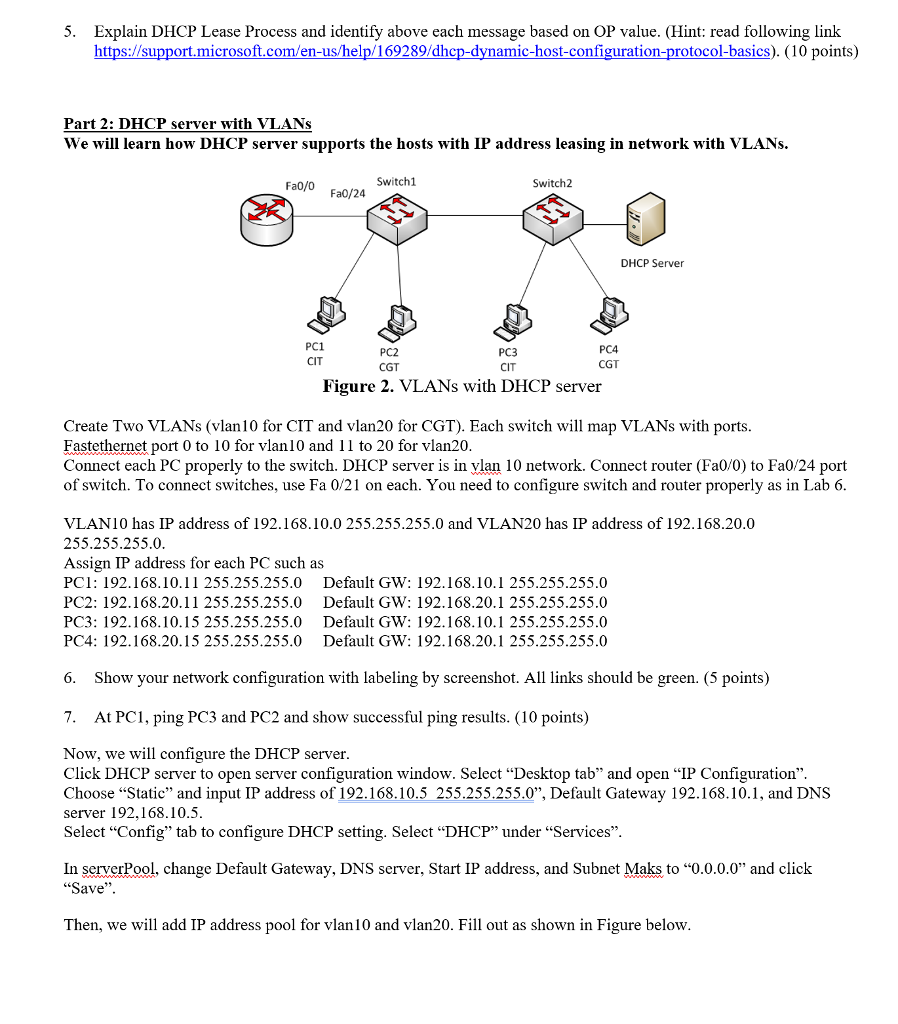
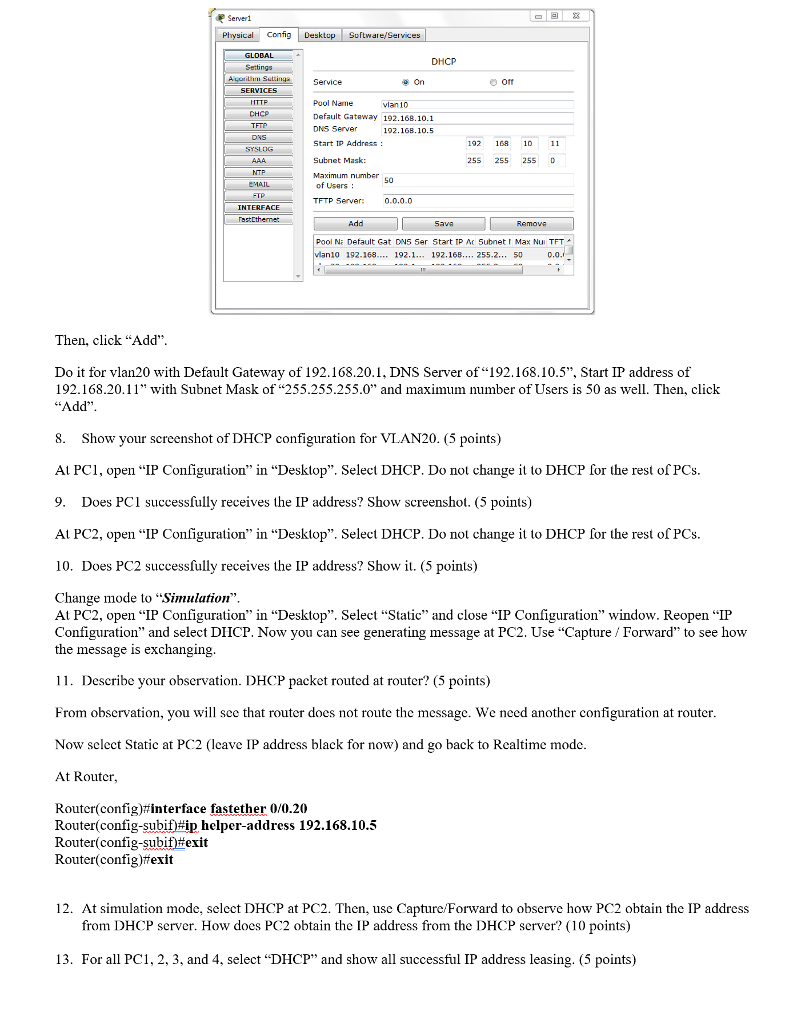
Background Dynamic Host Configuration Protocol (DHCP) is an open industry standard that automatically configures TCP/IP settings on client computers. The use of DHCP reduces the administrative overhead of managing a TCP/IP network. It also allows greater flexibility and mobility for hosts within the network without requiring manual intervention by an administrator. If client is physically moved to a different subnet, the DHCP serveir on that subnet automatically reconfigures the client with the proper IP information Part 1: DHCP server in same network In Part 1, you will learn how to configure a DHCP server and how the host leases the IP address from DHCP server in the same network. Switch1 DHCP Server PC1 Figure 1. Network with 1 switch, 1 PC, and DHCP server Create the network as shown in Figure 1. Connect DHCP server to any port in Switchl Now vou need to configure the DHCP server Click DHCP server to open server configuration window. Select "Desktop tab" and open "IP Configuration" Choose "Static" and input IP address of 192.168.10.5 255.255.255.0" and DNS server 192,168.10.5. Leave blank for Default Gateway Select "Config tab to configure DHCP setting. Select "DHCP" under Services" Change DNS server address of 192.168.10.5", Start IP address of 192. 168.10.1 1" with Subnet Mask of "255.255.255.0". Then, click "Save". 1. Show your configurations using screenshot. (5 points) Now, change the mode from "Realime" to "Simulation". Use "Edit Filter" to check only DHCP box. All other box should be unchecked. Then, click "PC1" and open "IP Configuration" in "Desktop". Select DHCP and DO NOT Close it. Go back to workspace and inspect the generating message at PC1 2. What Transport Layer Protocol is using? What are the source and destination port numbers? (5 points) For further message observation, click "Capture /Forward". 3. How many messages are exchanging between PC1 and DHCP server? What are the destination IP and MAC addresses in each message? (5 points) Inspect "Outbound PDU Detail" tab in each message and find DHCP information. 4. What is OP value at DHCP Field in each message? (5 points) Background Dynamic Host Configuration Protocol (DHCP) is an open industry standard that automatically configures TCP/IP settings on client computers. The use of DHCP reduces the administrative overhead of managing a TCP/IP network. It also allows greater flexibility and mobility for hosts within the network without requiring manual intervention by an administrator. If client is physically moved to a different subnet, the DHCP serveir on that subnet automatically reconfigures the client with the proper IP information Part 1: DHCP server in same network In Part 1, you will learn how to configure a DHCP server and how the host leases the IP address from DHCP server in the same network. Switch1 DHCP Server PC1 Figure 1. Network with 1 switch, 1 PC, and DHCP server Create the network as shown in Figure 1. Connect DHCP server to any port in Switchl Now vou need to configure the DHCP server Click DHCP server to open server configuration window. Select "Desktop tab" and open "IP Configuration" Choose "Static" and input IP address of 192.168.10.5 255.255.255.0" and DNS server 192,168.10.5. Leave blank for Default Gateway Select "Config tab to configure DHCP setting. Select "DHCP" under Services" Change DNS server address of 192.168.10.5", Start IP address of 192. 168.10.1 1" with Subnet Mask of "255.255.255.0". Then, click "Save". 1. Show your configurations using screenshot. (5 points) Now, change the mode from "Realime" to "Simulation". Use "Edit Filter" to check only DHCP box. All other box should be unchecked. Then, click "PC1" and open "IP Configuration" in "Desktop". Select DHCP and DO NOT Close it. Go back to workspace and inspect the generating message at PC1 2. What Transport Layer Protocol is using? What are the source and destination port numbers? (5 points) For further message observation, click "Capture /Forward". 3. How many messages are exchanging between PC1 and DHCP server? What are the destination IP and MAC addresses in each message? (5 points) Inspect "Outbound PDU Detail" tab in each message and find DHCP information. 4. What is OP value at DHCP Field in each message? (5 points)
Step by Step Solution
There are 3 Steps involved in it

Get step-by-step solutions from verified subject matter experts
 Study Help