







Question: use turtle graphics to create an interactive forest drawing application. Start by creating a module 'utilities.py' which should contain four drawing functions as listed below.
use turtle graphics to create an interactive forest drawing
application.
Start by creating a module 'utilities.py' which should contain four drawing functions as listed
below.
? draw_triangle(centre_x, centre_y, width, height, pen_color,
fill_color)
? draw_rectangle(centre_x, centre_y, width, height, pen_color,
fill_color)
? draw_circle(centre_x, centre_y, radius, pen_color, fill_color)
? stamp_turtle(centre_x, centre_y, color)
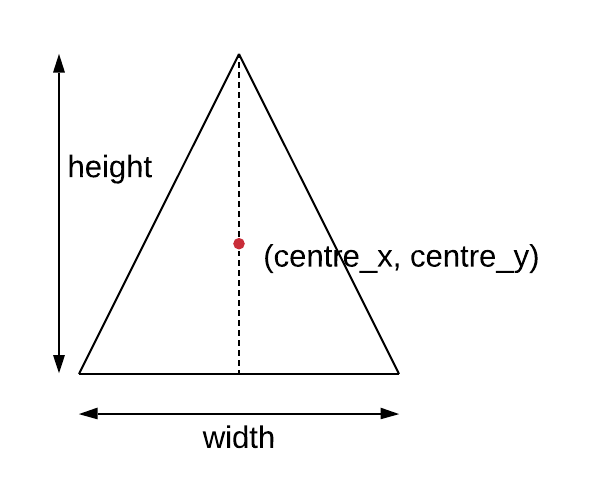
The parameter names are self explanatory. For example, the draw_triangle() function
should draw an upwards pointing triangle with (centre_x, centre_y) located as shown in
figure.
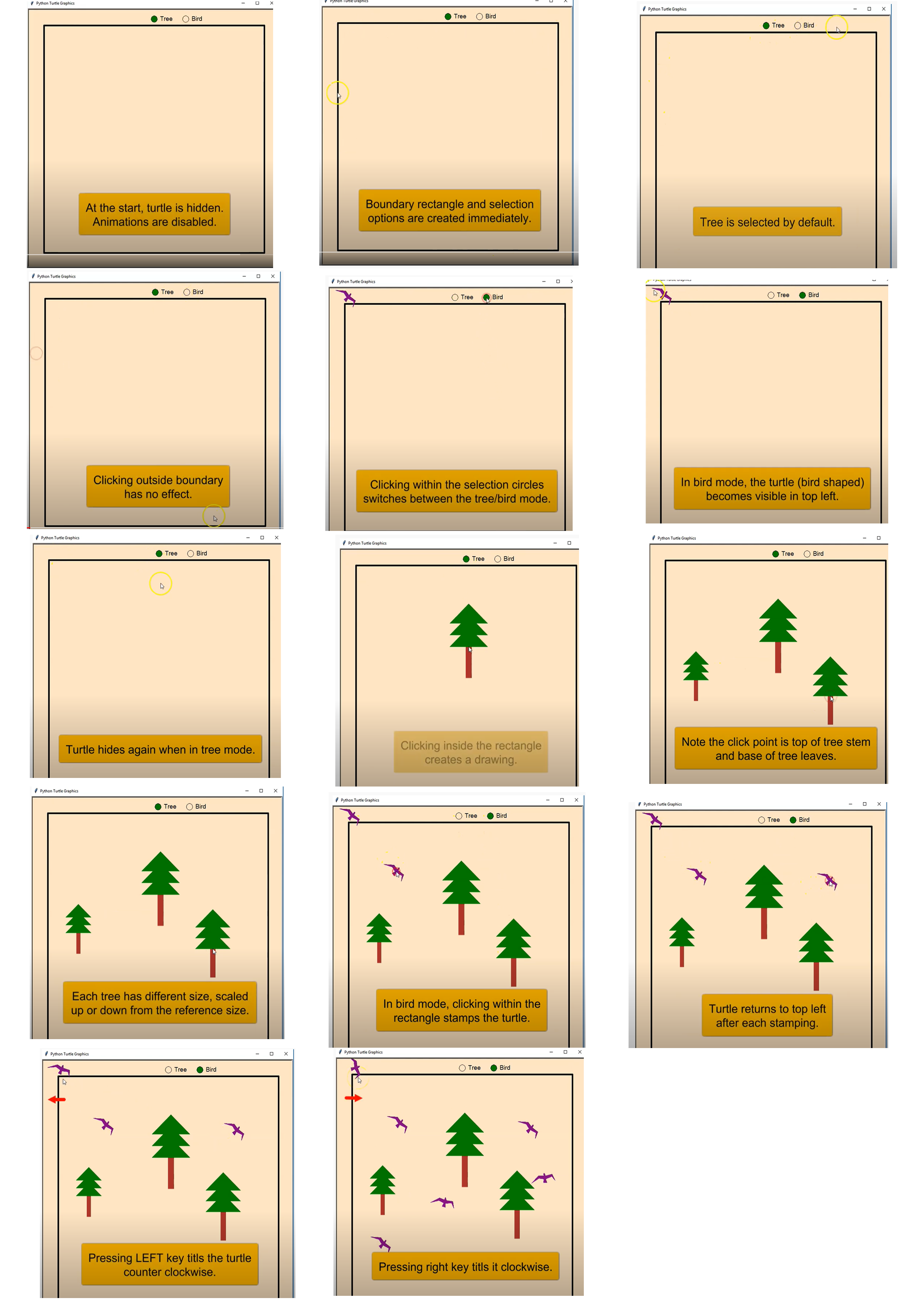
Tree Bird . Tree O Bird . Tree O Bird At the start, turtle is hidden. Boundary rectangle and selection Animations are disabled. options are created immediately. Tree is selected by default. Python Turtle Graphics . Tree O Bird 1 Python Turtle Gro O Tree Bird Tree . Bird Clicking outside boundary has no effect. Clicking within the selection circles In bird mode, the turtle (bird shaped) switches between the tree/bird mode. becomes visible in top left. 4 / Python Turtle Graphics . Tree O Bird Python Turtle Graphics Tree O Bird Tree O Bird Turtle hides again when in tree mode. Clicking inside the rectangle Note the click point is top of tree stem creates a drawing. and base of tree leaves . Tree O Bird / Python Turtle Graphics O Tree .Bird Tree Bird X Each tree has different size, scaled up or down from the reference size. In bird mode, clicking within the rectangle stamps the turtle. Turtle returns to top left after each stamping. Python Turtle Graph O Tree Bird Tree .Bird X X Pressing LEFT key titls the turtle counter clockwise. Pressing right key titls it clockwise.\f
Step by Step Solution
There are 3 Steps involved in it

Get step-by-step solutions from verified subject matter experts
 Study Help