







Question: Using Excel - Constructing a crosstabulation using PivotTable To answer the questions that follow, download an Excel worksheet containing the demographic data for a sample
Using Excel Constructing a crosstabulation using PivotTable
To answer the questions that follow, download an Excel worksheet containing the demographic data for a sample of adults by clicking on the
following words in bold: Download Excel File.
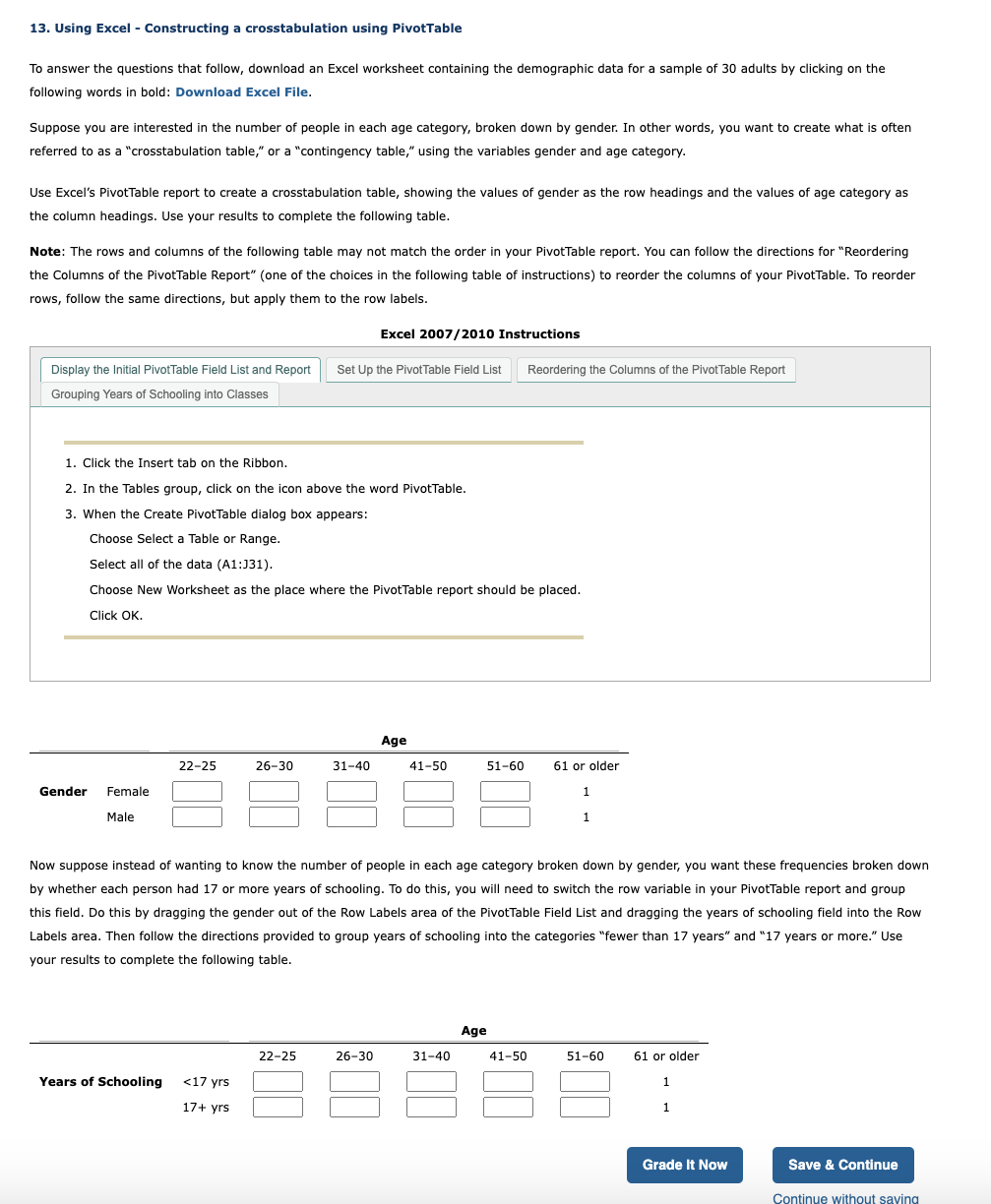
Suppose you are interested in the number of people in each age category, broken down by gender. In other words, you want to create what is often
referred to as a "crosstabulation table," or a "contingency table," using the variables gender and age category.
Use Excel's PivotTable report to create a crosstabulation table, showing the values of gender as the row headings and the values of age category as
the column headings. Use your results to complete the following table.
Note: The rows and columns of the following table may not match the order in your PivotTable report. You can follow the directions for "Reordering
the Columns of the PivotTable Report" one of the choices in the following table of instructions to reorder the columns of your PivotTable. To reorder
rows, follow the same directions, but apply them to the row labels.
Excel Instructions
Display the Initial PivotTable Field List and Report
Set Up the PivotTable Field List
Reordering the Columns of the PivotTable Report
Grouping Years of Schooling into Classes
Click the Insert tab on the Ribbon.
In the Tables group, click on the icon above the word PivotTable.
When the Create PivotTable dialog box appears:
Choose Select a Table or Range.
Select all of the data A:J
Choose New Worksheet as the place where the PivotTable report should be placed.
Click OK
Now suppose instead of wanting to know the number of people in each age category broken down by gender, you want these frequencies broken down
by whether each person had or more years of schooling. To do this, you will need to switch the row variable in your PivotTable report and group
this field. Do this by dragging the gender out of the Row Labels area of the PivotTable Field List and dragging the years of schooling field into the Row
Labels area. Then follow the directions provided to group years of schooling into the categories "fewer than years" and years or more." Use
your results to complete the following table.
Step by Step Solution
There are 3 Steps involved in it
1 Expert Approved Answer
Step: 1 Unlock

Question Has Been Solved by an Expert!
Get step-by-step solutions from verified subject matter experts
Step: 2 Unlock
Step: 3 Unlock
 Study Help