







Question: using JAVA 1 The game devs for Legendary Epics need a GUI for the intro screen of the game in which the user is presented
using JAVA 1
The game devs for Legendary Epics need a GUI for the intro screen of the game in which the user is presented with a welcome message and a prompt for entering their name. Lester Zamboni has assigned you with this task:
Create a default class definition for the Intro jframe, defining the appearance of new jFrames, fonts, layouts, and components to add. In this definition, you must
Create a Jlabel named lblHeadline with text "Welcome to".
Create a Jlabel named lblName with text "Please enter your name".
Create a JTextField named txtField of 25 character length.
Create a JButton named btnAccept with text "Accept"
Note: Leave the 2 lines of code that add the logo to the jFrame.
Name the JFrame using the super() constructor.
Force the program to exit on close when the red X is clicked.
Create a new flow layout.
Add lblHeadline, lblLogo, lblName, txtField, and btnAccept to the layout.
Add a tooltip for btnAccept that says: "Click this button to accept your character name."
Create a new font definiton for lblHeadline that makes it Arial font, Bold, and 24-point.
Create a new font definition for lblName that makes it Arial font, Bold, and 14-point.
Create a new font definition for txtField that makes it Arial font, plain, and 14 point.
Use the IntroFrame.java file that is provided as a template.
Create a second class that instantiates a new IntroFrame object from your JFrame class and displays it onscreen.
Create new IntroFrame object named firstFrame
Create a constant named width (400 pixels) that defines the default width for firstFrame
Create a constant named height (300 pixels) that defines the default width for firstFrame
Using width and height variables, set the size of the JFrame window
Make the JFrame window visible
Use the Intro.java file that is provided as a template.
Your JFrame should look exactly like this:
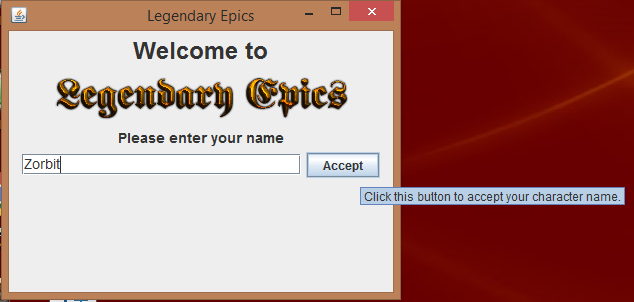
intro.java
//This class demonstrates calling to the IntroFrame class that has presets
import javax.swing.*;
import java.awt.*;
public class Intro extends IntroFrame
{
public static void main(String[] args)
{
//Declare and define variables
//Create new IntroFrame object named firstFrame
//Create a constant named width (400 pixels) that defines the default width for firstFrame
//Create a constant named height (300 pixels) that defines the default width for firstFrame
//Using width and height variables, set the size of the JFrame window
//Make the JFrame window visible
}
}
introFrame.java
//This class demonstrates making a child class of the JFrame
import javax.swing.*;
import java.awt.*;
public class IntroFrame extends JFrame
{
//Create Label Objects
//Create a Jlabel named lblHeadline with text "Welcome to".
//Create a Jlabel named lblName with text "Please enter your name".
//Create a JTextField named txtField of 25 character length
//Create a JButton named btnAccept with text "Accept"
// Leave the next two lines of code. It shows you how to add an image to a jFrame. It assumes that you have the "Legendary Epics.png" file in your HW12 folder.
Icon icon = new ImageIcon("Legendary Epics.png");
JLabel lblLogo = new JLabel(icon, JLabel.CENTER);
public IntroFrame()
{
//Name the JFrame using the super() constructor.
//Force the program to exit on close when the red X is clicked.
//create a new flow layout
//Add lblHeadline, lblLogo, lblName, txtField, and btnAccept to the layout.
//Add a tooltip for btnAccept that says: "Click this button to accept your character name."
//Set the font type and size to the JLabel and JTextField
// Create a new font definiton for lblHeadline that makes it Arial font, Bold, and 24-point.
// Create a new font definition for lblName that makes it Arial font, Bold, and 14-point.
// Create a new font definition for txtField that makes it Arial font, plain, and 14 point.
}
}
Legendary Epics Please enter your name Zorbi Accept Click this button to accept your character name Legendary Epics Please enter your name Zorbi Accept Click this button to accept your character name
Step by Step Solution
There are 3 Steps involved in it

Get step-by-step solutions from verified subject matter experts
 Study Help