







Question: USING MPLAB X IDE Demo section How to run MPLABX, set up a project, compile and use the built-in simulator Problem section 1. Create your
USING MPLAB X IDE
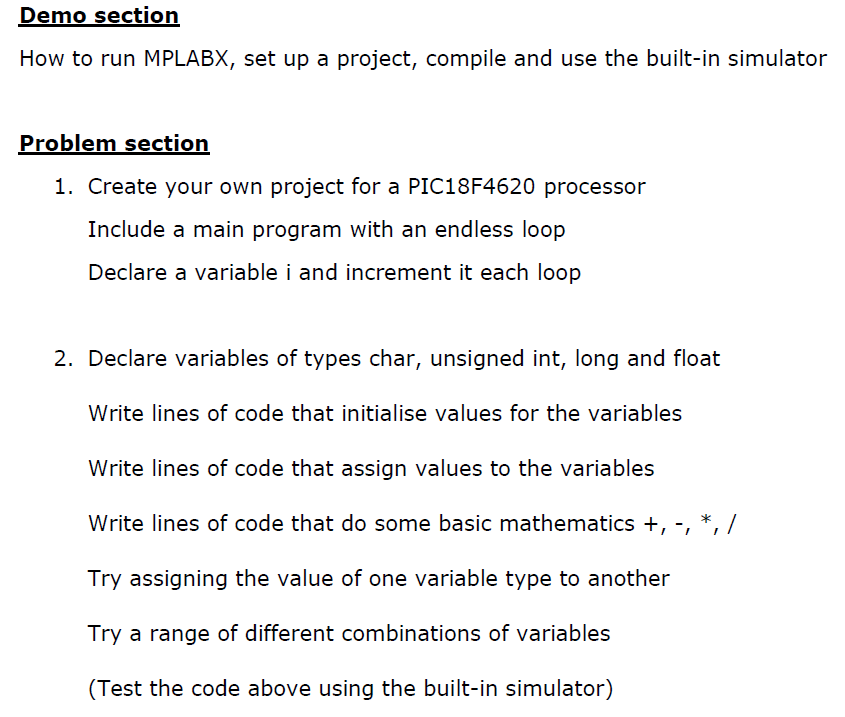
Demo section How to run MPLABX, set up a project, compile and use the built-in simulator Problem section 1. Create your own project for a PIC18F4620 processor Include a main program with an endless loop Declare a variable i and increment it each loop 2. Declare variables of types char, unsigned int, long and float Write lines of code that initialise values for the variables Write lines of code that assign values to the variables Write lines of code that do some basic mathematics +,-, *, / Try assigning the value of one variable type to another Try a range of different combinations of variables (Test the code above using the built-in simulator) Demo section How to run MPLABX, set up a project, compile and use the built-in simulator Problem section 1. Create your own project for a PIC18F4620 processor Include a main program with an endless loop Declare a variable i and increment it each loop 2. Declare variables of types char, unsigned int, long and float Write lines of code that initialise values for the variables Write lines of code that assign values to the variables Write lines of code that do some basic mathematics +,-, *, / Try assigning the value of one variable type to another Try a range of different combinations of variables (Test the code above using the built-in simulator)
Step by Step Solution
There are 3 Steps involved in it

Get step-by-step solutions from verified subject matter experts
 Study Help