







Question: When executed, your Java program should display a menu of options. Please help I don't understand, I need Java programs of the class diagram and
When executed, your Java program should display a menu of options. Please help I don't understand, I need Java programs of the class diagram and 1-8
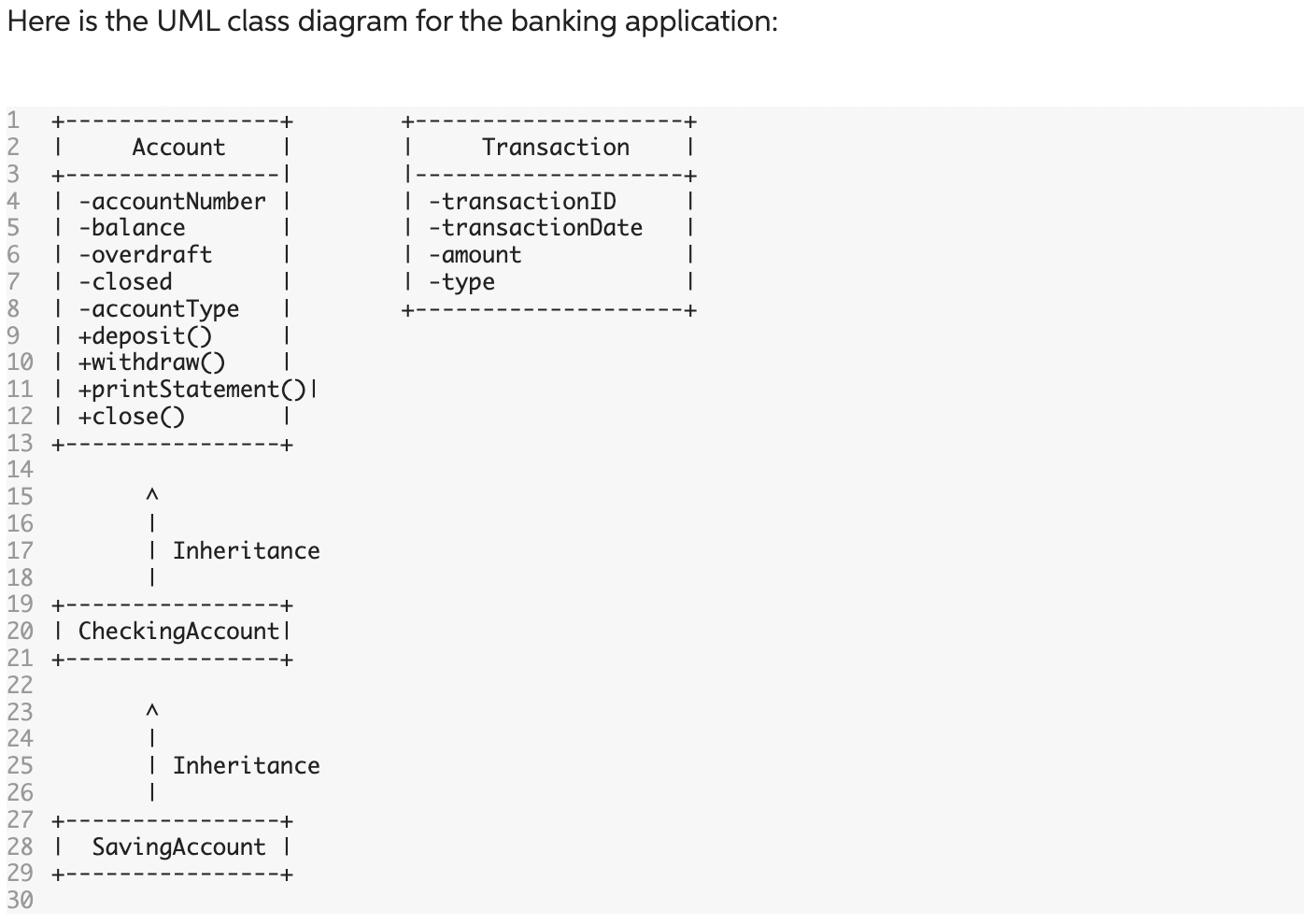
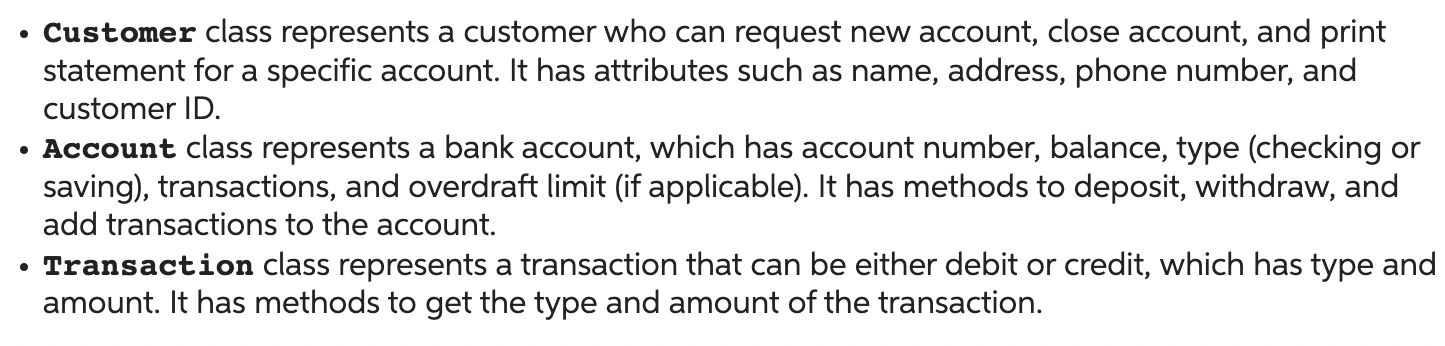
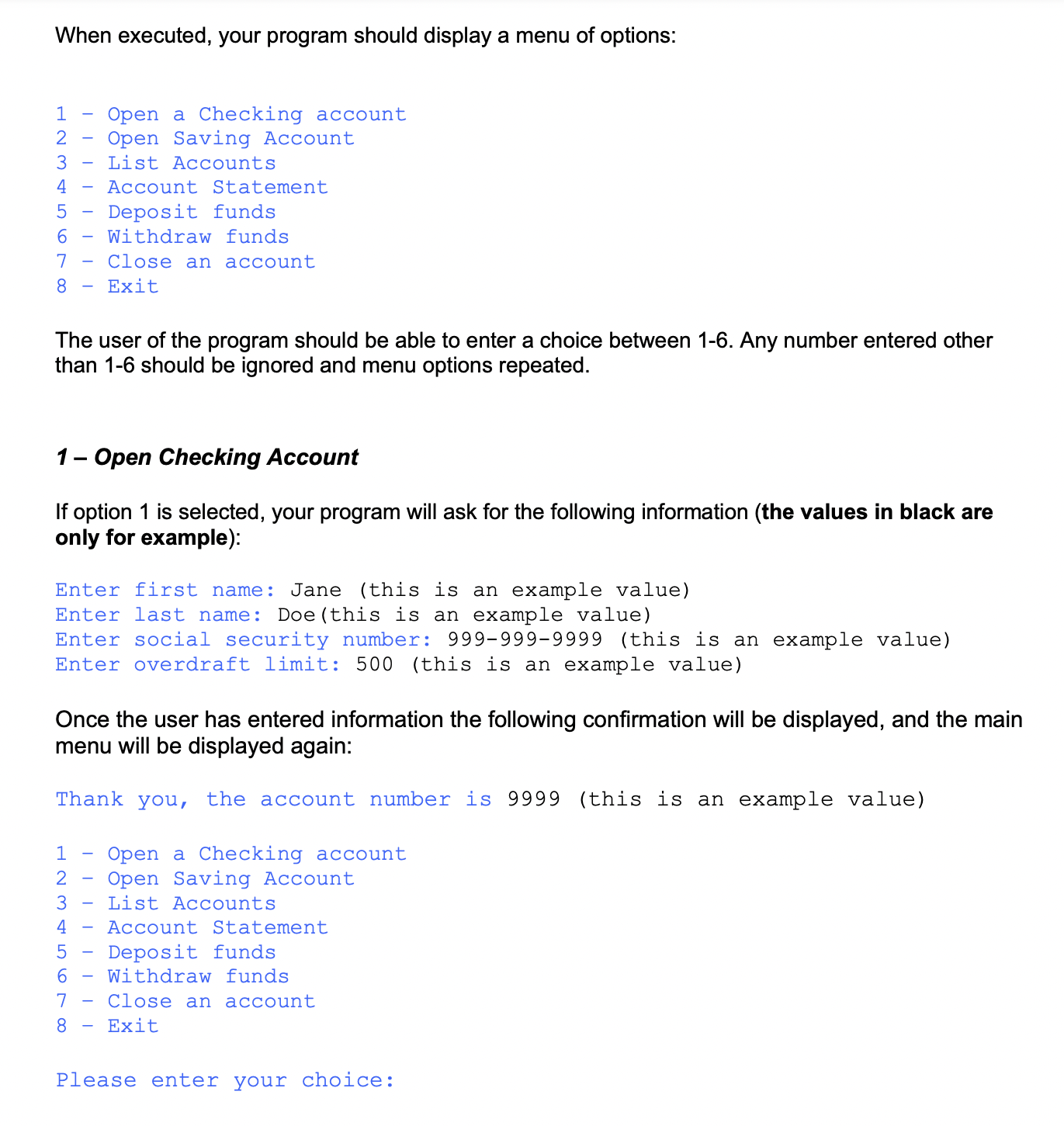
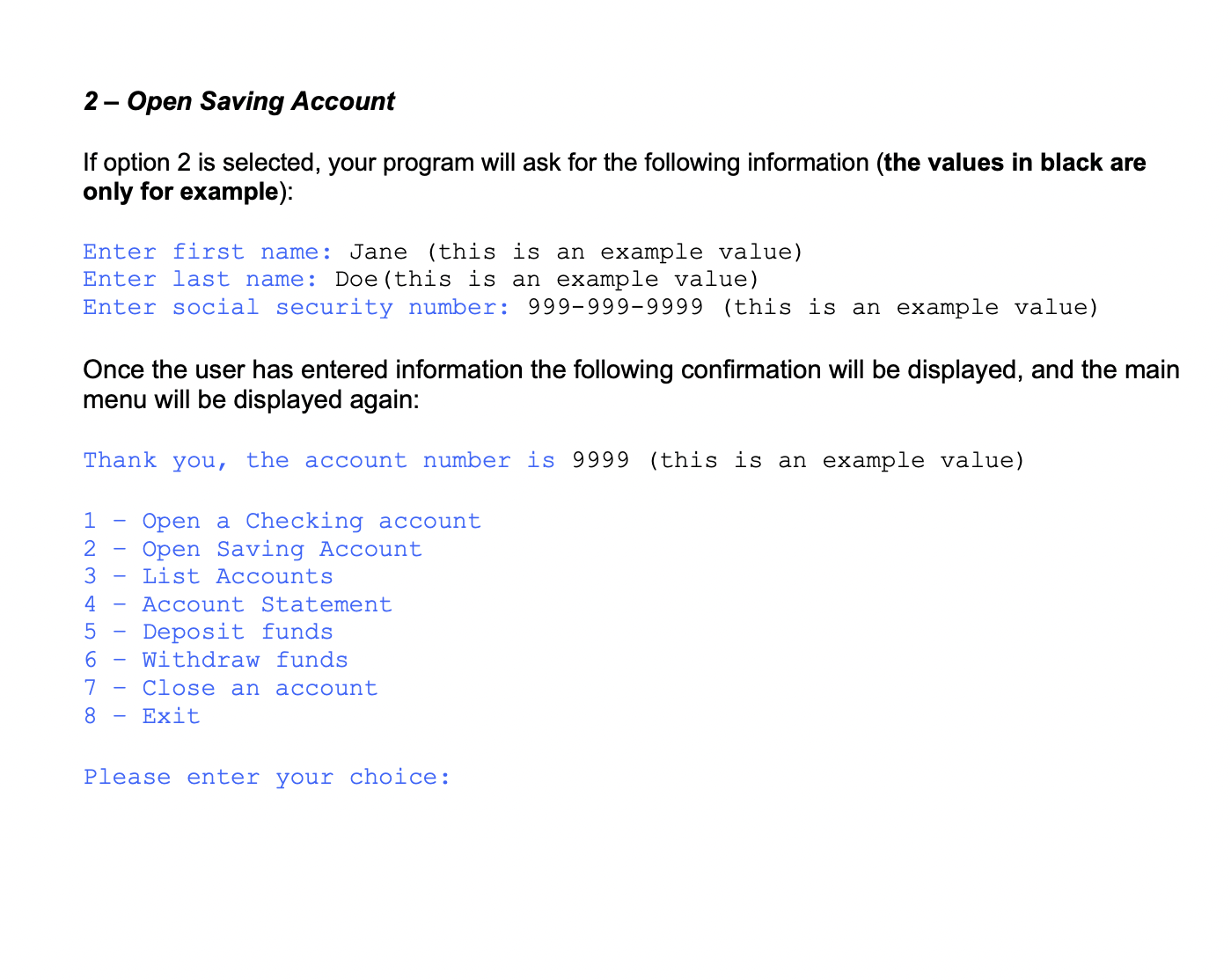
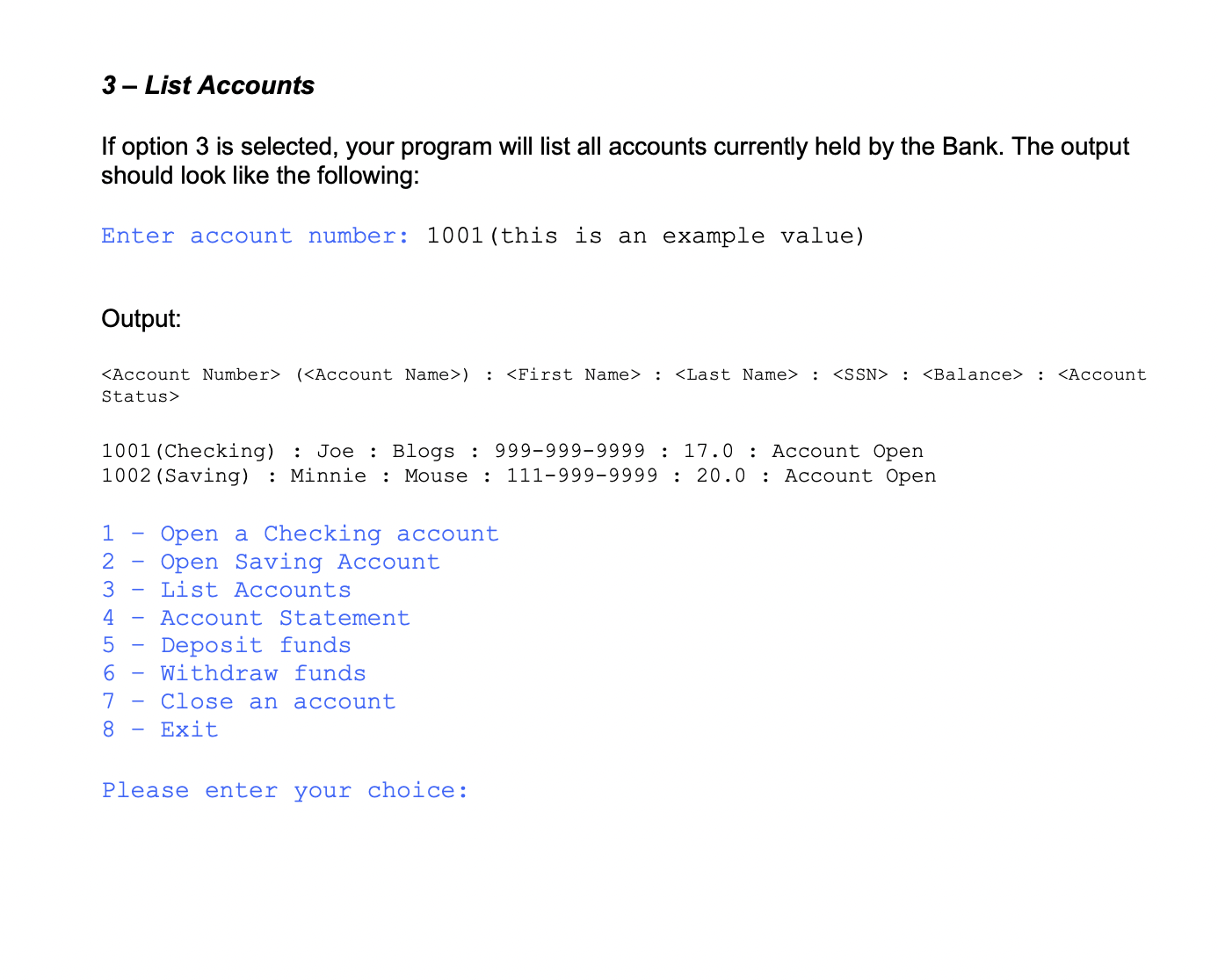
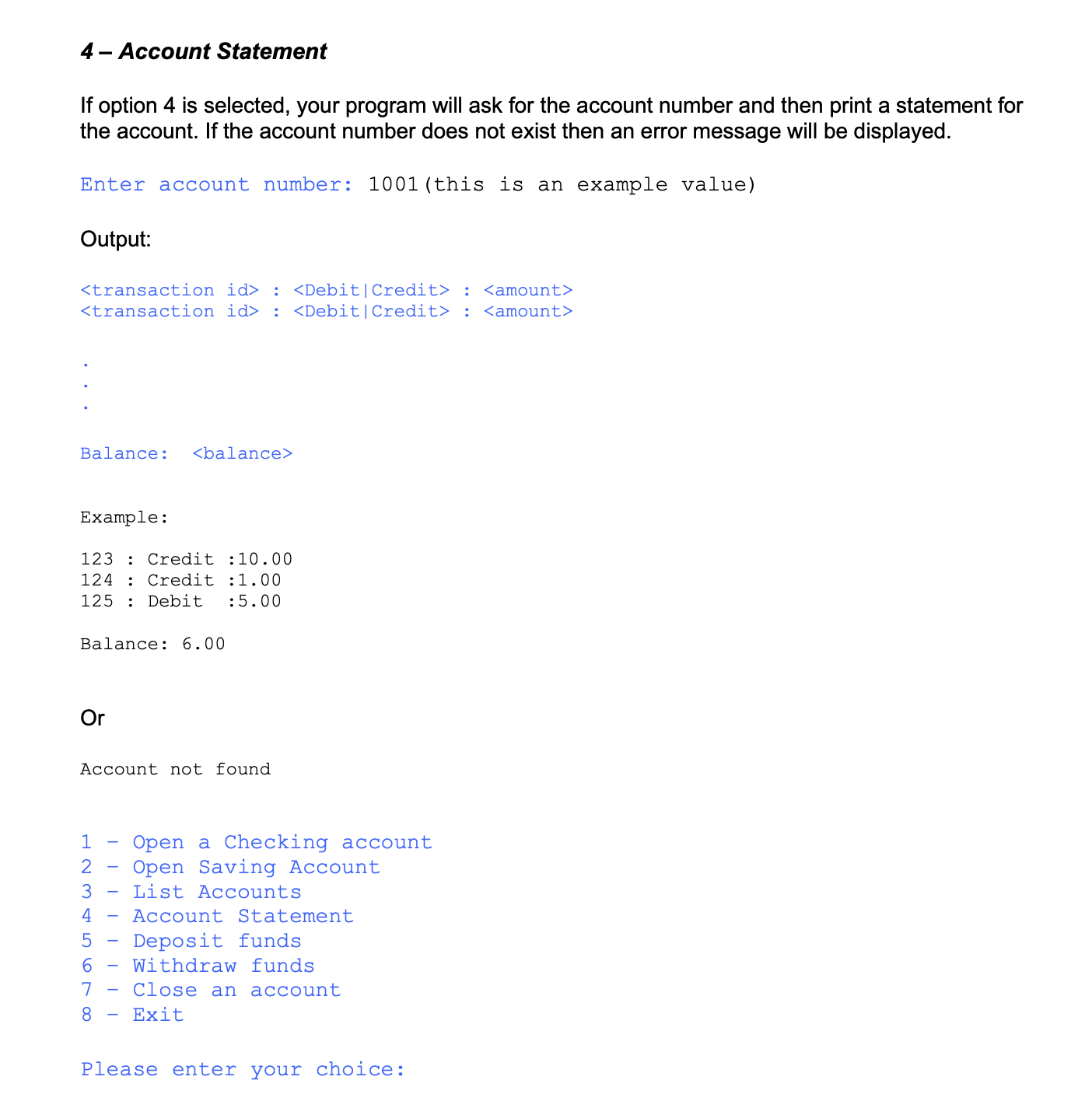
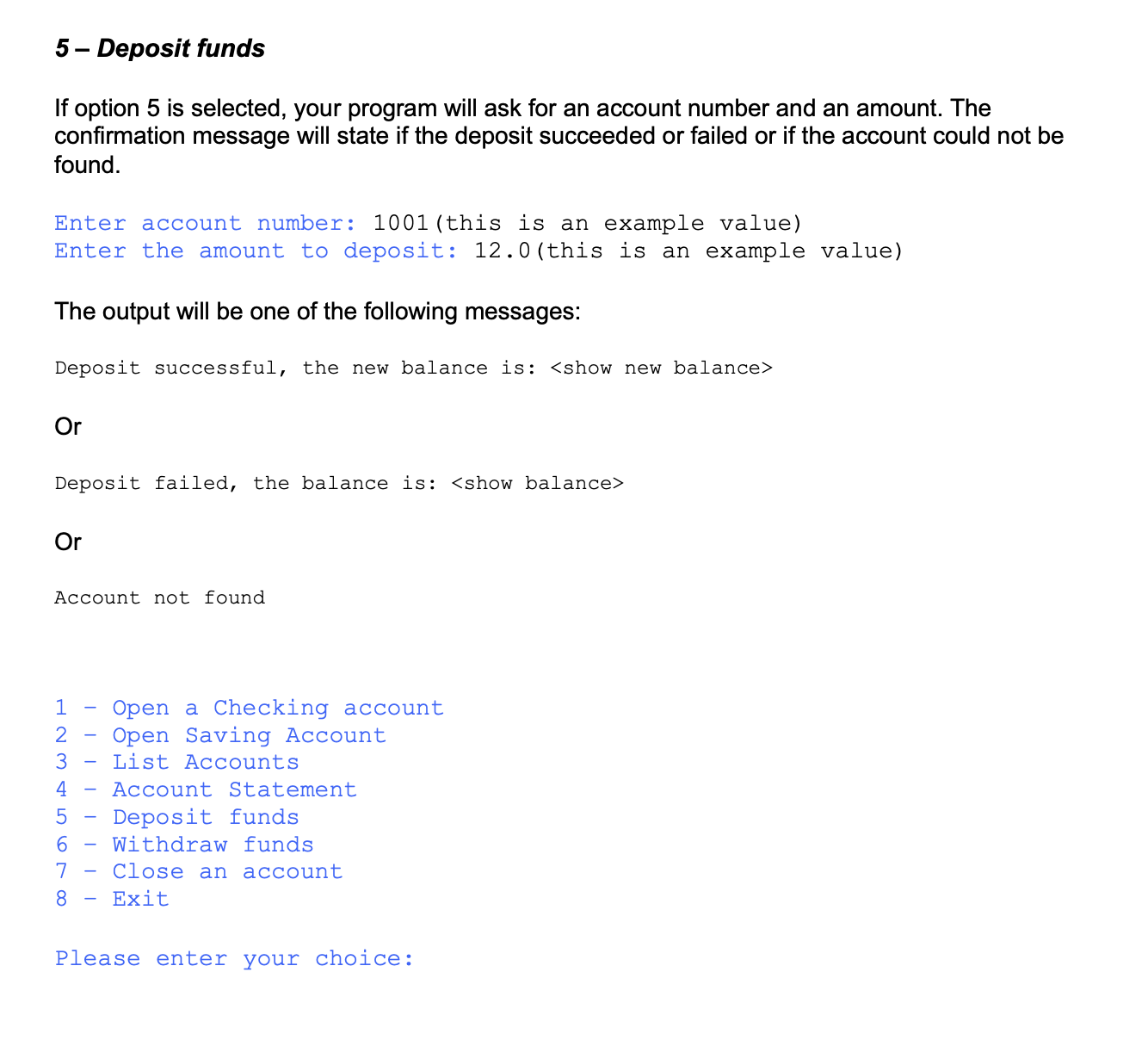
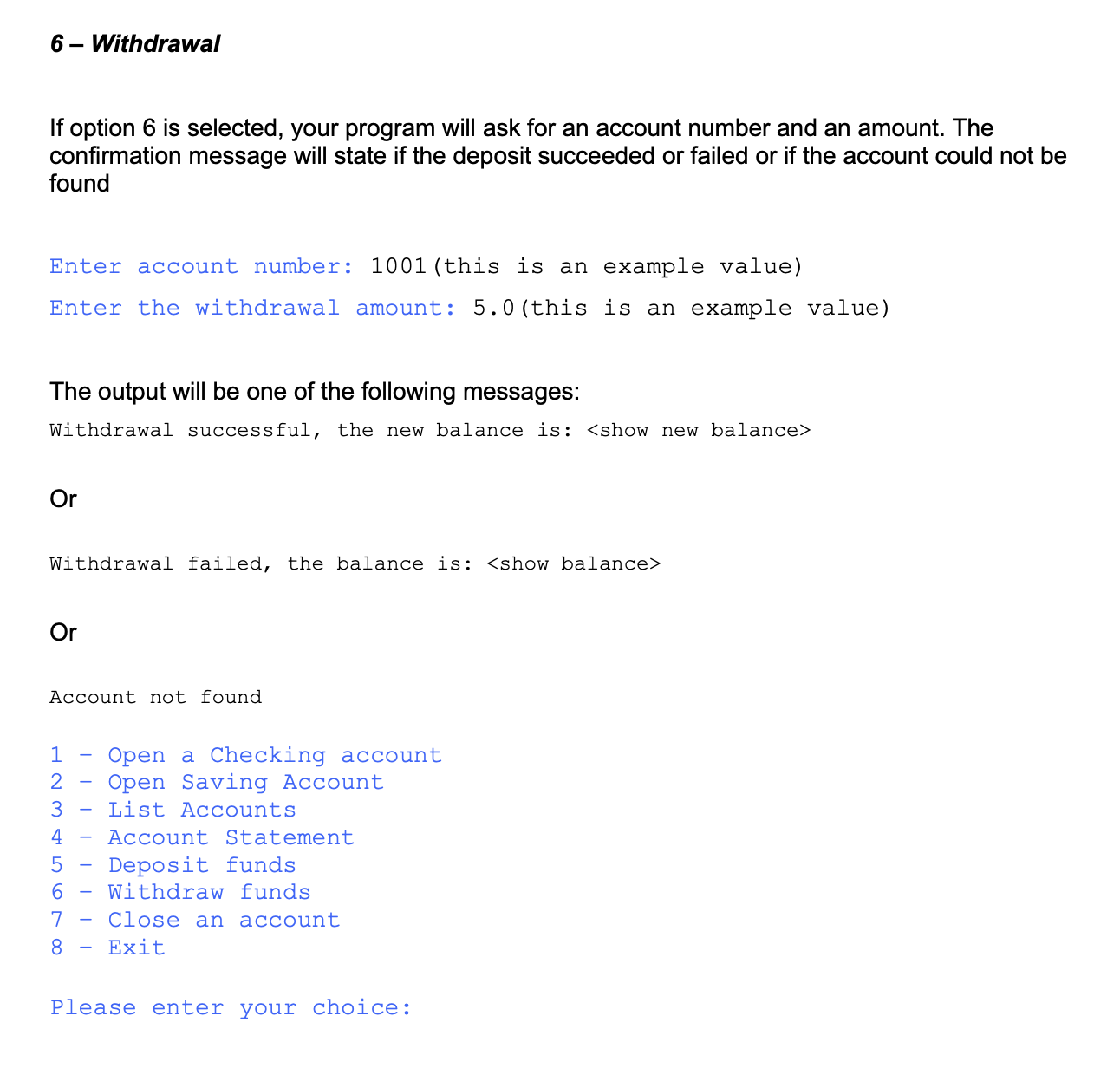
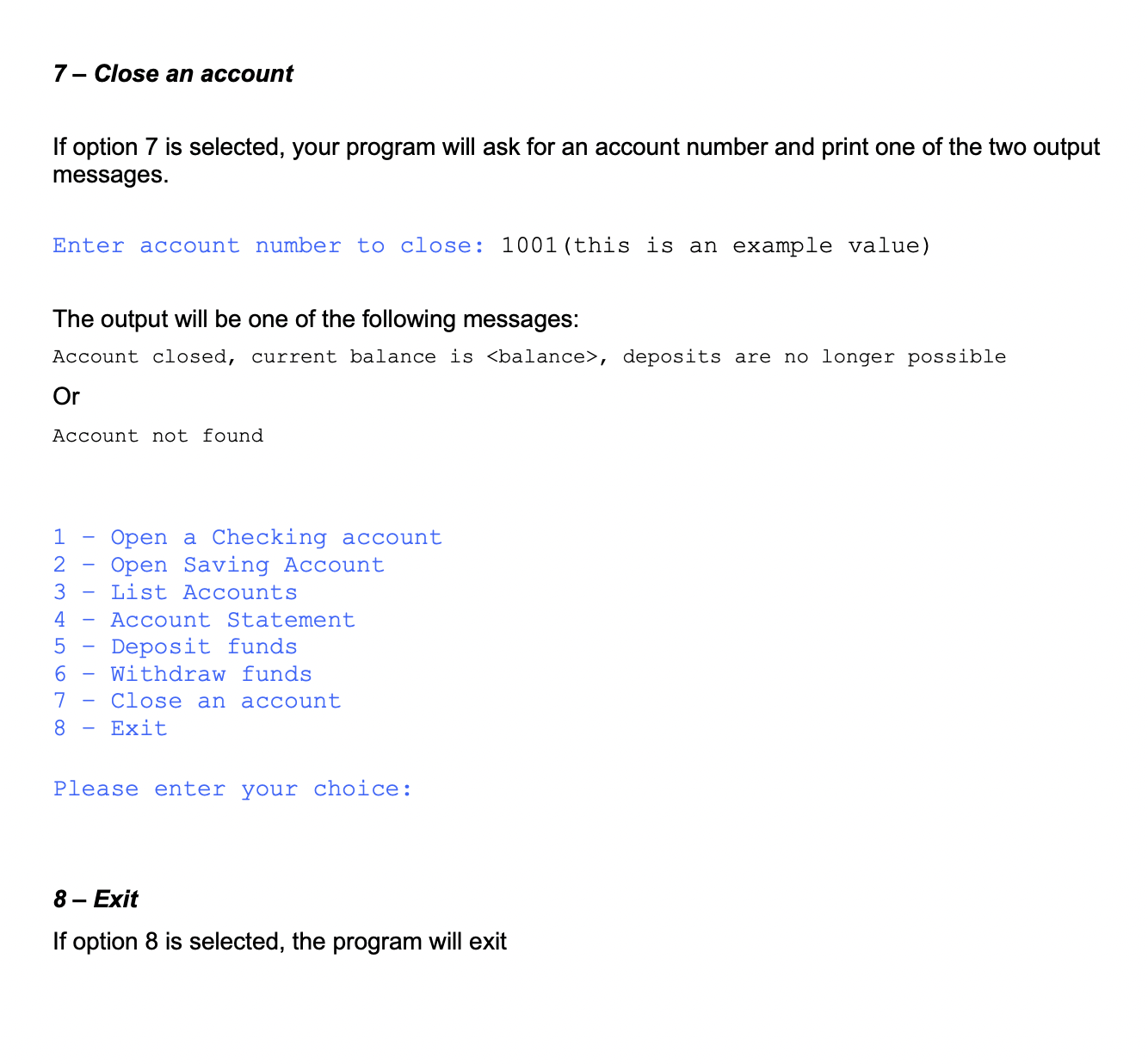
Here is the UML class diagram for the banking application: - Customer class represents a customer who can request new account, close account, and print statement for a specific account. It has attributes such as name, address, phone number, and customer ID. - Account class represents a bank account, which has account number, balance, type (checking or saving), transactions, and overdraft limit (if applicable). It has methods to deposit, withdraw, and add transactions to the account. - Transaction class represents a transaction that can be either debit or credit, which has type and amount. It has methods to get the type and amount of the transaction. When executed, your program should display a menu of options: 1 - Open a Checking account 2 - Open Saving Account 3 - List Accounts 4 - Account Statement 5 - Deposit funds 6 - Withdraw funds 7 - Close an account 8 - Exit The user of the program should be able to enter a choice between 1-6. Any number entered other than 1-6 should be ignored and menu options repeated. 1 - Open Checking Account If option 1 is selected, your program will ask for the following information (the values in black are only for example): Enter first name: Jane (this is an example value) Enter last name: Doe (this is an example value) Enter social security number: 999-999-9999 (this is an example value) Enter overdraft limit: 500 (this is an example value) Once the user has entered information the following confirmation will be displayed, and the main menu will be displayed again: Thank you, the account number is 9999 (this is an example value) 1 - Open a Checking account 2 - Open Saving Account 3 - List Accounts 4 - Account Statement 5 - Deposit funds 6 - Withdraw funds 7 - Close an account 8 - Exit Please enter your choice: 2- Open Saving Account If option 2 is selected, your program will ask for the following information (the values in black are only for example): Enter first name: Jane (this is an example value) Enter last name: Doe(this is an example value) Enter social security number: 999-999-9999 (this is an example value) Once the user has entered information the following confirmation will be displayed, and the main menu will be displayed again: Thank you, the account number is 9999 (this is an example value) 1 - Open a Checking account 2 - Open Saving Account 3 - List Accounts 4 - Account Statement 5 - Deposit funds 6 - Withdraw funds 7 - Close an account 8 - Exit Please enter your choice: 3 - List Accounts If option 3 is selected, your program will list all accounts currently held by the Bank. The output should look like the following: Enter account number: 1001 (this is an example value) Output: Account Number ( ) : First Name >:: 1001 (Checking) : Joe : Blogs : 999-999-9999:17.0: Account Open 1002 (Saving) : Minnie: Mouse : 111-999-9999: 20.0: Account Open 1 - Open a Checking account 2 - Open Saving Account 3 - List Accounts 4 - Account Statement 5 - Deposit funds 6 - Withdraw funds 7 - Close an account 8 - Exit Please enter your choice: 4-Account Statement If option 4 is selected, your program will ask for the account number and then print a statement for the account. If the account number does not exist then an error message will be displayed. Enter account number: 1001 (this is an example value) Output: : : : : Balance: Example: 123 : Credit : 10.00 124 : Credit : 1.00 125 : Debit :5.00 Balance: 6.00 Or Account not found 1 - Open a Checking account 2 - Open Saving Account 3 - List Accounts 4 - Account Statement 5 - Deposit funds 6 - Withdraw funds 7 - Close an account 8 - Exit Please enter your choice: 5-Deposit funds If option 5 is selected, your program will ask for an account number and an amount. The confirmation message will state if the deposit succeeded or failed or if the account could not be found. Enter account number: 1001 (this is an example value) Enter the amount to deposit: 12.0 (this is an example value) The output will be one of the following messages: Deposit successful, the new balance is: Or Deposit failed, the balance is: Account not found 1 - Open a Checking account 2 - Open Saving Account 3 - List Accounts 4 - Account Statement 5 - Deposit funds 6 - Withdraw funds 7 - Close an account 8 - Exit Please enter your choice: 6-Withdrawal If option 6 is selected, your program will ask for an account number and an amount. The confirmation message will state if the deposit succeeded or failed or if the account could not be found Enter account number: 1001 (this is an example value) Enter the withdrawal amount: 5.0 (this is an example value) The output will be one of the following messages: Withdrawal successful, the new balance is: Or Withdrawal failed, the balance is: Or Account not found 1 - Open a Checking account 2 - Open Saving Account 3 - List Accounts 4 - Account Statement 5 - Deposit funds 6 - Withdraw funds 7 - Close an account 8 - Exit Please enter your choice: 7-Close an account If option 7 is selected, your program will ask for an account number and print one of the two output messages. Enter account number to close: 1001 (this is an example value) The output will be one of the following messages: Account closed, current balance is , deposits are no longer possible Or Account not found 1 - Open a Checking account 2 - Open Saving Account 3 - List Accounts 4 - Account Statement 5 - Deposit funds 6 - Withdraw funds 7 - Close an account 8 - Exit Please enter your choice: 8- Exit If option 8 is selected, the program will exit
Step by Step Solution
There are 3 Steps involved in it

Get step-by-step solutions from verified subject matter experts
 Study Help