







Question: ^Where do I put lines 27-36 in the entities tab below Also, How do I determine where private keys (pk) go and foreign keys (fk)
^Where do I put lines 27-36 in the entities tab below
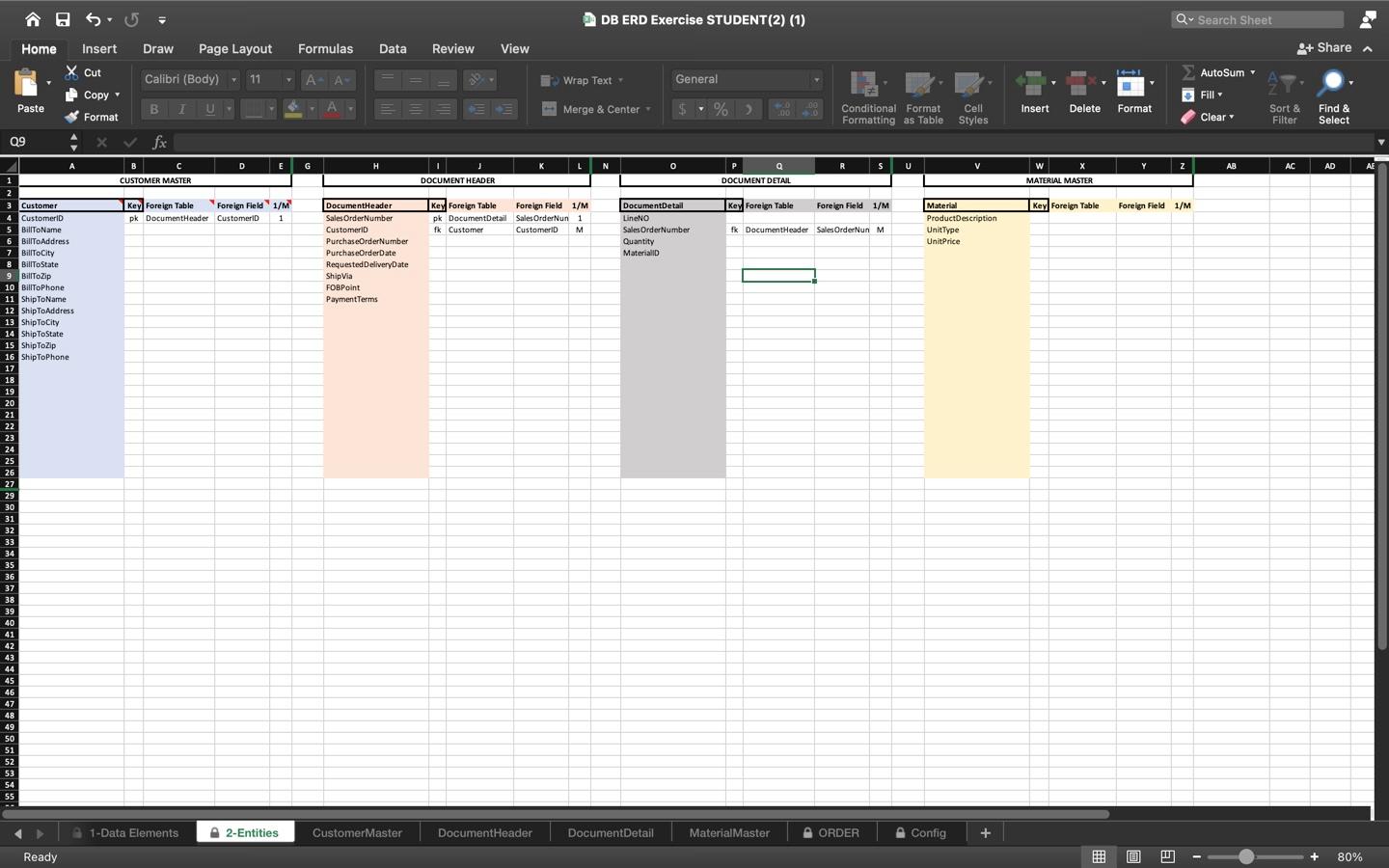 Also, How do I determine where private keys (pk) go and foreign keys (fk) go?
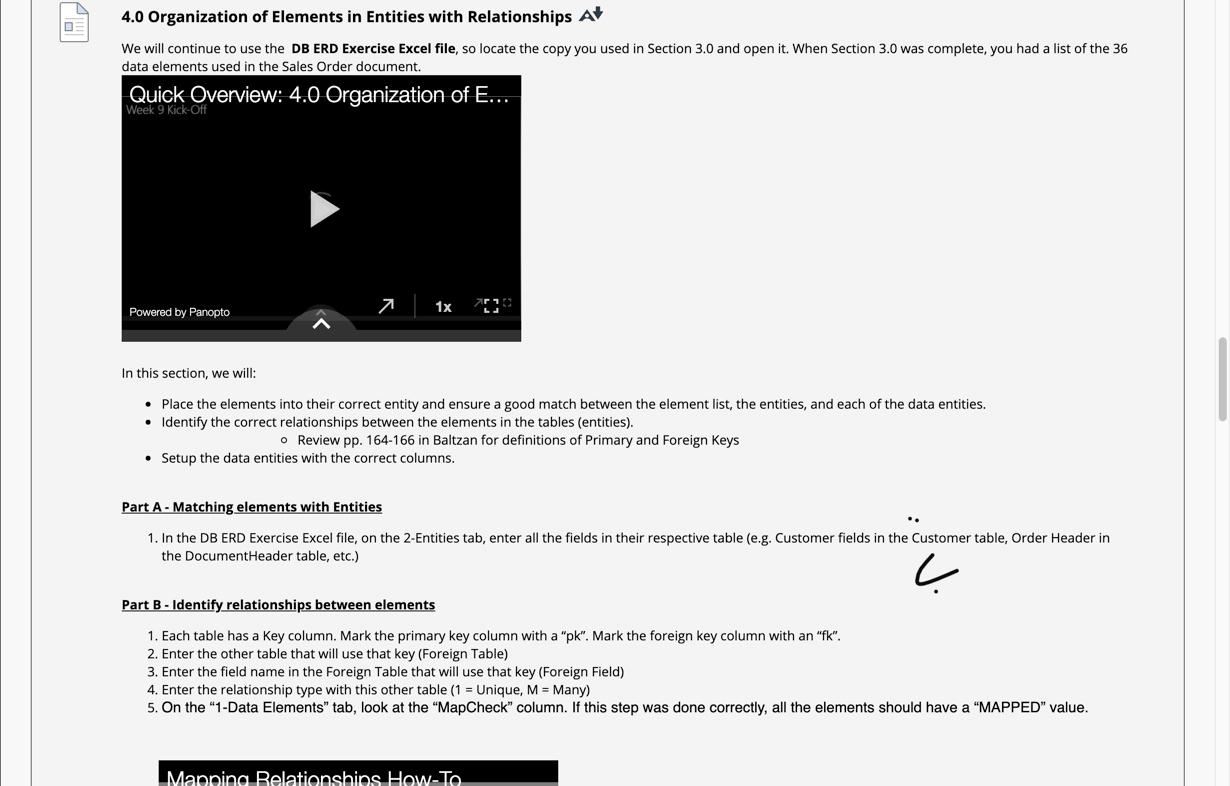
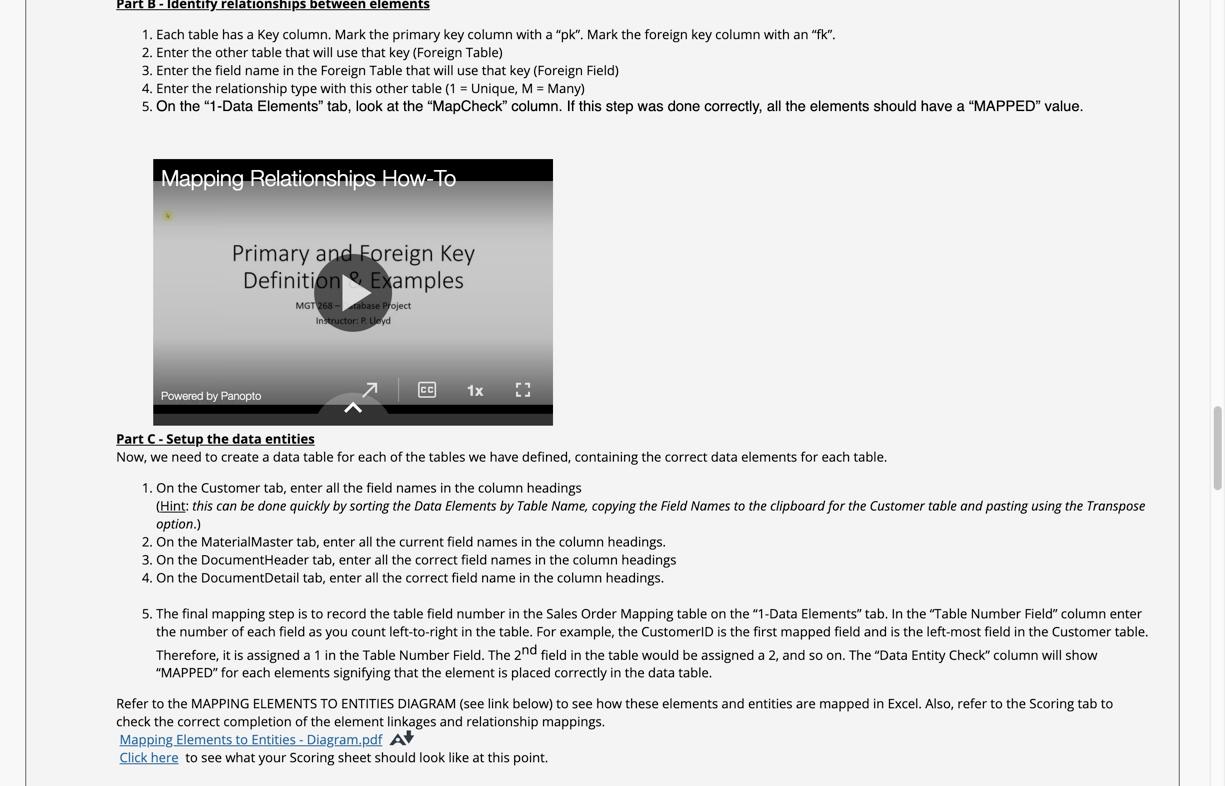
I really just need the entity tab to be completed... where lines 27-36 need to go and the "key", "foreign table", and "foreign field" parts answered.
DB ERD Exercise STUDENT(2) (1) ) 1 Q Search Sheet Home Insert Draw Page Layout Formulas Data Review View + Share X Cut Copy , 11 Calibri (Body) - A A Auto Sum Wrap Text General Fill Paste B 1 U - - Merge & Center $ %) 0 00 000 Conditional Format Cell Formatting as Table Styles Insert Delete Format Format Clear Sort & Find & Filter Select 09 x fx D EG H K L N a R S U U V Y z AB AC AD AE B . CUSTOMER MASTER T DOCUMENT HEADER P Q DOCUMENT DETAIL W W X MATERIAL MASTER Key Foreign Table Key Foreign Table Foreign Field 1/M pk Document Header Customerid 1 Foreign Field 1/M Key Forelon Table Foreign Field 1/M Key Foreign Table Foreign Field 1/M pk Document Detail Sales OrderNun 1 fk Customer Customerid M DocumentDetall LineNQ SalesOrder Number Quantit Material Material Product Description UnitType Unit Price DocumentHeader Sales Order Number Customer Purchase OrderNumber Purchase Order Date Requested DeliveryDate ShipVia FOBPoint Payment Terms fk Document Header Sales OrderNun M 1 2 3 Customer 4 Customer 5 BillToName 6 BillToAddress 7 BillToCity B BillToState 9 BillToZip 10 BillToPhone 11 ShipToName 12 ShipToAddress 13 ShipToCity 14 Ship ToState 15 Ship ToZip 16 ShipToPhone 17 18 19 20 21 22 23 24 25 26 27 29 30 31 32 33 34 35 36 37 38 39 40 41 42 43 44 45 46 47 48 49 50 51 52 53 54 55 1-Data Elements A2-Entities - Customer Master Document Header DocumentDetail Material Master ORDER Config + Ready | W 80% D 4.0 Organization of Elements in Entities with Relationships At We will continue to use the DB ERD Exercise Excel file, so locate the copy you used in Section 3.0 and open it. When Section 3.0 was complete, you had a list of the 36 data elements used in the Sales Order document. Quick Overview: 4.0 Organization of E... Week 9 Kick-Off Powered by Panopto 1x In this section, we will: Place the elements into their correct entity and ensure a good match between the element list, the entities, and each of the data entities. Identify the correct relationships between the elements in the tables (entities). o Review pp. 164-166 in Baltzan for definitions of Primary and Foreign Keys Setup the data entities with the correct columns. Part A - Matching elements with Entities 1. In the DB ERD Exercise Excel file, on the 2-Entities tab, enter all the fields in their respective table (e.g. Customer fields in the Customer table, Order Header in the Document Header table, etc.) L Part B - Identify relationships between elements 1. Each table has a key column. Mark the primary key column with a "pk". Mark the foreign key column with an "fk". 2. Enter the other table that will use that key (Foreign Table) 3. Enter the field name in the Foreign Table that will use that key (Foreign Field) 4. Enter the relationship type with this other table (1 = Unique, M = Many) 5. On the "1-Data Elements" tab, look at the "MapCheck" column. If this step was done correctly, all the elements should have a "MAPPED" value. Mapping Relationships How-To Part B - Identify relationships between elements 1. Each table has a key column. Mark the primary key column with a "pk". Mark the foreign key column with an "fk". 2. Enter the other table that will use that key (Foreign Table) 3. Enter the field name in the Foreign Table that will use that key (Foreign Field) 4. Enter the relationship type with this other table (1 = Unique, M = Many) 5. On the 1-Data Elements" tab, look at the "MapCheck" column. If this step was done correctly, all the elements should have a "MAPPED" value. Mapping Relationships How-To Primary and Foreign Key Definition Examples MGT 268 mbase Project Instructori Lloyd CC Powered by Panopto 1x Part C - Setup the data entities Now, we need to create a data table for each of the tables we have defined, containing the correct data elements for each table. 1. On the Customer tab, enter all the field names in the column headings (Hint: this can be done quickly by sorting the Data Elements by Table Name, copying the Field Names to the clipboard for the Customer table and pasting using the Transpose option.) 2. On the MaterialMaster tab, enter all the current field names in the column headings. 3. On the DocumentHeader tab, enter all the correct field names in the column headings 4. On the DocumentDetail tab, enter all the correct field name in the column headings. 5. The final mapping step is to record the table field number in the Sales Order Mapping table on the "1-Data Elements" tab. In the "Table Number Field" column enter the number of each field as you count left-to-right in the table. For example, the Customerld is the first mapped field and is the left-most field in the Customer table. Therefore, it is assigned a 1 in the Table Number Field. The 2nd field in the table would be assigned a 2, and so on. The "Data Entity Check" column will show "MAPPED" for each elements signifying that the element is placed correctly in the data table. Refer to the MAPPING ELEMENTS TO ENTITIES DIAGRAM (see link below) to see how these elements and entities are mapped in Excel. Also, refer to the Scoring tab to check the correct completion of the element linkages and relationship mappings. Mapping Elements to Entities - Diagram.pdf A Click here to see what your Scoring sheet should look like at this point. DB ERD Exercise STUDENT(2) (1) ) 1 Q Search Sheet Home Insert Draw Page Layout Formulas Data Review View + Share X Cut Copy , 11 Calibri (Body) - A A Auto Sum Wrap Text General Fill Paste B 1 U - - Merge & Center $ %) 0 00 000 Conditional Format Cell Formatting as Table Styles Insert Delete Format Format Clear Sort & Find & Filter Select 09 x fx D EG H K L N a R S U U V Y z AB AC AD AE B . CUSTOMER MASTER T DOCUMENT HEADER P Q DOCUMENT DETAIL W W X MATERIAL MASTER Key Foreign Table Key Foreign Table Foreign Field 1/M pk Document Header Customerid 1 Foreign Field 1/M Key Forelon Table Foreign Field 1/M Key Foreign Table Foreign Field 1/M pk Document Detail Sales OrderNun 1 fk Customer Customerid M DocumentDetall LineNQ SalesOrder Number Quantit Material Material Product Description UnitType Unit Price DocumentHeader Sales Order Number Customer Purchase OrderNumber Purchase Order Date Requested DeliveryDate ShipVia FOBPoint Payment Terms fk Document Header Sales OrderNun M 1 2 3 Customer 4 Customer 5 BillToName 6 BillToAddress 7 BillToCity B BillToState 9 BillToZip 10 BillToPhone 11 ShipToName 12 ShipToAddress 13 ShipToCity 14 Ship ToState 15 Ship ToZip 16 ShipToPhone 17 18 19 20 21 22 23 24 25 26 27 29 30 31 32 33 34 35 36 37 38 39 40 41 42 43 44 45 46 47 48 49 50 51 52 53 54 55 1-Data Elements A2-Entities - Customer Master Document Header DocumentDetail Material Master ORDER Config + Ready | W 80% D 4.0 Organization of Elements in Entities with Relationships At We will continue to use the DB ERD Exercise Excel file, so locate the copy you used in Section 3.0 and open it. When Section 3.0 was complete, you had a list of the 36 data elements used in the Sales Order document. Quick Overview: 4.0 Organization of E... Week 9 Kick-Off Powered by Panopto 1x In this section, we will: Place the elements into their correct entity and ensure a good match between the element list, the entities, and each of the data entities. Identify the correct relationships between the elements in the tables (entities). o Review pp. 164-166 in Baltzan for definitions of Primary and Foreign Keys Setup the data entities with the correct columns. Part A - Matching elements with Entities 1. In the DB ERD Exercise Excel file, on the 2-Entities tab, enter all the fields in their respective table (e.g. Customer fields in the Customer table, Order Header in the Document Header table, etc.) L Part B - Identify relationships between elements 1. Each table has a key column. Mark the primary key column with a "pk". Mark the foreign key column with an "fk". 2. Enter the other table that will use that key (Foreign Table) 3. Enter the field name in the Foreign Table that will use that key (Foreign Field) 4. Enter the relationship type with this other table (1 = Unique, M = Many) 5. On the "1-Data Elements" tab, look at the "MapCheck" column. If this step was done correctly, all the elements should have a "MAPPED" value. Mapping Relationships How-To Part B - Identify relationships between elements 1. Each table has a key column. Mark the primary key column with a "pk". Mark the foreign key column with an "fk". 2. Enter the other table that will use that key (Foreign Table) 3. Enter the field name in the Foreign Table that will use that key (Foreign Field) 4. Enter the relationship type with this other table (1 = Unique, M = Many) 5. On the 1-Data Elements" tab, look at the "MapCheck" column. If this step was done correctly, all the elements should have a "MAPPED" value. Mapping Relationships How-To Primary and Foreign Key Definition Examples MGT 268 mbase Project Instructori Lloyd CC Powered by Panopto 1x Part C - Setup the data entities Now, we need to create a data table for each of the tables we have defined, containing the correct data elements for each table. 1. On the Customer tab, enter all the field names in the column headings (Hint: this can be done quickly by sorting the Data Elements by Table Name, copying the Field Names to the clipboard for the Customer table and pasting using the Transpose option.) 2. On the MaterialMaster tab, enter all the current field names in the column headings. 3. On the DocumentHeader tab, enter all the correct field names in the column headings 4. On the DocumentDetail tab, enter all the correct field name in the column headings. 5. The final mapping step is to record the table field number in the Sales Order Mapping table on the "1-Data Elements" tab. In the "Table Number Field" column enter the number of each field as you count left-to-right in the table. For example, the Customerld is the first mapped field and is the left-most field in the Customer table. Therefore, it is assigned a 1 in the Table Number Field. The 2nd field in the table would be assigned a 2, and so on. The "Data Entity Check" column will show "MAPPED" for each elements signifying that the element is placed correctly in the data table. Refer to the MAPPING ELEMENTS TO ENTITIES DIAGRAM (see link below) to see how these elements and entities are mapped in Excel. Also, refer to the Scoring tab to check the correct completion of the element linkages and relationship mappings. Mapping Elements to Entities - Diagram.pdf A Click here to see what your Scoring sheet should look like at this pointStep by Step Solution
There are 3 Steps involved in it
1 Expert Approved Answer
Step: 1 Unlock

Question Has Been Solved by an Expert!
Get step-by-step solutions from verified subject matter experts
Step: 2 Unlock
Step: 3 Unlock
 Study Help