







Question: Write a MATLAB program that executes the following commands. All dimensions are given in units. a. Generate a window that is 700 wide by
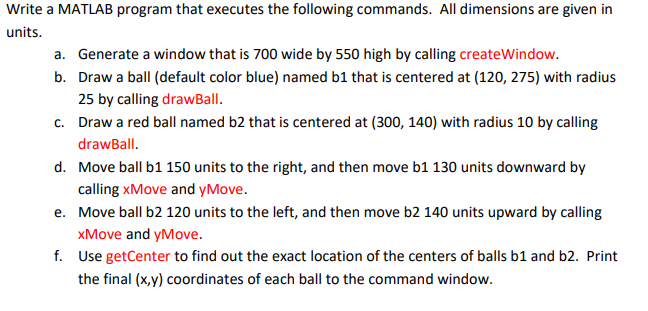
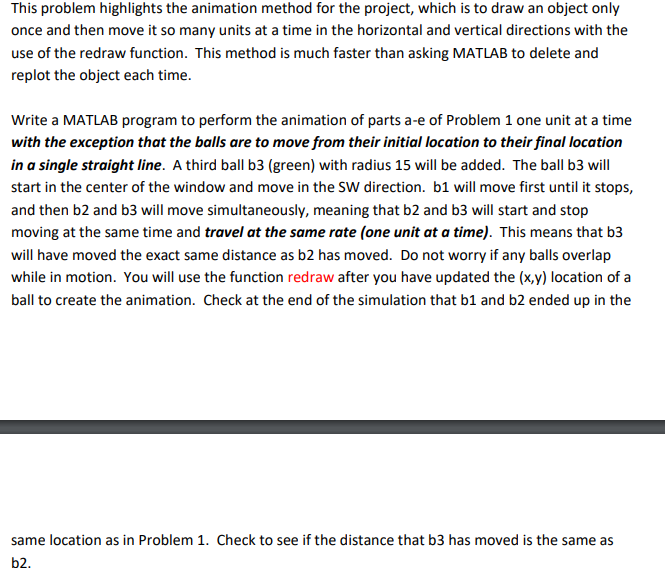
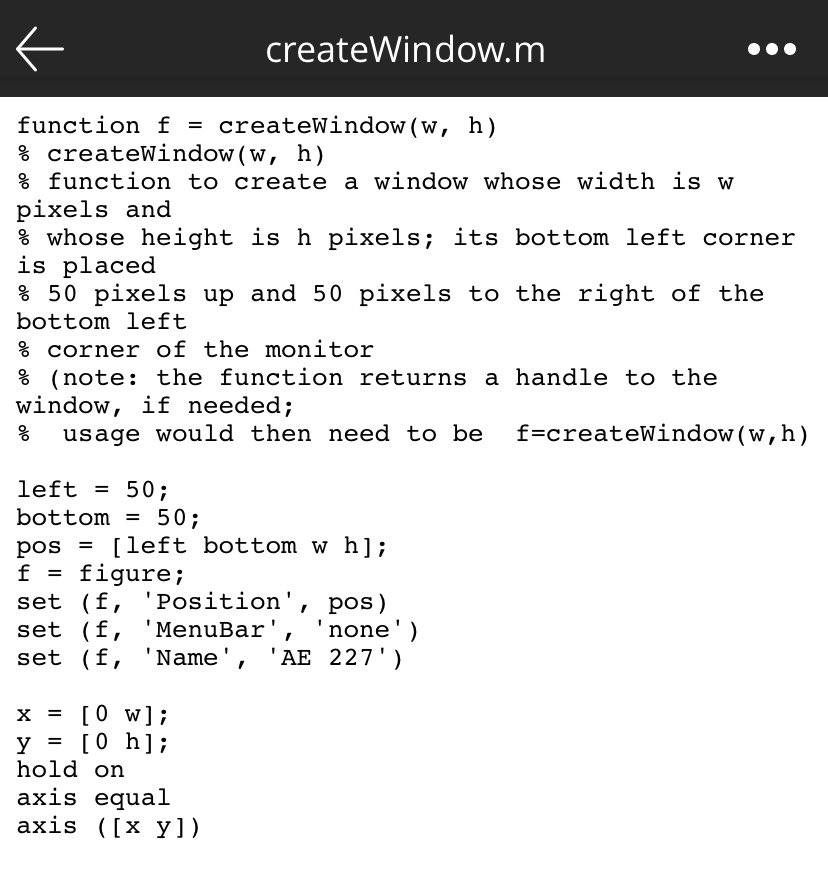
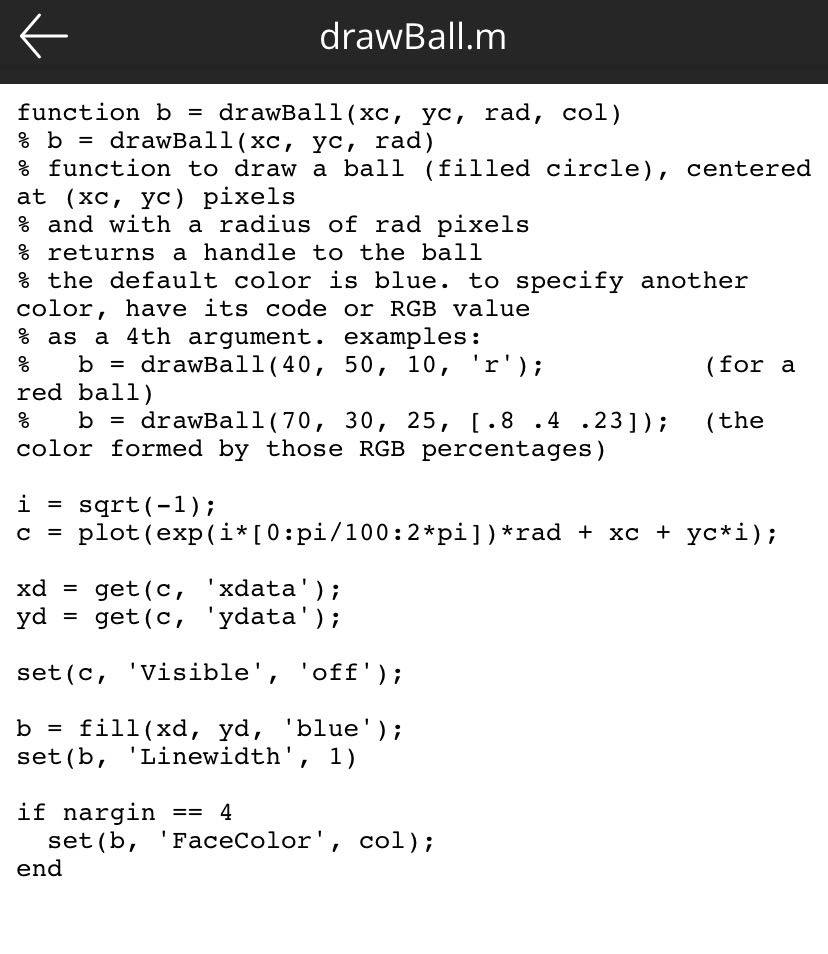
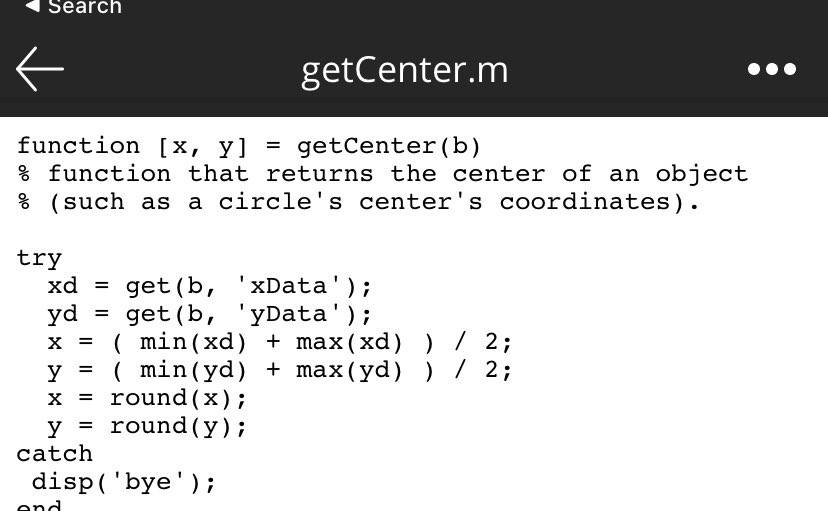
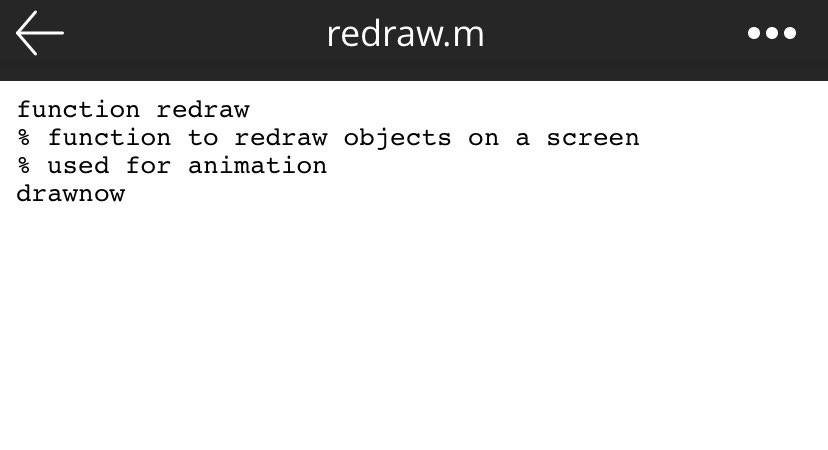
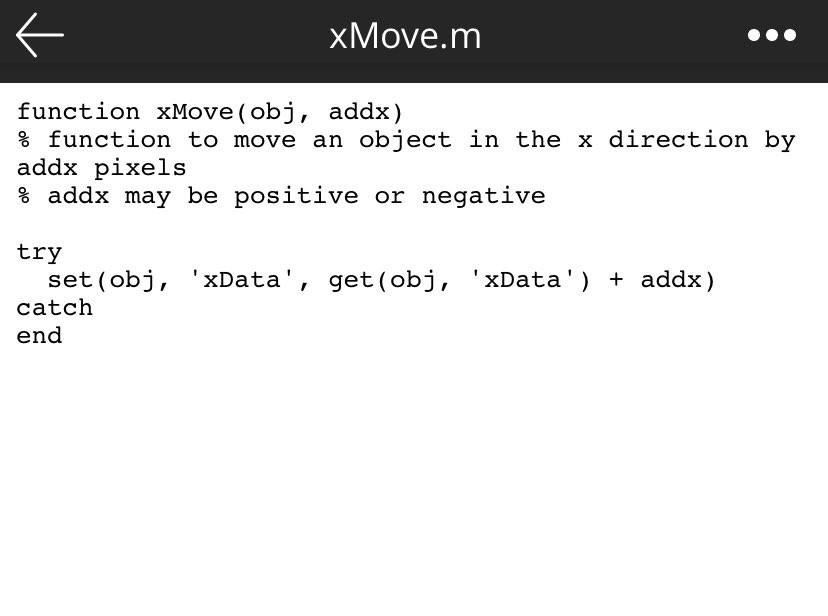
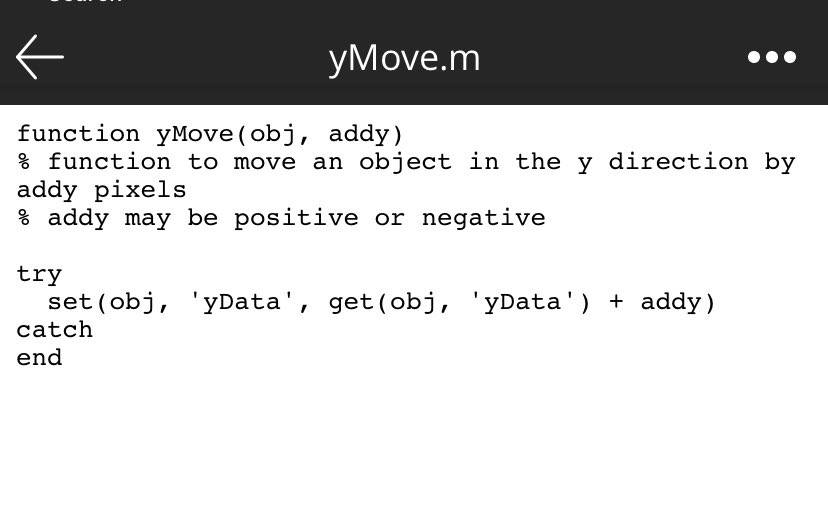
Write a MATLAB program that executes the following commands. All dimensions are given in units. a. Generate a window that is 700 wide by 550 high by calling createWindow. b. Draw a ball (default color blue) named b1 that is centered at (120, 275) with radius 25 by calling drawBall. c. Draw a red ball named b2 that is centered at (300, 140) with radius 10 by calling drawBall. d. Move ball b1 150 units to the right, and then move b1 130 units downward by calling xMove and yMove. e. Move ball b2 120 units to the left, and then move b2 140 units upward by calling xMove and yMove. f. Use getCenter to find out the exact location of the centers of balls b1 and b2. Print the final (x,y) coordinates of each ball to the command window. This problem highlights the animation method for the project, which is to draw an object only once and then move it so many units at a time in the horizontal and vertical directions with the use of the redraw function. This method is much faster than asking MATLAB to delete and replot the object each time. Write a MATLAB program to perform the animation of parts a-e of Problem 1 one unit at a time with the exception that the balls are to move from their initial location to their final location in a single straight line. A third ball b3 (green) with radius 15 will be added. The ball b3 will start in the center of the window and move in the SW direction. b1 will move first until it stops, and then b2 and b3 will move simultaneously, meaning that b2 and b3 will start and stop moving at the same time and travel at the same rate (one unit at a time). This means that b3 will have moved the exact same distance as b2 has moved. Do not worry if any balls overlap while in motion. You will use the function redraw after you have updated the (x,y) location of a ball to create the animation. Check at the end of the simulation that b1 and b2 ended up in the same location as in Problem 1. Check to see if the distance that b3 has moved is the same as b2. createWindow.m function f = createWindow(w, h) % createWindow(w, h) % function to create a window whose width is w pixels and % whose height is h pixels; its bottom left corner is placed % 50 pixels up and 50 pixels to the right of the bottom left % corner of the monitor % (note: the function returns a handle to the window, if needed; usage would then need to be left = 50; bottom = 50; pos = [left bottom w h]; f = figure; set (f, 'Position', pos) set (f, 'MenuBar', 'none') set (f, 'Name', 'AE 227') x = [0 w]; y = [0 h]; hold on axis equal axis ([x y]) f=createWindow(w, h) drawBall.m function b = drawBall (xc, yc, rad, col) % b = drawBall (xc, yc, rad) % function to draw a ball (filled circle), centered at (xc, yc) pixels % and with a radius of rad pixels % returns a handle to the ball % the default color is blue. to specify another color, have its code or RGB value % as a 4th argument. examples: olo drawBall (40, 50, 10, 'r'); red ball) (for a b = drawBall (70, 30, 25, [.8 .4 .23]); (the color formed by those RGB percentages) i = sqrt(-1); C = plot (exp(i* [0:pi/100:2*pi]) *rad + xc + yc*i); xd = get (c, 'xdata'); yd = get (c, 'ydata'); set (c, 'Visible', 'off'); b = fill (xd, yd, 'blue'); set (b, 'Linewidth', 1) if nargin == 4 set (b, 'FaceColor', col); end Search getCenter.m function [x, y] = getCenter (b) % function that returns the center of an object % (such as a circle's center's coordinates). try xd = yd = get (b, get (b, get (b, 'xData'); 'yData'); = = ( min(xd) + max(xd) ) / 2; y ( min(yd) + max(yd) ) / 2; x = round(x); y = round(y); catch disp('bye'); and redraw.m function redraw % function to redraw objects on a screen % used for animation drawnow xMove.m function xMove(obj, addx) % function to move an object in the x direction by addx pixels % addx may be positive or negative try set (obj, 'xData', get (obj, 'xData') + addx) catch end yMove.m function yMove (obj, addy) % function to move an object in the y direction by addy pixels %addy may be positive or negative try set (obj, 'yData', get(obj, 'yData') + addy) catch end
Step by Step Solution
There are 3 Steps involved in it
Solutions Step 1 To solve the problem youve described well create a MATLAB script that performs the tasks listed using hypothetical functions like cre... View full answer

Get step-by-step solutions from verified subject matter experts
 Study Help