







Question: X = -30:0.2:30; y1 = X^2; plot(x,y1); title('Comparing functions') xlabel('x') ylabel('y') legend('y=x^2') %add your PNG output code here Copy-paste the code below into your script,
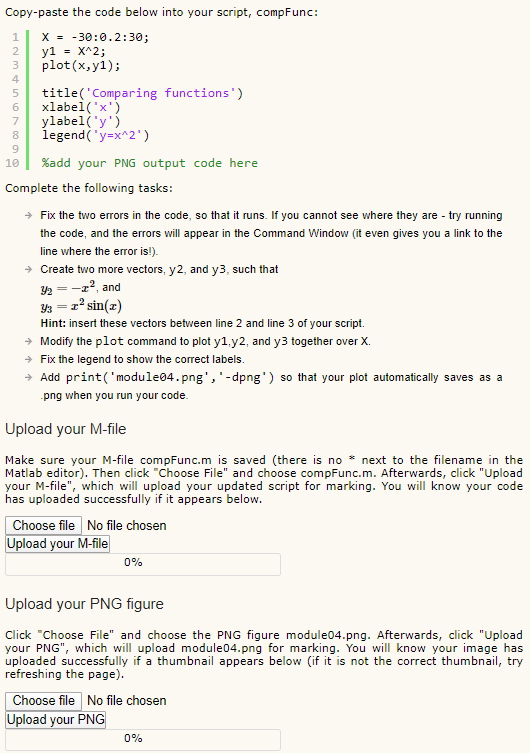
X = -30:0.2:30; y1 = X^2; plot(x,y1); title('Comparing functions') xlabel('x') ylabel('y') legend('y=x^2') %add your PNG output code here
Copy-paste the code below into your script, compFunc: X = -30:0.2:30; y1 = X^2; plot(x,y); 00 au title('Comparing functions') xlabel('x') ylabel('y') legend('y=x^2') %add your PNG output code here Complete the following tasks: Fix the two errors in the code, so that it runs. If you cannot see where they are - try running the code, and the errors will appear in the Command Window (it even gives you a link to the line where the error is!). Create two more vectors, y 2, and y3, such that y = -22, and 33 =sin(2) Hint: insert these vectors between line 2 and line 3 of your script. Modify the plot command to plot y1, y2, and y3 together over X Fix the legend to show the correct labels. Add print('module04.png','-dpng') so that your plot automatically saves as a .png when you run your code. Upload your M-file Make sure your M-file compFunc.m is saved (there is no * next to the filename in the Matlab editor). Then click "Choose File" and choose compFunc.m. Afterwards, click "Upload your M-file", which will upload your updated script for marking. You will know your code has uploaded successfully if it appears below. Choose file No file chosen Upload your M-file 0% Upload your PNG figure Click "Choose File" and choose the PNG figure module04.png. Afterwards, click "Upload your PNG", which will upload module04.png for marking. You will know your image has uploaded successfully if a thumbnail appears below if it is not the correct thumbnail, try refreshing the page). Choose file No file chosen Upload your PNG 0%
Step by Step Solution
There are 3 Steps involved in it

Get step-by-step solutions from verified subject matter experts
 Study Help